Private browsing is a browser mode that stops your device from saving your history, cookies, and form data once you close the session. It keeps your activity hidden from other people who use the same computer, but it does not make you invisible online.
Almost every modern browser offers it, and millions of people click that “New private window” option every day. Yet many users misunderstand what it actually does. Some believe it hides them from their employer, their internet provider, or hackers. It doesn’t.
In this guide, we’ll answer the question what is private browsing, explain how it works under the hood, cover what it protects (and what it leaves exposed), and show you how to build real privacy and security on top of it.
What is Private Browsing
Private browsing is a temporary, isolated browsing session. When you open a private window, the browser creates a clean environment that starts with no saved cookies and no login sessions. When you close it, the browser wipes everything that session created.
The feature exists mainly for local privacy. It protects you from the people who share your device, such as family members, roommates, or coworkers using a shared workstation. It is not designed to hide you from websites or networks.
Each browser gives the feature its own name, but the core behaviour is nearly identical:
| Browser | Name of private mode | Keyboard shortcut (Windows / Mac) |
|---|---|---|
| Google Chrome | Incognito mode | Ctrl+Shift+N / Cmd+Shift+N |
| Mozilla Firefox | Private Browsing | Ctrl+Shift+P / Cmd+Shift+P |
| Microsoft Edge | InPrivate browsing | Ctrl+Shift+N / Cmd+Shift+N |
| Apple Safari | Private Browsing | Cmd+Shift+N |
| Opera | Private window | Ctrl+Shift+N / Cmd+Shift+N |
| Brave | Private window (optional Tor) | Ctrl+Shift+N / Cmd+Shift+N |
How Private Browsing Works
Private browsing works by keeping session data in temporary storage and discarding it the moment you close the last private window. Here is what happens step by step.
- A separate, empty profile is created. The browser opens a fresh session that cannot read your normal cookies, saved logins, or site data. That is why you appear logged out of every site.
- Data is held in memory, not written to disk. Cookies, cached files, and local storage created during the session live in a temporary container, usually in RAM.
- History and form entries are not recorded. URLs you visit, search terms, and text typed into forms are not added to your browsing history or autofill.
- Everything is wiped on close. When the final private window closes, the browser deletes the session’s cookies, cache, and site data.
- Some items deliberately survive. Files you download and bookmarks you create stay on your device, because you chose to save them.
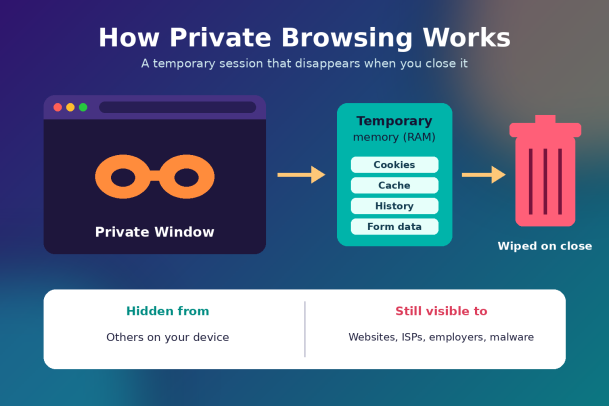
It helps to think of private browsing as a disposable notepad. You can write anything during the session, but the page is torn off and thrown away when you leave. The websites you visited, however, may still keep their own copy.
What Private Browsing Protects (and What It Doesn’t)
Private browsing protects what is stored on your device; it does nothing about what travels across the network. Knowing that line is the key to using it well.
| Who or what | Can they see your private activity? | Why |
|---|---|---|
| Other people using your device | No | History, cookies, and autofill are deleted when you close the window |
| Websites you visit | Yes | Sites still log your IP address, actions, and logins |
| Your internet service provider | Yes | Your traffic still passes through their network |
| Your employer or school network | Yes | Network firewalls, proxies, and monitoring tools see your traffic |
| Advertisers and trackers | Partly | Third-party cookies are cleared, but browser fingerprinting still works |
| Malware on your device | Yes | Keyloggers and spyware capture activity in any browser mode |
| Search engines | Yes, while logged in | Signing in links your searches to your account |
The last two rows matter most for security. Private browsing does not block malicious downloads, phishing pages, or infected ads. If your device is already compromised, an attacker can watch everything you do, private window or not.
5 Common Myths About Private Browsing
Most confusion about private browsing comes from its name, which promises more than the feature delivers.
- Myth 1: “Private browsing makes me anonymous.” Your IP address is still visible to every site and network you touch. Anonymity requires tools like a VPN or Tor.
- Myth 2: “It hides my activity from my ISP.” Your internet provider routes all your traffic, so it can still see the domains you visit.
- Myth 3: “My employer can’t see what I do.” Corporate networks inspect traffic at the gateway, and managed devices may run monitoring software.
- Myth 4: “It protects me from viruses.” Private mode has no antivirus, sandboxing, or phishing filter beyond what your normal browser offers.
- Myth 5: “Nothing I do is ever saved.” Downloads, bookmarks, and screenshots remain on your device after you close the window.
When Should You Use Private Browsing
Private browsing is most useful when you want a clean session or need to keep activity off a shared device. Good use cases include:
- Using a public or shared computer. Log in to email or banking at a library or hotel without leaving your session behind.
- Shopping for gifts. Keep surprise purchases out of the family computer’s history and autofill suggestions.
- Comparing prices. Some travel and retail sites adjust results based on cookies; a fresh session shows a neutral view.
- Signing in to two accounts at once. Use your personal account in one window and a work account in a private window.
- Testing websites. Developers and marketers use it to see a page the way a first-time visitor does.
- Researching sensitive topics. Keep health, legal, or financial searches from shaping future recommendations on that device.
To start a session, open your browser menu and choose “New private window” (or Incognito or InPrivate), or use the keyboard shortcut in the table above. On mobile, tap the tabs icon and switch to private mode.
Going Beyond Private Browsing: Real Privacy and Security
Private browsing is one layer; real protection comes from combining it with tools that secure your connection and your device.
- Use a reputable VPN. A VPN encrypts traffic between your device and the VPN server and hides your IP address from the sites you visit.
- Choose privacy-focused search and browsers. Search engines that don’t profile users and browsers with built-in tracker blocking reduce data collection.
- Enable HTTPS-only mode. This forces encrypted connections and protects data on public Wi-Fi.
- Install browser security extensions carefully. Reputable ad and tracker blockers help, but every extension adds risk, so keep the list short.
- Protect the endpoint itself. Antivirus, endpoint detection and response (EDR), and application containment stop malware that no browser mode can block.
- Practise good account hygiene. Use a password manager, unique passwords, and multi-factor authentication on every important account.
Why this matters for businesses
For organisations, private browsing can actually reduce visibility. Employees may assume they are safe in incognito mode while downloading unknown files or clicking phishing links, and those threats reach the endpoint just the same.
That is why modern security teams focus on the device rather than the browser mode. A Zero Trust approach treats every unknown file and process as untrusted until it is verified. Solutions such as Xcitium’s endpoint protection automatically contain unknown executables in a virtual environment, so even a malicious download from a private window cannot harm the real system.
Final Thoughts
So, what is private browsing? It is a useful, built-in way to keep your history, cookies, and form data off a shared device. It works by running a temporary session in isolated storage and deleting it when you close the window.
What it is not is a security tool. Websites, internet providers, employers, and malware can all still see or capture your activity. To stay truly safe, pair private browsing with encrypted connections, strong account hygiene, and endpoint protection that stops threats before they run.
Protect Every Endpoint, Not Just Your Browser
Incognito mode can’t stop ransomware, zero-day malware, or phishing payloads. Xcitium’s Zero Trust endpoint security can, by isolating unknown files before they ever touch your systems. See how it protects your users, wherever and however they browse.
Please give us a star rating based on your experience.

 (16 votes, average: 2.19 out of 5, rated)