You open your laptop, launch a browser, and before you can type a single search, a pop-up appears. Then another. Your homepage has changed to a site you have never heard of, and every page you visit is cluttered with flashing banners. If this sounds familiar, there is a good chance your device is infected with adware.
Adware is one of the most common forms of unwanted software in the world. It is often dismissed as a mere nuisance, but it can slow your systems, track your activity, and open the door to far more dangerous threats. In this guide, we answer the question what is adware, explain how it works, show you how to spot it, and walk through proven steps for preventing and removing it.
What is Adware
Adware, short for advertising-supported software, is a type of program that automatically displays or downloads advertisements on a device, usually without the user’s clear consent. Its primary goal is to generate revenue for its creators, who are paid each time an ad is shown, clicked, or leads to an install.
Not all ad-supported software is malicious. Many free apps legitimately show ads in exchange for free access, and they disclose this upfront. The problem begins when software hides its true purpose, installs itself without permission, resists removal, or collects personal data behind the scenes. At that point, adware crosses into the category of potentially unwanted programs (PUPs) and, in its more aggressive forms, malware.
Adware runs on Windows and macOS computers, Android and iOS phones, and inside web browsers as malicious extensions. Wherever there are users and screens, adware authors see an opportunity to profit.
How Adware Works
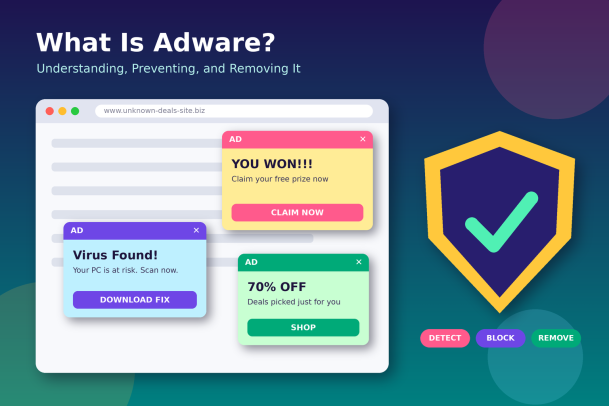
Adware typically enters a device in one of three ways. The most common is software bundling, where adware is packaged with a free download such as a PDF converter, video player, or game. During installation, pre-checked boxes quietly agree to install extra “offers.” The second route is malicious websites and ads, where a compromised page or a deceptive download button triggers an unwanted install. The third is fake browser extensions and apps that promise useful features but exist mainly to inject ads.
Once installed, adware gets to work. It may change your browser homepage and default search engine, inject banners into websites that normally carry none, redirect your searches through affiliate links, or launch pop-up windows at random. Many variants also track browsing history, search terms, location, and device details so they can serve targeted ads or sell that data to third parties.
To stay on your system, adware often hides in startup folders, scheduled tasks, or browser settings, and some versions reinstall themselves if you remove only one component.
Common Types of Adware
Adware comes in several forms, each with its own way of reaching you:
- Browser hijackers change your homepage, new-tab page, and default search engine, then route your searches through ad-heavy portals.
- Pop-up and pop-under adware opens new windows or tabs filled with ads, sometimes even when your browser is closed.
- Ad-injecting extensions insert extra banners, in-text links, and sponsored results into legitimate websites.
- Mobile adware hides inside seemingly harmless apps and displays full-screen ads, often after hiding its own icon so it is harder to find.
- Spyware-style adware focuses on harvesting browsing behavior and personal data to build detailed advertising profiles.
- Malvertising-linked adware serves ads that lead to scam pages, fake update prompts, or malicious downloads.
Signs Your Device Has Adware
Adware is designed to blend in, but it rarely stays invisible for long. Watch for these warning signs:
- Pop-ups and ads appear on sites that normally have none, or appear constantly.
- Your browser homepage or search engine has changed without your permission.
- New toolbars, extensions, or apps appear that you do not remember installing.
- Your device runs noticeably slower, the fan spins up, or your phone battery drains faster than usual.
- Clicking links sends you to unexpected pages or shopping sites.
- Mobile data usage spikes without a clear reason.
- Fake alerts claim your device is infected and urge you to download a “cleaner.”
If you notice two or more of these symptoms, treat it as a likely infection and act quickly.
Why Adware Is Dangerous
It is tempting to think of adware as harmless clutter. In reality, it carries real risks for individuals and organizations alike.
Privacy loss. Many adware programs record what you search, which sites you visit, and sometimes what you type into forms. That data can be sold, leaked, or combined with other sources to build a detailed profile of you.
Gateway to malware. Adware frequently displays malicious ads or redirects users to compromised websites. One careless click on a fake “update your browser” prompt can install ransomware, banking trojans, or credential stealers.
Performance and productivity drain. Background ad processes consume CPU, memory, and bandwidth. On business networks, dozens of infected endpoints can noticeably slow operations and frustrate employees.
Weakened security posture. Adware may disable security settings, alter browser policies, or install root certificates to intercept traffic. Each change gives attackers a wider opening.
How to Prevent Adware
Prevention is always easier than cleanup. These habits dramatically reduce your exposure:
- Download from trusted sources only. Use official vendor websites and verified app stores rather than third-party download portals.
- Choose custom installation. When installing free software, select “Custom” or “Advanced” and uncheck any bundled offers, toolbars, or extra programs.
- Keep everything updated. Patch your operating system, browsers, and plugins promptly to close the vulnerabilities adware exploits.
- Audit browser extensions. Install only extensions you truly need from reputable developers, and review permissions before adding them.
- Enable browser protections. Turn on pop-up blocking and safe browsing features, and consider a reputable ad blocker.
- Be skeptical of urgent prompts. Ignore pop-ups claiming your device is infected or that you must install a plugin to view content.
- Use endpoint protection. Modern security software can detect and block adware and PUPs before they run, which is essential for businesses managing many devices.
How to Remove Adware Step by Step
If your device is already infected, follow these steps in order:
- Disconnect and back up. Briefly go offline to stop data being sent out, and back up important files to a clean external drive.
- Uninstall suspicious programs. On Windows, open Settings > Apps; on macOS, check the Applications folder. Remove anything unfamiliar or recently installed around the time symptoms began.
- Clean your browsers. Remove unknown extensions, then reset your homepage, new-tab page, and default search engine. If problems persist, use the browser’s built-in reset option.
- Check startup items and scheduled tasks. Disable entries that launch unknown programs at boot, and on macOS review Login Items and profiles.
- Remove rogue mobile apps. On Android, check device administrator permissions first, then uninstall any app that shows ads outside its own screen. Booting into safe mode can help if the app resists.
- Run a full security scan. Use a trusted anti-malware tool to find leftover files, registry entries, and hidden components that manual cleanup misses.
- Change passwords. If the adware tracked your activity, update passwords for important accounts and enable multi-factor authentication.
If adware keeps returning after all of these steps, the infection may be deeper than it appears, and a professional security solution is the safest route.
Adware in the Business Environment
For organizations, adware is more than an annoyance. Every infected laptop is an unmanaged risk on the corporate network. Employees who install free tools to get work done can unknowingly bring adware inside, and remote or hybrid work makes these endpoints harder to monitor.
The consequences can include leaked browsing data tied to corporate accounts, exposure to phishing pages that harvest login credentials, and a foothold for attackers seeking to move laterally. Help desk teams also lose valuable time chasing slow machines and pop-up complaints.
A strong defense combines clear software policies, employee awareness training, and centralized endpoint protection. Solutions that use a Zero Trust approach, isolating unknown applications until they are verified as safe, stop adware from making changes to the system even if a user runs it by mistake. Paired with continuous monitoring and endpoint detection and response (EDR), this gives security teams visibility and control across every device.
Conclusion
So, what is adware? It is advertising-driven software that floods your screen with ads, hijacks your browser, tracks your behavior, and often paves the way for more serious attacks. The good news is that it is highly preventable. By downloading carefully, reviewing installers, keeping software updated, and knowing the warning signs, you can keep most adware off your devices. And if an infection slips through, a methodical removal process backed by reliable security tools will get you back in control.
For businesses, the stakes are higher. A single infected endpoint can expose sensitive data and become the entry point for a costly breach. That is why forward-thinking organizations rely on Zero Trust endpoint protection that blocks unknown threats before they can cause damage.
Ready to stop adware and other threats across every endpoint in your organization? See how Xcitium’s Zero Trust platform keeps unknown applications contained and your business protected.
Please give us a star rating based on your experience.

 (145 votes, average: 1.08 out of 5, rated)