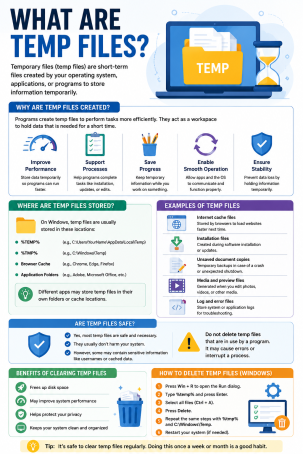
Have you ever noticed your computer’s storage mysteriously shrinking even though you haven’t downloaded anything new? The answer is often hiding in plain sight: temp files. So, what are temp files, and why should anyone care about them? In simple terms, temp files (short for temporary files) are files your operating system and applications create automatically to store data for a short period while a task is being completed. They’re meant to be deleted once their job is done — but in reality, they often pile up, consume disk space, and in some cases, create real cybersecurity risks.
For anyone concerned with online security, cybersecurity, or internet security, understanding temp files isn’t just a housekeeping issue. These files can hold sensitive data, expose system vulnerabilities, and even be exploited by malware if left unmanaged. In this guide, we’ll break down what temp files are, how they’re created, why they matter for security, and how you can manage them safely.
What Are Temp Files? A Simple Definition
Temp files are files that operating systems, applications, and browsers generate automatically while performing a task. They act as a kind of digital scratchpad — a place to temporarily hold data such as unsaved document changes, cache information, or intermediate processing results.
For example:
- Microsoft Word creates a temporary file to autosave your document as you type.
- Web browsers create cache and cookie temp files to load pages faster.
- Installers create temp files to unpack and process software before installation completes.
- Operating systems create temp files during updates, print jobs, or system processes.
Once the task finishes, these temporary files are supposed to be automatically deleted. However, due to software crashes, interrupted processes, or poor system cleanup routines, temp files frequently remain on your device long after they’ve served their purpose.
How Are Temp Files Created?
Understanding how temp files are created helps explain why they accumulate so quickly. Here are the most common sources:
1. Operating System Processes
Windows, macOS, and Linux all generate temp files during routine operations like software updates, system diagnostics, and background processes.
2. Application Usage
Programs like word processors, spreadsheet tools, and design software create temp files to support features like autosave and undo history.
3. Web Browsing Activity
Every time you browse the internet, your browser stores temporary internet files — including cached images, scripts, and cookies — to improve loading speed on future visits.
4. Software Installation and Updates
When you install or update an application, temp files are generated to hold data during the extraction and setup process.
Why Temp Files Matter for Cybersecurity and Internet Security
This is where temp files stop being a simple storage nuisance and start becoming a genuine security concern. Here’s why cybersecurity professionals pay close attention to temporary files:
They Can Store Sensitive Data
Temp files sometimes contain fragments of sensitive information — login credentials, form data, or cached documents — that were never meant to persist on disk. If a device is compromised, attackers can mine these leftover files for exploitable data.
They Can Be Exploited by Malware
Malicious software often uses temp folders as a staging ground. Because temp directories usually have looser permission controls and are frequently overlooked during security scans, malware authors exploit temp files to hide payloads, drop executables, or evade detection during an attack.
They Can Slow Down Threat Detection
A cluttered temp folder makes it harder for antivirus and endpoint protection tools to scan efficiently. Excess temporary files can also mask the presence of genuinely malicious files among thousands of harmless ones.
They Contribute to System Vulnerabilities
Outdated or corrupted temp files can create instability, which attackers may leverage through privilege escalation or other exploit techniques targeting weak points in system processes.
How to Manage and Clean Up Temp Files Safely
Now that you understand what temp files are and the risks they carry, here’s how to manage them without disrupting your system:
- Use built-in cleanup tools. Windows offers Disk Cleanup and Storage Sense; macOS has Optimized Storage. These tools safely identify and remove unnecessary temporary files.
- Clear browser cache regularly. Since browsers generate large volumes of temp files, clearing cache and cookies periodically reduces both clutter and exposure of cached data.
- Avoid manually deleting system-critical temp files. Some temp files are actively in use by running processes. Deleting the wrong file can cause application crashes or data loss.
- Schedule regular scans with a trusted security solution. A reliable endpoint protection platform can identify malicious files hiding in temp directories before they cause damage.
- Keep software updated. Updated applications are less likely to leave orphaned or corrupted temp files behind due to bugs.
- Monitor disk usage. If temp files are consuming unusually large amounts of storage, it could indicate a stuck process or, in rare cases, malicious activity worth investigating.
Temp Files vs. Cache Files vs. Junk Files: What’s the Difference?
These terms are often used interchangeably, but they aren’t identical:
- Temp files are created for short-term use during a specific task or process.
- Cache files are a subtype of temp files specifically designed to speed up future actions, like reloading a webpage.
- Junk files is a broader term that includes temp files, cache files, log files, and other unnecessary data that accumulates over time.
Knowing the distinction helps you choose the right cleanup approach and understand which files might carry security implications versus which are simply taking up space.
Final Thoughts: Don’t Overlook Temp Files in Your Security Strategy
So, what are temp files, really? They’re a normal, necessary part of how your operating system and applications function — but they’re also an often-overlooked entry point for security risks. From storing sensitive fragments of data to serving as hiding spots for malware, temporary files deserve a place in any serious internet security or cybersecurity strategy.
Regularly managing temp files, keeping your systems updated, and using robust endpoint protection can significantly reduce the risks associated with them. Don’t wait for a cluttered system or a hidden threat to become a bigger problem.
Ready to strengthen your organization’s cybersecurity posture beyond just temp file management? Request a demo with Xcitium today and see how proactive endpoint protection can keep hidden threats — including those lurking in temp files — out of your systems.
Frequently Asked Questions About Temp Files
1. What are temp files used for?
Temp files are used to temporarily store data while an application or operating system completes a task, such as autosaving a document, caching a webpage, or installing software. They’re meant to be deleted once the task is finished.
2. Is it safe to delete temp files?
In most cases, yes — deleting temp files through built-in system tools like Disk Cleanup is safe. However, manually deleting files while an application is actively running can cause crashes or data loss, so it’s best to use trusted cleanup utilities.
3. Can temp files contain viruses or malware?
Yes. Temp folders are a common hiding spot for malware because they often have relaxed permissions and are easily overlooked. This is why regular security scans of temp directories are important.
4. Do temp files affect computer performance?
Yes, an excessive buildup of temp files can slow down your system by consuming storage space and making it harder for security software to scan efficiently.
5. How often should I clean up temp files?
For most users, cleaning temp files once a month — or whenever storage runs low — is sufficient. Businesses handling sensitive data may benefit from more frequent, automated cleanup as part of a broader cybersecurity routine.
Please give us a star rating based on your experience.


 (23 votes, average: 2.48 out of 5, rated)