Deleting a folder in Linux sounds like a trivial task — until you’re managing production servers, automated pipelines, or shared infrastructure where a single misplaced command can wipe out critical data in seconds. For IT professionals, knowing how to remove a folder in Linux correctly isn’t just about memorizing a command; it’s about understanding permissions, recursion, safety flags, and the difference between a reversible mistake and an unrecoverable disaster.
This guide walks through every practical method for removing folders in Linux, from the beginner-friendly rmdir to advanced, scriptable deletion patterns used in enterprise environments — along with the safety practices that separate a smooth cleanup from a support ticket at 2 a.m.
Why Folder Deletion Matters More Than It Seems
Linux does not have a “Recycle Bin” by default at the command-line level. When you delete a directory using standard shell commands, the data is typically gone immediately — no undo, no confirmation dialog, and in most cases, no easy recovery without specialized forensic tools. For IT teams managing servers, this makes folder removal one of the most deceptively risky day-to-day operations.
Add to that the fact that many IT professionals work across multiple systems — bare-metal servers, containers, cloud instances, and CI/CD pipelines — and the margin for error in a single deletion command multiplies. A typo in a rm -rf command has taken down entire production systems in real incidents shared across the sysadmin community. Understanding the tools and their behavior is the first line of defense.
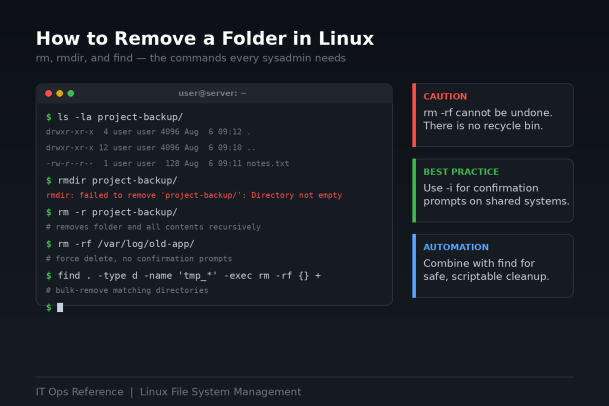
Method 1: Using rmdir to Remove Empty Folders
The rmdir command is the safest option in your toolkit because it only works on empty directories. This built-in safeguard makes it ideal for routine cleanup where you want to avoid accidentally deleting folders that still contain files.
bash
rmdir /path/to/folderIf the folder contains any files or subdirectories, you’ll see an error like:
rmdir: failed to remove 'folder': Directory not emptyThis is intentional. rmdir forces you to confirm — even if only implicitly — that a directory is truly empty before it disappears. For IT professionals performing routine maintenance on log directories, temp folders, or build artifacts, rmdir should be the default choice whenever emptiness is expected.
To remove multiple empty folders at once:
bash
rmdir folder1 folder2 folder3To remove nested empty directories in one pass:
bash
rmdir -p parent/child/grandchildThe -p flag removes the specified directory and then attempts to remove its parent directories as well, as long as each one is empty.
Method 2: Using rm -r to Remove Folders with Contents
Most real-world folders aren’t empty, which is where rm (remove) with the recursive flag comes in. This is the command most commonly associated with “how to remove a folder in Linux.”
bash
rm -r /path/to/folderThe -r (or -R) flag tells rm to recursively delete the directory and everything inside it — files, subfolders, and their contents. Depending on your system configuration, you may be prompted to confirm deletion of write-protected files.
Adding Verbosity for Audit Trails
In enterprise environments, visibility into what’s being deleted matters, especially for compliance and troubleshooting. Add the -v (verbose) flag to log every file and folder as it’s removed:
bash
rm -rv /path/to/folderThis is particularly useful when scripting cleanup jobs that pipe output to a log file for later review.
Method 3: Using rm -rf for Forced, Silent Deletion
The -f (force) flag suppresses confirmation prompts and ignores nonexistent files, making deletion fully non-interactive:
bash
rm -rf /path/to/folderThis is the command most IT professionals reach for in automation scripts, deployment pipelines, and cleanup cron jobs — but it is also the single most dangerous command on this list. Because it bypasses confirmations entirely, rm -rf will not ask twice. If you run it against the wrong path, there is no warning and no recovery.
The Golden Rules Before Running rm -rf
- Always double-check the path. Run
pwdandlsbefore executing, especially in scripts using variables. - Never run
rm -rfwith a blank or unset variable. A command likerm -rf $DIR/*where$DIRis empty can resolve torm -rf /*. - Avoid running as root unless necessary. Elevated privileges remove the usual permission-based safety net.
- Test destructive scripts in a staging environment first.
- Consider
--interactive=oncefor semi-automated scripts:
bash
rm -rf --interactive=once /path/to/folderThis prompts for a single confirmation before proceeding with the entire recursive deletion, offering a small but meaningful safety checkpoint.
Method 4: Removing Folders Based on Conditions with find
IT professionals frequently need to delete folders that match a pattern — temporary directories, old log folders, or cache directories older than a certain age. The find command combined with -exec or -delete handles this elegantly.
To remove all directories matching a name pattern:
bash
find /var/data -type d -name "tmp_*" -exec rm -rf {} +To remove directories older than 30 days:
bash
find /var/log/app -type d -mtime +30 -exec rm -rf {} +To preview what would be deleted before actually deleting (always recommended for bulk operations):
bash
find /var/data -type d -name "tmp_*"Run the search first, review the output, and only append -exec rm -rf {} + once you’ve confirmed the results are exactly what you intend to remove.
Method 5: Removing Folders with Elevated Permissions
If a folder is owned by another user or protected by restrictive permissions, you may need sudo:
bash
sudo rm -rf /path/to/folderUse this cautiously. Combining sudo with rm -rf removes the operating system’s normal permission checks, meaning mistakes at this level can affect system files, other users’ data, or critical application directories. Always verify ownership with ls -la before escalating privileges for a delete operation.
Method 6: Safer Alternatives for Production Environments
Given the irreversible nature of rm, many IT teams implement safer workflows for production systems:
Trash-cli: A command-line tool that mimics a recycle bin, moving files to a trash directory instead of permanently deleting them.
bash
sudo apt install trash-cli
trash-put /path/to/folder
Renaming before deletion: Some teams rename folders with a .deleted- prefix and a timestamp, then clean them up after a retention period via a scheduled job — giving a built-in grace period before permanent removal.
Version-controlled infrastructure scripts: For folders managed by deployment or configuration tools, deletions should ideally be handled through the same automation (Ansible, Terraform, shell scripts in source control) that created them, ensuring every removal is logged, reviewed, and reversible through rollback.
Common Mistakes IT Professionals Should Avoid
- Using wildcards carelessly.
rm -rf /var/log/*behaves very differently fromrm -rf /var/log. Know exactly what a wildcard will expand to before running it. - Not checking symlinks. Deleting a directory that’s actually a symbolic link can have unexpected effects on the target location.
- Skipping backups before bulk deletions. Even routine cleanup scripts should snapshot or archive data before permanent removal when feasible.
- Running destructive commands directly on production without a dry run. Always test logic with
echoprefixed to the command, or withfindalone before appending-exec. - Ignoring disk-usage context. Before deleting large folders, run
du -sh /path/to/folderto understand exactly how much data — and potentially how much risk — is involved.
Quick Reference Table
| Command | Use Case | Risk Level |
|---|---|---|
rmdir folder | Remove empty folder | Low |
rm -r folder | Remove folder with contents (prompts) | Medium |
rm -rf folder | Force remove folder, no prompts | High |
find ... -exec rm -rf {} + | Bulk/conditional removal | High |
sudo rm -rf folder | Remove with elevated permissions | Very High |
trash-put folder | Reversible removal (recycle bin) | Low |
Final Thoughts
Removing a folder in Linux is a one-line operation, but the consequences of getting it wrong can ripple across an entire infrastructure. For IT professionals, the goal isn’t just knowing the syntax — it’s building habits around verification, logging, and reversible workflows that protect systems from human error. Whether you’re cleaning up a single directory or automating deletion across thousands of servers, the principles remain the same: know what you’re deleting, confirm the path, and never run a destructive command you haven’t reviewed.
As IT environments grow more complex, the margin for manual error shrinks. Pairing solid command-line discipline with endpoint protection and centralized visibility across your infrastructure is what turns routine maintenance into a controlled, auditable process rather than a risk factor.
Ready to Strengthen Your IT Security Posture?
Command-line discipline is only one piece of protecting your infrastructure. See how Xcitium’s endpoint protection and Zero Trust architecture help IT teams prevent, detect, and contain threats before they ever reach critical systems.
Please give us a star rating based on your experience.

 (15 votes, average: 2.07 out of 5, rated)