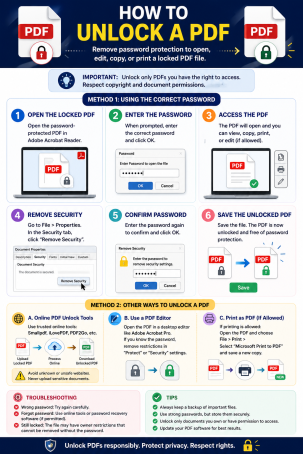
Locked out of your own document? You’re not alone — password-protected PDFs are one of the most common file-access frustrations, whether it’s a forgotten password on an old tax return or a client contract you need to edit but can’t. Knowing how to unlock a PDF the right way matters for more than convenience, though: the method you choose can either protect your sensitive data or expose it to unnecessary risk.
This guide walks through the legitimate ways to unlock a PDF you own or have permission to access, explains the security risks of certain shortcuts, and shows you how to keep your documents safe throughout the process — an important distinction for anyone who takes online security seriously.
Understanding PDF Password Protection
Before you unlock a PDF, it helps to know what kind of protection you’re dealing with, since the method differs depending on the lock type.
Open Passwords vs. Permission Passwords
- Open (user) passwords require a password just to view the file at all. Without it, the document won’t open in any reader.
- Permission (owner) passwords allow the file to open freely but restrict specific actions like printing, copying text, or editing — common in legal, HR, and financial documents.
Understanding which type you’re facing determines whether you’ll be entering a password to unlock the file or removing restrictions after you’ve already gained access.
How to Unlock a PDF When You Know the Password
This is the safest and most straightforward scenario, and it applies to the vast majority of everyday cases — a document you created, received from a trusted source, or were given legitimate access to.
Using Adobe Acrobat or a Trusted PDF Editor
- Open the PDF in Adobe Acrobat, Foxit, or another reputable PDF editor.
- Enter the password when prompted to open the file.
- Go to the Security or Protect panel in the toolbar.
- Select Remove Security or Remove Password.
- Re-enter the password to confirm, then save the file.
This permanently decrypts the PDF, so you won’t need to re-enter the password each time you open it going forward.
Using Chrome’s Print-to-PDF Trick
If your PDF editor doesn’t offer a “remove security” option, and the file doesn’t have printing restrictions, you can use a simple workaround:
- Open the password-protected PDF in Google Chrome and enter the password.
- Click the Print icon (or press Ctrl+P).
- Under “Destination,” select Save as PDF.
- Save the new file — it will open without requiring a password.
This method works well for viewing and sharing but doesn’t preserve interactive elements like form fields, so it’s best for static documents.
How to Unlock a PDF Using Online Tools — Safely
Free online PDF unlockers are widely available and convenient, but from a cybersecurity standpoint, they deserve extra scrutiny before you use them.
What to Check Before Uploading a Sensitive Document
- Encryption in transit: Confirm the site uses HTTPS before uploading anything.
- Data retention policy: Reputable tools state clearly that files are deleted automatically, often within an hour.
- No third-party sharing: Read the privacy policy for any mention of data being shared, sold, or used for training purposes.
- Avoid uploading regulated data: Never run PDFs containing financial records, medical information, or personally identifiable information (PII) through an unfamiliar online tool. For sensitive files, always default to offline, locally-installed software instead.
Online convenience should never come at the cost of exposing confidential business or personal data to an unverified third-party server — a risk that’s easy to overlook when you just need quick access to a file.
Why You Should Never Try to Bypass a PDF Password You Don’t Own
It’s important to draw a clear line here: unlocking a PDF is only appropriate when you own the document, created it yourself, or have explicit authorization from the rightful owner. Attempting to crack, brute-force, or bypass a password on a file that isn’t yours can violate copyright law, computer fraud statutes, and workplace data policies, depending on your jurisdiction and the nature of the document.
If you’ve lost access to a business-critical file with permissions you don’t control, the correct path is to contact the document owner or your IT/security team — not to seek out unauthorized password-removal tools, which are frequently bundled with malware or used to harvest uploaded files.
Best Practices for Managing PDF Security Long-Term
Once you’ve successfully unlocked a PDF, a few habits will help you avoid repeating the process and reduce your overall exposure:
- Use a password manager to store PDF passwords securely instead of relying on memory or unencrypted notes.
- Re-encrypt sensitive files after editing if they contain confidential information, using a strong, unique password.
- Avoid reusing the same password across multiple protected documents, since a single breach can expose everything.
- Verify the source before opening any PDF, since malicious actors often disguise malware as password-protected “secure” attachments to bypass email filters.
FAQ: How to Unlock a PDF
1. Is it legal to unlock a PDF?
Yes, as long as you own the document or have explicit permission from the owner to access it. Unlocking a PDF you don’t have rights to can violate copyright and computer misuse laws.
2. How do I unlock a PDF if I forgot the password?
If you created the file yourself, check password managers, email confirmations, or backup files where the password may be stored. If you truly cannot recover it and don’t own the underlying data, you’ll need to request a new copy from whoever issued the document.
3. Can I unlock a PDF without any software?
Yes — Google Chrome’s built-in “Print to PDF” feature can strip password protection from files that don’t have printing restrictions, without installing any additional software.
4. Are free online PDF unlockers safe to use?
Some are, provided they use HTTPS encryption and delete uploaded files quickly. However, sensitive or regulated documents should always be processed with trusted, offline software instead of an unfamiliar online tool.
5. Will unlocking a PDF remove all its security features permanently?
Yes, if you use the “Remove Security” option in a PDF editor — this permanently decrypts the file. You can always re-add a password afterward using the same editor’s Protect or Encrypt function.
Protect Your Documents Beyond the Password
Unlocking a PDF is often just one small piece of a much bigger picture: keeping your sensitive files, devices, and networks secure from the threats that target them. Weak file-handling habits and unverified third-party tools are exactly the kind of gaps cybercriminals look to exploit.
See how Xcitium’s advanced endpoint protection helps safeguard your documents, devices, and data against modern cyber threats. Request a demo today and take a proactive step toward complete digital security.
Please give us a star rating based on your experience.

 (13 votes, average: 2.23 out of 5, rated)