How to Format SD Card to FAT32: A Complete Guide
Updated on September 15, 2025, by Xcitium
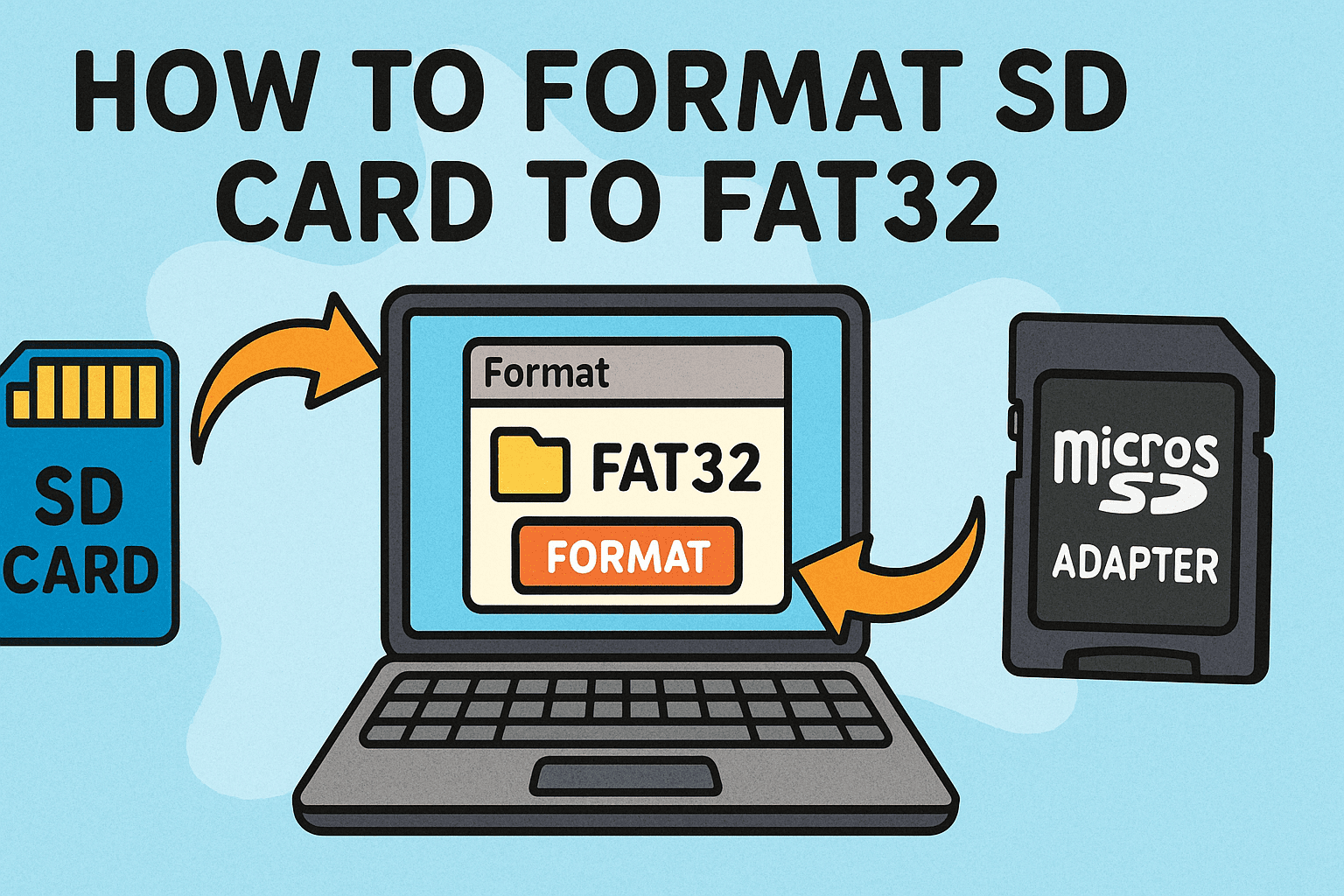
Have you ever wondered, “How to format an SD card to FAT32 safely without losing important data?” Whether you’re setting up storage for cameras, IoT devices, or cybersecurity tools, choosing the right file system matters. FAT32 (File Allocation Table 32) remains one of the most widely supported file systems across operating systems, mobile devices, and embedded systems.
For IT managers, cybersecurity professionals, and business leaders, knowing how to format SD card to FAT32 ensures compatibility, smooth device operations, and secure data handling. In this guide, we’ll walk through multiple methods to format an SD card, explore security implications, and share best practices for enterprise use.
What Is FAT32 and Why Use It?
Before learning how to format SD card to FAT32, let’s understand what it is.
FAT32 Defined
- FAT32 is a file system developed by Microsoft, introduced in 1996.
- It supports storage devices up to 2TB (with 32GB formatting limit in Windows tools).
- It’s compatible with almost all operating systems and devices.
Why Professionals Use FAT32
- Cross-Platform Compatibility: Works with Windows, macOS, Linux, and IoT devices.
- Legacy Device Support: Many cameras, routers, and embedded systems require FAT32.
- Simplicity: Stable and less complex compared to NTFS or exFAT.
👉 For IT managers handling multi-device environments, FAT32 ensures maximum compatibility.
How to Format SD Card to FAT32 on Windows
Windows provides multiple methods to format SD cards.
Method 1: Using File Explorer
- Insert the SD card into your PC.
- Open This PC and locate the SD card.
- Right-click > Format.
- Under File System, select FAT32.
- Click Start to begin formatting.
Method 2: Using Disk Management
- Press Windows + X > Disk Management.
- Right-click the SD card volume.
- Select Format, choose FAT32, and apply.
Method 3: Using Command Prompt
- Search for cmd and run as administrator.
Type:
format X: /FS:FAT32
- (Replace X: with your SD card drive letter).
👉 This method is often faster and bypasses GUI restrictions.
How to Format SD Card to FAT32 on macOS
For Mac users:
- Insert the SD card into your Mac.
- Open Disk Utility (Applications > Utilities).
- Select the SD card from the sidebar.
- Click Erase.
- Choose MS-DOS (FAT) as the format.
- Click Erase to complete.
👉 macOS uses MS-DOS (FAT) as its FAT32 equivalent.
How to Format SD Card to FAT32 on Linux
Linux systems offer powerful formatting options:
- Insert the SD card.
- Open a terminal.
Identify the device using:
sudo fdisk -l
Run:
sudo mkfs.vfat -F 32 /dev/sdX
- (Replace sdX with your card identifier).
👉 For automation, Linux scripts can format multiple SD cards for enterprise deployments.
Third-Party Tools for FAT32 Formatting
Windows limits FAT32 formatting for drives above 32GB, but third-party tools can help:
- Rufus: Popular for bootable drives.
- MiniTool Partition Wizard: Easy GUI interface.
- EaseUS Partition Master: Great for large-capacity SD cards.
Security Considerations When Formatting SD Cards
Formatting is not just about compatibility—it’s about data security.
- Quick Format vs. Full Format:
- Quick Format deletes the file table but leaves data recoverable.
- Full Format wipes sectors and checks for errors.
- Data Sanitization: For sensitive business use, consider secure wiping tools before formatting.
- Prevent Malware Persistence: Some malware can hide in boot sectors; full formatting reduces this risk.
- Access Control: Only authorized staff should format enterprise SD cards to avoid accidental data loss.
👉 In cybersecurity contexts, formatting must be treated as part of data lifecycle management.
Common Problems When Formatting SD Cards
- SD Card Write-Protected: Check the physical switch on the card or remove protection via diskpart.
- Unable to Select FAT32 (Windows): Use third-party tools for cards larger than 32GB.
- Formatting Errors: Ensure the card isn’t corrupted—run chkdsk on Windows.
- Slow Performance After Format: Run full format to detect bad sectors.
Business Use Cases of FAT32 Formatting
For organizations, how to format SD card to FAT32 goes beyond personal use:
- Cybersecurity Labs: Prepare SD cards for forensic tools.
- IoT Deployments: Many IoT devices require FAT32 for boot files.
- Cross-Platform Projects: Ensures smooth file sharing across Windows, Mac, and Linux.
- Enterprise Compliance: Regular formatting ensures sensitive data isn’t left behind.
Best Practices for IT Managers and Leaders
- Back Up Before Formatting: Avoid accidental data loss.
- Use Full Format for Security: Especially for decommissioned or shared devices.
- Label Formatted Cards: Track usage across departments.
- Automate Formatting at Scale: For large enterprises deploying IoT or embedded devices.
- Audit Formatting Processes: Ensure compliance with industry regulations.
FAQs on Formatting SD Cards to FAT32
Q1. Why can’t I format an SD card larger than 32GB to FAT32 in Windows?
Windows’ built-in tools impose a 32GB limit. Use third-party software to bypass.
Q2. Is FAT32 better than exFAT?
FAT32 is more universally compatible, but exFAT supports larger files (>4GB).
Q3. Can formatting remove malware from SD cards?
Yes, but a full format is more effective than a quick format.
Q4. Can I recover data after formatting to FAT32?
Yes, but recovery depends on whether a quick or full format was performed.
Q5. How often should enterprises reformat SD cards?
As part of security policy—ideally before repurposing, retiring, or reassigning devices.
Conclusion: FAT32 as a Universal Standard
So, how to format SD card to FAT32? Whether you’re on Windows, Mac, or Linux, the process is straightforward. For professionals, though, formatting is more than a technical task—it’s part of cybersecurity, compliance, and enterprise device management.
By following secure formatting practices, IT leaders can ensure data integrity, prevent breaches, and maintain compatibility across diverse systems.
👉 Want to elevate your enterprise’s cybersecurity posture? Discover how Xcitium’s zero-trust solutions protect your data and devices.