Remote and hybrid work have changed how organizations measure presence, productivity, and security. Along with that shift, a small and inexpensive gadget has quietly become a topic of discussion in boardrooms, HR departments, and security operations centers alike: the mouse jiggler. If you have ever wondered what is a mouse jiggler, why employees buy them, and why security teams worry about them, this guide covers everything you need to know.
What is a Mouse Jiggler
A mouse jiggler, also called a mouse mover or mouse wiggler, is a device or program that simulates mouse movement on a computer. Its purpose is simple: to keep a computer “awake.” By generating small, regular cursor movements, a jiggler prevents the operating system from entering sleep mode, launching a screensaver, locking the screen, or marking a user as “away” in collaboration apps like Microsoft Teams or Slack.
Mouse jigglers generally come in two forms.
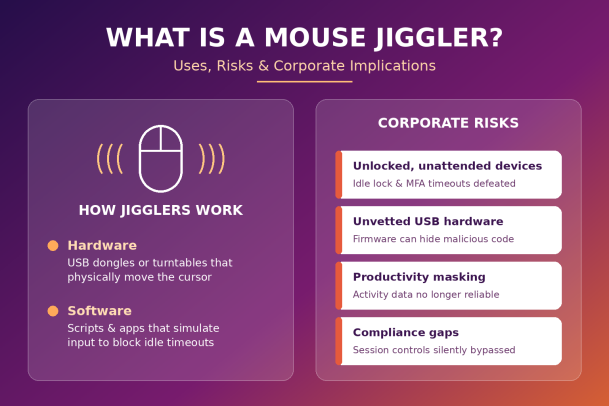
Hardware mouse jigglers are physical devices. The most common type plugs into a USB port and presents itself to the computer as a standard mouse or human interface device (HID). It then sends tiny movement signals at set intervals. Another variety is a mechanical platform, a small rotating turntable or moving plate that you place an optical mouse on, physically moving the mouse so the sensor registers motion. Because these don’t require software installation, they are often invisible to basic monitoring tools.
Software mouse jigglers are applications or scripts that simulate input directly within the operating system. They range from free open-source utilities to simple scripts written in PowerShell, Python, or AutoHotkey. Some are advertised as “stay awake” tools, while others are designed specifically to keep status indicators green.
Legitimate Uses of Mouse Jigglers
It would be unfair to paint mouse jigglers as purely malicious. There are genuine, reasonable scenarios where they serve a practical purpose.
Many professionals run long processes such as large file downloads, data exports, software builds, video renders, or system updates that can be interrupted if the machine goes to sleep. A jiggler keeps the session active until the task completes. Presenters and trainers also use them to prevent screens from dimming during demonstrations or when displaying dashboards on a monitor for extended periods.
In IT and operations environments, kiosk displays, monitoring walls, and information screens often need to remain on continuously. Where power settings are locked down by policy, a jiggler can be a workaround. Accessibility is another consideration, as some users with limited mobility may find aggressive idle timeouts disruptive.
Finally, digital forensics professionals and law enforcement have long used mouse jigglers for a very specific reason: to prevent a seized, running computer from locking or sleeping before its contents can be preserved. Keeping a device awake can mean the difference between accessing volatile data and facing an encrypted, locked system.
Why Employees Use Mouse Jigglers at Work
The more controversial use case involves employees using jigglers to appear active when they are not. As organizations adopted employee monitoring software and began relying on “active” status indicators in chat tools, some workers turned to jigglers to avoid being flagged as idle.
The motivations vary. Some employees feel that presence-based monitoring is unfair and doesn’t reflect actual output, especially for roles that involve thinking, reading, phone calls, or offline work. Others step away briefly and don’t want to be judged by a status light. And in some cases, jigglers are used to deliberately mislead employers about working hours.
This behavior has had real consequences. In 2024, a major US financial institution reportedly dismissed more than a dozen employees after discovering that they had used keyboard and mouse activity simulation to give the impression of active work. The incident sparked a broader public debate about trust, productivity measurement, and workplace surveillance.
The Security Risks of Mouse Jigglers
While the productivity debate grabs headlines, security teams tend to be more concerned about what mouse jigglers do to an organization’s defenses. Here are the most significant risks.
1. Defeating Automatic Screen Locks
Automatic screen locking is one of the most basic and effective security controls. It protects unattended devices from unauthorized access, whether in an office, a coffee shop, an airport, or a shared home. A mouse jiggler effectively disables this control. A laptop left open and unlocked can give anyone nearby direct access to email, internal applications, customer data, and cloud consoles, all under the legitimate user’s authenticated session.
2. Extending Authenticated Sessions
Many applications and VPNs rely on inactivity timeouts to end sessions and force re-authentication. By keeping sessions artificially alive, jigglers extend the window during which a session token or active connection can be abused. This undermines zero-trust principles and increases exposure if a device is compromised.
3. Unvetted USB Hardware
Hardware jigglers are typically purchased from online marketplaces with little transparency about their origin or firmware. Because they identify themselves as HID devices, they are trusted by the operating system automatically. This is exactly the same trust model exploited by malicious USB tools that inject keystrokes. A device that looks like a harmless jiggler could, in theory, contain firmware capable of executing commands, installing malware, or exfiltrating data. Even if most jigglers are benign, allowing unknown USB hardware on corporate endpoints sets a dangerous precedent.
4. Unauthorized Software and Scripts
Software jigglers often come from unofficial sources. Free utilities downloaded from unknown websites may be bundled with adware, spyware, or trojans. Scripts copied from forums might request elevated privileges or disable security features. Each unauthorized tool expands the attack surface and creates shadow IT that security teams can’t see or manage.
5. Corrupting Monitoring and Detection Data
Security analytics and user behavior analytics tools rely on accurate activity data to establish baselines and detect anomalies. Simulated input creates noise that can mask genuinely suspicious behavior or produce misleading patterns, making threat detection harder.
Corporate Implications: Policy, Compliance, and Culture
The presence of mouse jigglers in an organization raises questions beyond technology.
Compliance exposure is a major concern. Frameworks and regulations such as HIPAA, PCI DSS, ISO 27001, and SOC 2 commonly require session controls like automatic logoff or screen lock for systems handling sensitive data. If employees are bypassing these controls, the organization may be out of compliance without realizing it, which can become a serious issue during audits or after a breach.
Acceptable use policies often don’t explicitly mention input simulation tools. Organizations should update their policies to clarify whether jigglers are permitted, under what circumstances, and what approval process applies. Clear rules protect both the company and employees from misunderstandings.
Legal and HR considerations also come into play. Disciplining employees for jiggler use is more defensible when a policy exists and has been communicated. At the same time, employers should be mindful of local labor laws and privacy regulations governing how employee activity is monitored.
Workplace culture deserves attention too. Widespread jiggler use is often a symptom of a deeper problem: measuring activity instead of outcomes. When employees feel watched rather than trusted, they look for workarounds. Many organizations find that shifting toward output-based performance metrics reduces the incentive to fake activity in the first place.
How Organizations Can Detect and Manage Mouse Jigglers
Addressing mouse jigglers effectively requires a combination of technical controls and thoughtful policy.
Start with device control. Endpoint security platforms can restrict which USB devices are allowed to connect, block unknown HID devices, or alert when new peripherals appear. Allowlisting approved hardware closes one of the easiest paths for jigglers and malicious USB tools alike.
Next, enforce application control. Preventing unauthorized executables and scripts from running stops software jigglers and, more importantly, stops the malware that often hides inside unvetted utilities.
Use behavioral analysis to spot unnatural patterns. Perfectly regular cursor movements at fixed intervals, activity with no corresponding keyboard input, or continuous “active” status for unrealistically long periods can indicate simulated input.
Enforce server-side session policies wherever possible, so that re-authentication requirements don’t depend solely on local idle detection. Conditional access and periodic re-authentication reduce the value of keeping a session artificially alive.
Finally, pair technical controls with clear communication. Explain why screen locks and session timeouts exist, provide legitimate alternatives for long-running tasks, and focus performance conversations on results.
Final Thoughts
So, what is a mouse jiggler? On the surface, it’s a small, cheap tool designed to keep a computer awake. In practice, it sits at the intersection of productivity, trust, and cybersecurity. While there are valid use cases, unmanaged jiggler use can quietly disable essential security controls, introduce untrusted hardware and software into your environment, and create compliance gaps that attackers and auditors will eventually find.
The best response is not simply to ban a gadget, but to gain full visibility and control over what runs on and connects to your endpoints, backed by policies that reflect how people actually work.
Take Control of Your Endpoints with Xcitium
Mouse jigglers are just one example of the unknown devices and applications that can slip past traditional defenses. Xcitium’s zero-trust endpoint protection helps you control USB devices, contain unknown executables before they can cause harm, and maintain the visibility your security and compliance teams need, without slowing your workforce down.
Don’t let small gadgets create big security gaps. See how Xcitium can protect every endpoint in your organization.
Please give us a star rating based on your experience.


 (20 votes, average: 2.45 out of 5, rated)