How to Clear RAM Cache: A Complete Guide to Boost System Performance
Updated on January 21, 2026, by Xcitium
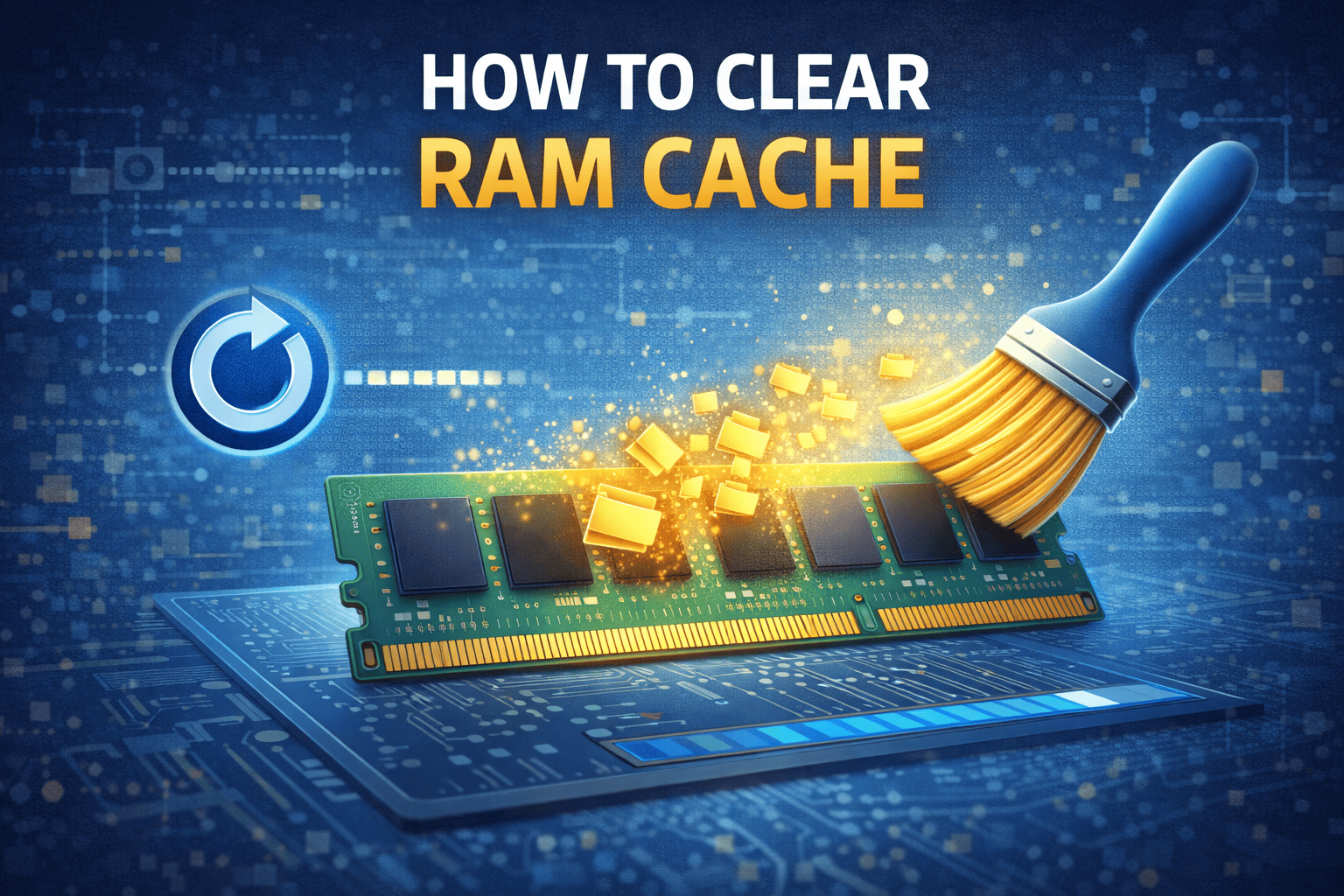
Is your computer running slower than usual, freezing unexpectedly, or struggling with heavy applications? One of the most common—and often overlooked—causes is overloaded memory. Knowing how to clear RAM cache can significantly improve system performance, stability, and responsiveness without requiring hardware upgrades.
RAM (Random Access Memory) plays a vital role in how your system processes tasks. Over time, cached data can consume valuable memory resources, especially on systems running multiple applications or security tools. This guide explains how to clear RAM cache safely on Windows and Mac, why it matters, and how IT teams and business users can optimize memory usage effectively.
What Is RAM Cache and Why Does It Matter?
RAM cache is temporary data stored in memory to help applications run faster. Operating systems use cached memory to reduce load times and improve responsiveness.
Understanding how to clear RAM cache starts with knowing why cache exists in the first place.
Why Systems Use RAM Cache
-
Faster application access
-
Reduced disk usage
-
Improved multitasking performance
-
Smoother system operations
However, when cached memory grows too large or becomes fragmented, performance can suffer.
Signs You Need to Clear RAM Cache
Clearing RAM cache isn’t something you need to do constantly—but certain symptoms indicate it may help.
Common Performance Issues Linked to RAM Cache
-
Sluggish system performance
-
Applications freezing or crashing
-
High memory usage in Task Manager
-
Slow response after long uptime
-
Poor performance during multitasking
When these symptoms appear, learning how to clear RAM cache can provide immediate relief.
How to Clear RAM Cache on Windows
Windows does not include a single “clear RAM cache” button, but several safe methods exist.
Method 1: Restart Your Computer
The simplest and safest way to clear RAM cache Windows systems use is a reboot.
What happens when you restart:
-
Clears all cached RAM
-
Resets running processes
-
Frees locked memory
This method is ideal for non-technical users and quick performance resets.
Method 2: Use Task Manager to End High-Memory Processes
-
Press Ctrl + Shift + Esc
-
Open Task Manager
-
Click the Memory column
-
Identify unnecessary applications
-
Select and click End Task
This method helps free up RAM memory without a full reboot.
Method 3: Use Windows Memory Tools
Windows includes tools that help manage memory usage indirectly.
-
Disable unnecessary startup programs
-
Close background services
-
Reduce browser tab usage
While not a direct cache purge, these steps complement how to clear RAM cache effectively.
How to Clear RAM Cache on Mac
Mac systems manage memory efficiently, but manual clearing can still help in certain cases.
Method 1: Restart Your Mac
Just like Windows, restarting is the easiest way to clear RAM cache Mac systems rely on.
-
Clears inactive and cached memory
-
Improves responsiveness
-
Resets background services
This is the safest option for most users.
Method 2: Use Activity Monitor
-
Open Applications → Utilities → Activity Monitor
-
Click the Memory tab
-
Identify high-memory apps
-
Select the app
-
Click Force Quit
This approach helps free up RAM memory without restarting the entire system.
Method 3: Terminal Command (Advanced Users)
Mac allows advanced users to clear cache using Terminal.
⚠️ Use this command cautiously. It clears inactive memory and may temporarily slow performance as the system rebuilds cache.
RAM Cache vs Storage Cache: Understanding the Difference
Many users confuse RAM cache with disk or browser cache.
RAM Cache
-
Stored in memory
-
Volatile (clears on restart)
-
Impacts system performance
Storage or Browser Cache
-
Stored on disk
-
Persists after reboot
-
Affects app or web performance
Knowing the difference helps users apply the right optimization method.
How Clearing RAM Cache Improves Performance
Clearing RAM cache does not magically speed up old hardware, but it does remove bottlenecks.
Performance Benefits
-
Faster application launches
-
Reduced freezing and lag
-
Improved multitasking
-
More available memory for security tools
For IT managers, knowing how to clear RAM cache helps maintain system health across fleets of devices.
RAM Cache and Cybersecurity Considerations
Memory usage is not just a performance issue—it’s also a security concern.
Why RAM Management Matters for Security
-
Malware can hide in memory
-
Excessive cache masks malicious processes
-
High RAM usage reduces endpoint protection efficiency
Regular memory hygiene supports better endpoint visibility and threat detection.
Best Practices for Managing RAM Cache Long-Term
Manual clearing helps, but proactive management delivers better results.
Actionable RAM Optimization Tips
-
Limit startup applications
-
Keep operating systems updated
-
Use lightweight security tools
-
Monitor memory usage regularly
-
Upgrade RAM if consistently maxed out
These practices reduce the need to frequently clear RAM cache.
How Often Should You Clear RAM Cache?
There’s no one-size-fits-all answer.
General Guidelines
-
Personal users: When performance drops
-
Business users: Weekly or bi-weekly restarts
-
Servers or workstations: Scheduled maintenance
Clearing RAM cache should be a corrective action, not a daily habit.
Common Myths About Clearing RAM Cache
Myth 1: Clearing RAM cache damages your system
Reality: Safe methods do not harm hardware or software.
Myth 2: Clearing RAM cache always improves performance
Reality: It helps only when memory is constrained.
Myth 3: Third-party RAM cleaners are necessary
Reality: Built-in tools are usually sufficient and safer.
Understanding these myths prevents unnecessary risk.
When Clearing RAM Cache Is Not Enough
Sometimes performance issues signal deeper problems.
Signs You Need More Than Cache Clearing
-
Consistently high memory usage
-
Frequent crashes
-
Poor performance after reboot
-
Heavy workloads exceeding RAM capacity
In these cases, upgrading memory or optimizing workloads may be necessary.
RAM Cache Management in Enterprise Environments
Businesses must manage memory at scale.
Why Enterprises Monitor RAM Usage
-
Maintain productivity
-
Support security tools
-
Reduce downtime
-
Improve user experience
IT teams often automate monitoring to identify systems that need attention.
Frequently Asked Questions (FAQ)
1. Is it safe to clear RAM cache?
Yes. Restarting or closing applications is completely safe.
2. Does clearing RAM cache delete files?
No. RAM cache only stores temporary data.
3. Can clearing RAM cache speed up my computer?
Yes, especially if memory is heavily used.
4. Should I use RAM cleaner software?
Most users do not need third-party tools. Built-in methods are safer.
5. How do I know if my RAM is the problem?
Check memory usage in Task Manager or Activity Monitor.
Final Thoughts: Clearing RAM Cache the Smart Way
Knowing how to clear RAM cache is a simple yet powerful skill that improves system performance, stability, and security awareness. Whether you’re an individual user or managing systems across an organization, proper memory management keeps devices running efficiently and securely.
RAM cache is meant to help—but when it becomes overloaded, clearing it the right way makes all the difference.
Improve Endpoint Performance and Visibility Today
Gain better insight into system behavior, resource usage, and security risks across your environment.
👉 Request a demo now:
https://www.xcitium.com/request-demo/
Because performance and security start with smarter system management.