Forgot your voicemail PIN? Switched carriers? Or maybe your mailbox is full of messages you will never listen to. Knowing how to reset voicemail saves you time, keeps you from missing important calls, and protects one of the most overlooked entry points into your personal and business accounts.
Voicemail is more than a convenience. Attackers have used weak or default voicemail PINs to hijack accounts, intercept verification codes, and impersonate executives. A quick reset is often the simplest way to close that gap.
This guide walks you through every common scenario: resetting your voicemail password, changing your greeting, clearing your mailbox, and fixing voicemail that has stopped working. It covers both iPhone and Android, plus carrier-specific shortcuts and security tips.
What Does “Resetting Voicemail” Actually Mean
People use the phrase to describe several different tasks. Identifying which one you need will save you from unnecessary steps.
| Reset type | What it does | When you need it |
|---|---|---|
| Password/PIN reset | Sets a new voicemail access code | You forgot your PIN or suspect someone else knows it |
| Greeting reset | Replaces your recorded message with a new or default one | Your job, name, or availability changed |
| Mailbox reset | Deletes saved messages and frees storage | Your mailbox is full and callers can’t leave messages |
| Full voicemail reset | Restores the voicemail service to factory defaults | Voicemail is broken, misconfigured, or carried over from a previous owner |
In most cases, the voicemail password lives with your carrier, not your phone. That is why some resets happen in your phone’s settings, while others require a call or app from your mobile provider.
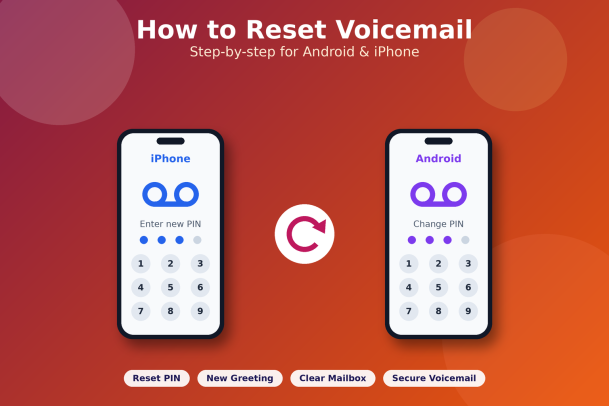
Before You Start: A Quick Checklist
A few minutes of preparation makes the reset smoother:
- Know your carrier. AT&T, Verizon, T-Mobile, Vodafone, Airtel, Jio, and others each handle voicemail slightly differently.
- Have account details ready. Some carriers ask for your account PIN, billing ZIP code, or the last four digits of the account holder’s ID.
- Save important messages. A mailbox or full reset can permanently delete saved voicemails. On iPhone, you can share a message to Notes or Files; on Android, many visual voicemail apps let you export audio.
- Update your phone. An outdated iOS or Android version can cause visual voicemail errors that look like password problems.
- Check your signal. Voicemail setup requires a cellular connection, not just Wi-Fi, on many networks.
How to Reset Voicemail on iPhone
Apple’s Visual Voicemail makes most resets possible without dialing into your mailbox. Menu names can shift slightly between iOS versions; on recent versions, Phone settings sit under Settings > Apps > Phone.
Reset your voicemail password on iPhone
- Open Settings.
- Tap Apps, then Phone (on older iOS versions, tap Phone directly).
- Scroll down and tap Change Voicemail Password.
- Enter a new 4–7 digit password (length depends on your carrier).
- Re-enter the password to confirm, then tap Done.
If you don’t see the option, your carrier may not support password changes from the device. In that case, use your carrier’s app or dial its customer support line.
Change or reset your voicemail greeting on iPhone
- Open the Phone app and tap Voicemail in the bottom-right corner.
- Tap Greeting in the top-left corner.
- Choose Default to use the standard carrier message, or Custom to record your own.
- For a custom greeting, tap Record, speak your message, tap Stop, then tap Save.
Clear a full voicemail box on iPhone
- In Phone > Voicemail, tap Edit, select messages, and tap Delete.
- Scroll to Deleted Messages and tap Clear All. Deleted messages still occupy carrier storage until you clear them here.
Fix Visual Voicemail that won’t load
Toggle Airplane Mode on and off, then restart the iPhone. If that fails, go to Settings > General > Transfer or Reset iPhone > Reset > Reset Network Settings. This erases saved Wi-Fi passwords, so keep them handy.
How to Reset Voicemail on Android
Android varies more than iPhone because Samsung, Google Pixel, Motorola, OnePlus, and carriers all customize the Phone app. The steps below cover the most common layouts.
Reset your voicemail PIN on Android (Google Phone app)
- Open the Phone app.
- Tap the three-dot menu (top-right) and select Settings.
- Tap Voicemail.
- Tap Advanced settings or Voicemail PIN, depending on your version.
- Choose Change PIN, enter your old PIN, then enter and confirm the new one.
Forgot the old PIN? You’ll need to reset it through your carrier (see the next section).
Reset voicemail on Samsung Galaxy phones
- Open the Phone app and tap the three-dot menu > Settings.
- Tap Voicemail settings (or Voicemail), then select your carrier’s service.
- Look for Change password or Voicemail password. Some Samsung models open the carrier’s Visual Voicemail app instead, where the option is under Settings > Change password.
Change your voicemail greeting on Android
- Press and hold 1 on the dialer to call your voicemail.
- Enter your PIN, then follow the menu to Personal options or Greetings (often option 3 or 4).
- Record and save your new greeting.
If you use a Visual Voicemail app, open it and look for Greetings in its settings.
Clear a full mailbox on Android
Delete messages in your Visual Voicemail app, or dial into your mailbox and press the delete key (commonly 7) after each message. Many carriers keep “deleted” messages until you exit the menu properly, so hang up only after you hear the main menu again.
Carrier-Specific Ways to Reset a Forgotten Voicemail Password
If you can’t remember your current PIN, the phone’s settings menu usually won’t help. The reset must come from your carrier. Common options include:
| Carrier | Typical reset method |
|---|---|
| AT&T | Use the myAT&T app or website (voicemail password settings), or call customer service at 611 |
| Verizon | Use the My Verizon app, or dial #PWD (#793) from your phone and follow the prompts |
| T-Mobile | Dial #793# from your phone; the password typically resets to the last four digits of your number |
| Other carriers | Check your carrier’s app, website, or support line; many offer an SMS or USSD reset code |
Carrier procedures change, so confirm the current steps on your provider’s official support page before you dial any code. After a reset, change the temporary PIN right away. Defaults like the last four digits of your number are easy for attackers to guess.
Troubleshooting Common Voicemail Reset Problems
“Incorrect password” after a reset. Visual Voicemail may still be holding the old PIN. Restart the phone, open Voicemail, and enter the new password when prompted.
Voicemail shows “Call Voicemail” instead of a list. Visual Voicemail isn’t active. Check that your plan includes it, update your carrier settings (on iPhone: Settings > General > About prompts automatically if an update exists), and confirm mobile data is on.
Callers hear “mailbox not set up.” After a full reset or new SIM, you must run the initial setup. Dial your voicemail number, create a PIN, and record a greeting.
Messages disappear or arrive late. Call forwarding apps or a third-party voicemail service can override your carrier’s. Disable call forwarding by dialing ##002# on most GSM networks, then set voicemail up again.
Nothing works. Contact your carrier. Voicemail is a network service, and some issues can only be fixed on their end.
Voicemail Security Best Practices
Resetting your voicemail is a good moment to harden it. Voicemail hacking is old, but it still works when PINs are weak. Attackers use it to capture one-time passcodes sent by voice call, to listen to sensitive business messages, and to support social-engineering and SIM-swap attacks.
Follow these habits to stay protected:
- Never keep the default PIN. Avoid 0000, 1234, your birth year, or the last digits of your phone number.
- Use the longest PIN your carrier allows. Seven digits are far harder to brute-force than four.
- Require a PIN even from your own phone. Some carriers skip the PIN when you call from your own number; caller-ID spoofing can exploit that shortcut.
- Add a carrier account PIN or port-out lock. This makes SIM-swap and number-porting fraud much harder.
- Prefer app-based authentication. Use authenticator apps or hardware keys instead of SMS or voice-call codes where possible.
- Protect the device itself. A compromised phone exposes voicemail, email, and every app at once. For businesses, endpoint protection across all mobile and desktop devices is essential.
For organizations, voicemail is only one piece of a much larger attack surface. Every employee phone, laptop, and server is a potential way in, which is why a zero-trust approach to endpoint security matters.
Frequently Asked Questions
1. Can I reset my voicemail without the old password? Yes. Your carrier can reset it through its app, website, a reset code, or customer support after verifying your identity.
2. Will resetting voicemail delete my messages? A password or greeting reset won’t. A mailbox or full reset usually will, so save important messages first.
3. Why doesn’t my iPhone show “Change Voicemail Password”? Your carrier may not support Visual Voicemail password changes on the device. Use the carrier’s app or support line instead.
4. How often should I change my voicemail PIN? Change it immediately if you suspect exposure, after a SIM swap or carrier change, and at least once a year as routine hygiene.
5. Does a factory reset of my phone reset voicemail? No. Voicemail is stored by your carrier, so your PIN and messages typically survive a phone factory reset.
Conclusion
Now you know how to reset voicemail on both iPhone and Android, whether you need a new PIN, a fresh greeting, an empty mailbox, or a full reset through your carrier. The process takes only a few minutes, and it closes a security gap many people never think about.
But voicemail is just one entry point. Cybercriminals target every phone, laptop, and server in your organization, and a single unprotected endpoint can expose your entire network. Xcitium’s zero-trust endpoint protection isolates unknown threats before they can cause damage, so your business stays protected even against attacks no one has seen before.
Don’t wait for a breach to find your weakest link. See how Xcitium keeps every endpoint secure.
Please give us a star rating based on your experience.


 (15 votes, average: 2.33 out of 5, rated)