Your email account is the master key to your digital life. It resets your bank login, verifies your social media, and stores years of personal conversations. If someone else gets hold of that key, they don’t just read your inbox — they can unlock nearly everything connected to it. That’s why learning how to change email password correctly, and doing it regularly, is one of the simplest yet most powerful habits you can build for your online safety.
This guide walks you through exactly how to change your email password across the most popular providers, what makes a password genuinely strong, and how to keep your account secure long after you’ve hit “save.”
Why Changing Your Email Password Matters
Many people only think about changing their password after something goes wrong — a suspicious login alert, a phishing email, or news of a data breach. But waiting for a warning sign is a risky strategy. Here’s why proactive password changes matter:
- Breach exposure: Passwords leaked in one breach are often reused by attackers to try logging into other accounts, a tactic known as credential stuffing.
- Shared or old devices: If you’ve ever logged into your email on a public computer, a friend’s phone, or an old laptop you no longer use, your session or saved credentials could still be lingering.
- Weak or reused passwords: Many people unknowingly use the same password across multiple platforms, meaning one compromised site can expose your email too.
- Suspicious activity: Unfamiliar devices, unread emails marked as read, or password reset requests you didn’t initiate are all red flags that call for an immediate change.
Regularly updating your password — even without a specific threat — reduces the window of opportunity for anyone who may have quietly obtained your credentials.
How to Change Email Password: Step-by-Step
The general process is similar across providers, but the exact menus differ slightly. Here’s how to do it on the most widely used platforms.
Gmail
- Sign in to your Google Account at accounts.google.com.
- Click on Security in the left-hand menu.
- Under “How you sign in to Google,” select Password.
- Enter your current password to verify your identity.
- Type your new password twice to confirm, then click Change Password.
Outlook / Microsoft Account
- Go to your Microsoft account security page and sign in.
- Select Password security under the Security options.
- Verify your identity with a code sent to your phone or backup email.
- Enter your old password, then create and confirm your new one.
- Click Save to apply the change across all Microsoft services.
Yahoo Mail
- Log in to Yahoo and go to Account Info.
- Click Account Security.
- Select Change Password.
- Enter and confirm your new password, then save.
Apple iCloud Mail
- Go to appleid.apple.com and sign in.
- Under Sign-In and Security, choose Password.
- Verify your identity with two-factor authentication.
- Enter and confirm your new password.
General Tips for Any Provider
If your email provider isn’t listed above, the steps are almost always the same:
- Log in to your account settings or security dashboard.
- Look for a section labeled “Security,” “Sign-in,” or “Password.”
- Verify your identity (current password, code, or security question).
- Enter and confirm a new password.
- Save the changes and check for a confirmation email or notification.
After changing your password, most providers will automatically sign you out of other devices and sessions — this is a good thing, as it removes access for anyone who might have been logged in without your knowledge.
What Makes a Password Truly Secure
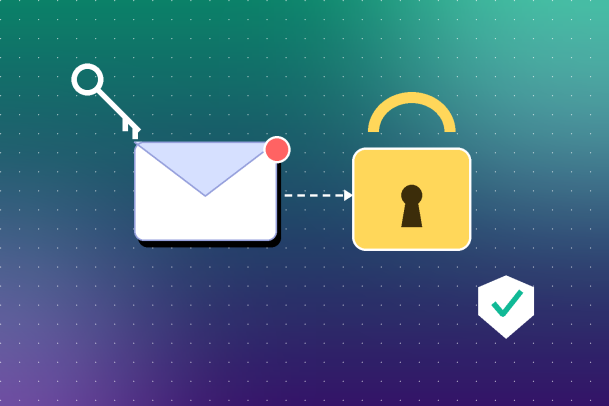
Changing your password is only half the job — changing it to something strong is what actually protects you. Here’s what separates a secure password from a weak one:
- Length over complexity: Aim for at least 12–16 characters. A longer passphrase is often harder to crack than a short, complex-looking one.
- Unpredictability: Avoid names, birthdays, common words, or keyboard patterns like “qwerty123.”
- Uniqueness: Never reuse your email password on other sites. If one service is breached, your email stays protected.
- A mix of characters: Combine uppercase and lowercase letters, numbers, and symbols where allowed.
- Passphrases work well: A string of unrelated words, like “Lantern-Coffee-Mountain-42!”, is both memorable and hard to guess.
- Use a password manager: Instead of memorizing dozens of complex passwords, a reputable password manager can generate and store them securely for you.
Enable Extra Layers of Protection
A strong password is essential, but it shouldn’t be your only line of defense. Consider adding:
- Two-factor authentication (2FA): Requires a code from your phone or authentication app in addition to your password.
- Recovery information: Keep a backup email and phone number up to date so you can regain access quickly if something goes wrong.
- Login alerts: Turn on notifications for sign-ins from new devices or locations.
- Regular security checkups: Most providers offer a built-in “security checkup” tool that flags weak passwords, old devices, and risky account permissions.
What to Do If You Suspect Your Email Has Been Compromised
If you notice unfamiliar activity — unread messages you didn’t open, password reset emails from services you don’t recall using, or being logged out unexpectedly — act quickly:
- Change your password immediately using a device you trust.
- Sign out of all other sessions through your account’s security settings.
- Review connected apps and devices and remove anything unfamiliar.
- Check your recovery information to make sure it hasn’t been altered.
- Enable two-factor authentication if it isn’t already active.
- Scan your device for malware or keyloggers that may have captured your credentials in the first place.
Building a Habit of Ongoing Email Security
Knowing how to change your email password is a valuable skill, but real protection comes from consistency. Set a reminder to update your password every few months, use unique passwords across all your accounts, and stay alert to phishing attempts that try to trick you into giving up your credentials voluntarily.
Cybercriminals are constantly refining their tactics, from convincing phishing pages to malware that silently captures keystrokes. Individual habits like strong, regularly updated passwords are a critical first layer of defense — but they work best as part of a broader security strategy that also protects your devices, network, and data from evolving threats.
That’s where advanced endpoint protection and threat prevention solutions come in. Rather than reacting after a breach occurs, proactive security platforms help detect and stop threats before they ever reach your inbox or your device.
Take Your Security Further with Xcitium
Changing your email password is a great first step, but true peace of mind comes from knowing your entire digital environment is protected — from phishing attempts to zero-day malware. Xcitium’s advanced threat prevention technology is built to stop breaches before they happen, keeping your accounts, devices, and data secure around the clock.
Request a Demo with Xcitium and see how proactive protection can keep your business and personal accounts a step ahead of cyber threats.
Please give us a star rating based on your experience.


 (18 votes, average: 2.44 out of 5, rated)