You click a link, type in a URL, or try to load your favorite site — and instead of the page you want, you get an error message, a blank screen, or a notice saying the content isn’t available in your region or on your network. It’s frustrating, but it’s also incredibly common. Whether you’re at work, school, on public Wi-Fi, or traveling abroad, website blocks are everywhere.
The good news: unblocking a website is usually simple, and there are several safe, legitimate methods that work across desktops, laptops, phones, and tablets. This guide walks through why websites get blocked in the first place and the easiest ways to get around those restrictions — no matter what device you’re using.
Why Do Websites Get Blocked?
Before jumping into solutions, it helps to understand what’s actually stopping you from reaching a site. Blocks typically fall into a few categories:
- Network-level restrictions: Schools, offices, and public Wi-Fi networks often use firewalls or content filters to block certain categories of sites (social media, streaming, gaming, etc.).
- Government or ISP restrictions: Some countries or internet service providers restrict access to specific websites or entire platforms.
- Geo-restrictions: Streaming services and some websites limit content based on your location due to licensing agreements.
- DNS-based blocking: Your device’s DNS resolver may be configured to refuse requests to certain domains.
- Website-side blocks: Occasionally, a website itself blocks certain IP ranges or countries.
Once you know why a site is blocked, it’s easier to pick the right method to get around it.
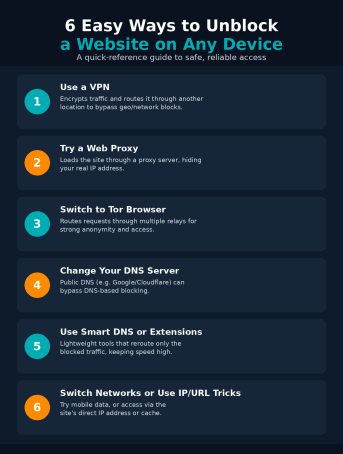
1. Use a VPN (Virtual Private Network)
A VPN is the most reliable and widely used method for unblocking websites. It encrypts your internet traffic and routes it through a server in another location, making it look like you’re browsing from somewhere else entirely. This bypasses most network-level, ISP-level, and geo-based restrictions in one step.
How to use it:
- Install a reputable VPN app on your device (Windows, Mac, Android, or iOS).
- Connect to a server location where the site isn’t blocked.
- Open your browser and visit the site as normal.
VPNs also add a meaningful security benefit: your traffic is encrypted, which matters especially on public Wi-Fi where data can otherwise be intercepted.
2. Try a Web Proxy
A web proxy acts as a middleman between your browser and the website you’re trying to reach. Instead of connecting directly, your request goes through the proxy server first, which hides your real IP address and can bypass simple network filters.
Proxies are quick to use — often just a website where you paste in the URL you want to visit — but they’re generally less secure than a VPN since they don’t always encrypt your traffic. They’re best for quick, low-stakes browsing rather than anything involving sensitive logins or personal data.
3. Switch to the Tor Browser
Tor (The Onion Router) routes your traffic through multiple volunteer-run relays around the world, layering encryption at each step. This makes it very difficult for anyone — including network administrators or ISPs — to trace your activity or block your access based on your identity or location.
Tor is a strong option when privacy is a priority, though it does come with a trade-off: because your traffic bounces through several relays, browsing tends to be noticeably slower than a standard connection or VPN. <br>
4. Change Your DNS Server
Many blocks work at the DNS level — your device asks “where is this website?” and the DNS server refuses to answer or sends you nowhere. Switching to a public DNS provider, such as Google DNS or Cloudflare DNS, can bypass this type of restriction entirely.
On most devices:
- Go to your network or Wi-Fi settings.
- Find the DNS configuration option.
- Replace the default DNS with a public alternative (for example, 1.1.1.1 or 8.8.8.8).
- Save and restart your browser.
This method is fast, free, and doesn’t require installing any extra software, though it won’t help if the block is happening deeper in the network (like a firewall) rather than at the DNS level.
5. Use Smart DNS or Browser Extensions
Smart DNS services and browser extensions offer a lighter-weight alternative to a full VPN. Instead of rerouting all of your traffic, they selectively reroute only the requests going to blocked sites, which usually means faster load times.
Browser extensions in particular are convenient: install one, toggle it on, and reload the page. They’re a good middle-ground option for casual browsing, though they typically offer less security than a full VPN since they don’t encrypt your entire connection.
6. Switch Networks or Try Direct IP/URL Tricks
Sometimes the simplest fix is the most effective one:
- Switch to mobile data. If a site is blocked on your office or school Wi-Fi, your phone’s mobile data connection often isn’t subject to the same restrictions.
- Use the site’s IP address. Some basic filters block a domain name but not the underlying IP address. Looking up and entering the site’s IP directly can sometimes work.
- Try a cached or translated version. Services that fetch and redisplay a page — such as a translation tool — can occasionally let you view content indirectly when the original URL is blocked.
These tricks won’t work against every type of block, but they’re worth trying first since they require no extra software.
Unblocking a Website on Specific Devices
Windows and Mac: Any of the methods above work well. VPN apps and browser extensions are the fastest to set up, while manually changing your DNS settings is built into the operating system’s network preferences.
Android and iOS: VPN apps are widely available on both platforms and are usually the most user-friendly option for mobile. Many VPN providers also offer one-tap connection specifically for phones and tablets.
Chromebooks and smart TVs: Browser extensions and Smart DNS services tend to be the easiest fit, since these devices often have more limited system-level settings compared to a full computer.
A Word on Safety
Not every reason for wanting to unblock a website is created equal, and not every method is equally safe. Free proxies and unfamiliar VPN apps can sometimes log your data, inject ads, or expose you to malware — the tools meant to protect your privacy can occasionally become a security risk themselves if you don’t choose carefully.
A few good habits to keep in mind:
- Stick to well-reviewed, reputable VPN providers rather than random free apps.
- Avoid entering sensitive login credentials while using a public or unfamiliar proxy.
- Keep your browser and security software up to date, especially if you frequently connect to unfamiliar networks.
- Understand your organization’s or country’s policies — some network restrictions exist for legitimate security or compliance reasons.
Unblocking access is only half the equation. Making sure that access doesn’t come with hidden risks — malware, phishing sites, or compromised endpoints — is just as important, especially for businesses managing many devices and users across different networks.
Final Thoughts
Whether you’re dealing with a school firewall, a workplace filter, or a geo-restriction, there’s almost always a straightforward way to reach the website you need. VPNs offer the most complete and secure solution, while proxies, Tor, DNS changes, and simple network switches each have their place depending on how urgent, technical, or security-sensitive your situation is.
The key is matching the method to the situation — and never sacrificing security for convenience. As blocks and filtering technologies get more sophisticated, so do the tools available to safely navigate around them.
If you’re responsible for securing a network, a business, or a fleet of devices, the same principles apply on a larger scale: visibility, control, and strong endpoint protection make the difference between safe access and a serious security gap.
Ready to strengthen your organization’s security posture?
Request a Demo with Xcitium and see how proactive, zero-trust endpoint protection can keep your network safe while your team stays productive — wherever they’re browsing from.
Please give us a star rating based on your experience.


 (22 votes, average: 2.64 out of 5, rated)