How to Program a GE Universal Remote: A Step-by-Step Guide
Updated on August 25, 2025, by Xcitium
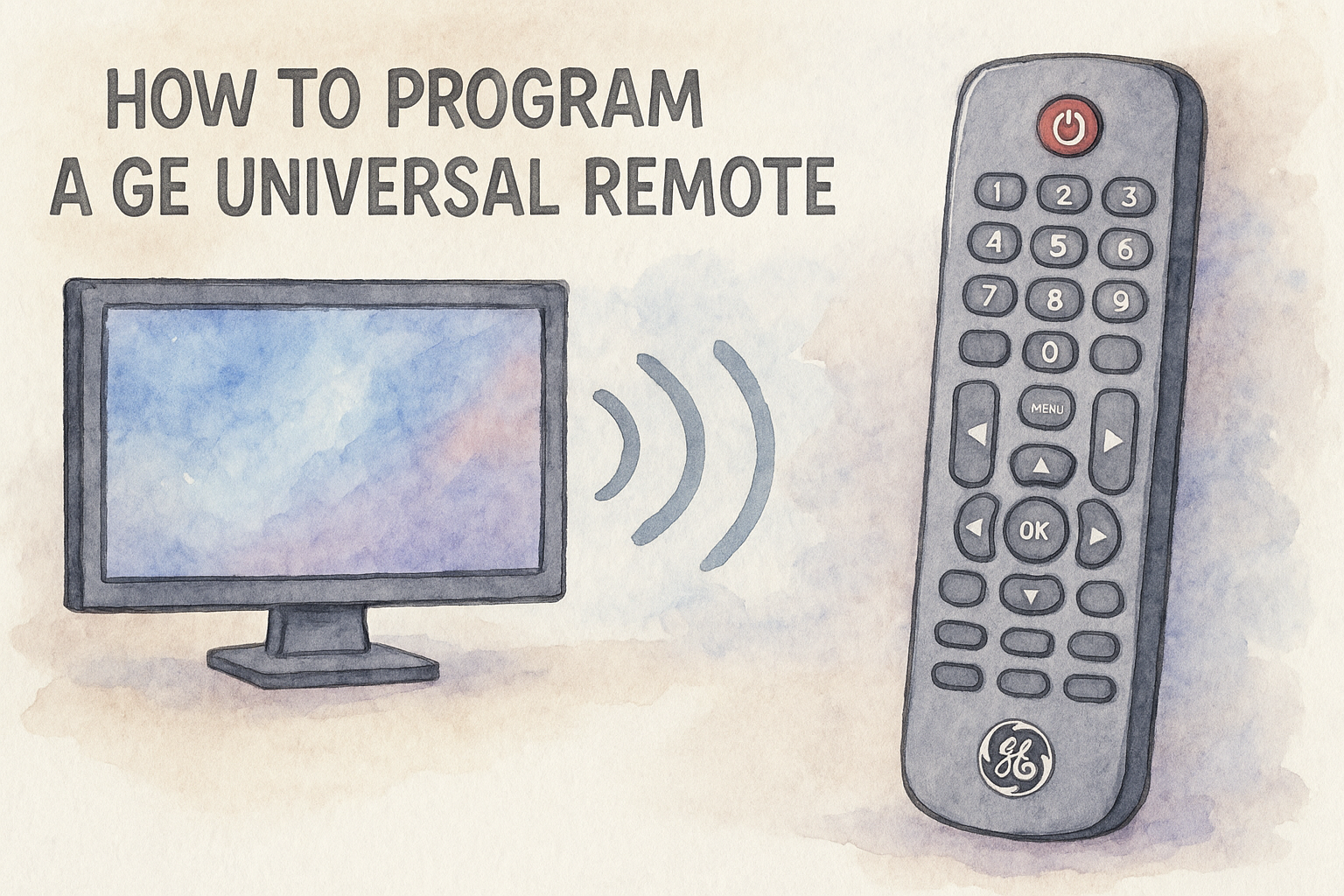
Ever misplaced a remote and wished for a single solution that controls everything? That’s where a universal remote comes in. If you’re wondering how to program a GE universal remote, you’re not alone — it’s one of the most searched tech-help topics today.
With the right steps, your GE remote can control TVs, cable boxes, DVD players, streaming devices, and even sound systems. For IT managers, homeowners, or even CEOs who want efficiency, understanding remote programming is as much about productivity as it is about convenience.
What Is a GE Universal Remote?
A GE Universal Remote is a programmable device designed to control multiple electronics. Instead of juggling three or four different remotes, you can consolidate them into one.
Key Benefits:
- Simplifies your entertainment system.
- Works across TVs, cable boxes, DVD/Blu-ray players, and streaming devices.
- Reduces clutter and frustration.
- Easy to set up with codes or auto-search.
This versatility makes it one of the most popular remotes available on the market.
Before You Start: Things You’ll Need
Before learning how to program a GE universal remote, make sure you have:
- Your GE remote model number (found inside the battery compartment).
- The device you want to control (TV, DVD, streaming stick, etc.).
- A list of remote control codes (found in the manual or online).
- Fresh batteries in the remote.
How to Program a GE Universal Remote (3 Methods)
Method 1: Direct Code Entry (Most Reliable)
- Turn on the device you want to control.
- Press and hold the Setup button until the red indicator light stays on.
- Press the device button (TV, DVD, AUX, etc.). The light should blink once and stay on.
- Enter the device code (3- or 4-digit code from GE’s code list).
- The red light will turn off. Test the device by pressing the Power button.
If it works, you’re done! If not, repeat with the next code.
Method 2: Auto Code Search
If you don’t know the code, try auto-search:
- Turn on the device.
- Hold Setup until the light stays on.
- Press the device button (TV, DVD, etc.).
- Press Power repeatedly until the device turns off.
- Press Enter to save the code.
This may take longer but works for most devices.
Method 3: Manual Search
- Power on the device.
- Hold down Setup until the light stays on.
- Press the device button.
- Press Power once, then repeatedly press Channel Up until the device turns off.
- Press Enter to confirm.
Common GE Universal Remote Codes
Here are some frequently used codes (these vary by model):
- Samsung TVs: 0105, 0077, 0942
- LG TVs: 0156, 0178, 0005
- Sony TVs: 0128, 0011, 0002
- Roku/Streaming Devices: 2014, 4395
👉 Pro Tip: Always keep a printed or bookmarked list of GE universal remote codes for easy troubleshooting.
Troubleshooting Tips
If your GE remote doesn’t work after programming:
- Check the batteries.
- Re-enter the code.
- Try the auto-search method.
- Confirm your remote model supports the device.
- Reset the remote and start over.
Why Remote Programming Matters Beyond TV
For IT managers, learning how to program a GE universal remote is not just a household skill. It demonstrates:
- System efficiency – fewer tools for more control.
- Error reduction – minimize device confusion.
- Cybersecurity awareness – many remotes now integrate with smart home systems, meaning security matters when managing connections.
In enterprise settings, remote programmability reflects the broader theme of centralized control and security integration.
Best Practices for Using a GE Universal Remote
- Keep your code list updated.
- Store extra batteries nearby.
- Label devices for easier troubleshooting.
- Regularly reset and reprogram when adding new devices.
FAQ: How to Program a GE Universal Remote
- How do I find my GE remote code?
Check the manual, inside the battery cover, or GE’s official online code list. - Can one GE remote control multiple devices?
Yes, most GE remotes support 3–6 devices. - Why isn’t my GE remote working?
Likely reasons: wrong code, weak batteries, or device incompatibility. - Do GE universal remotes work with streaming sticks?
Yes, with the correct codes for Roku, Fire Stick, or Apple TV. - Do I need to reprogram after changing batteries?
No, the remote stores programmed codes even after battery replacement.
Conclusion: Simplify Your Life with a GE Universal Remote
Learning how to program a GE universal remote isn’t complicated — it’s a productivity boost. Whether you’re managing a home theater or a boardroom setup, this simple skill helps eliminate clutter, confusion, and wasted time.
If you’re ready to take control and secure your digital ecosystem beyond entertainment, Request a Free Demo from Xcitium to see how enterprise-level solutions can simplify and protect your business systems.