How to Kill a Process in Linux: A Complete, Practical Guide
Updated on December 19, 2025, by Xcitium
-
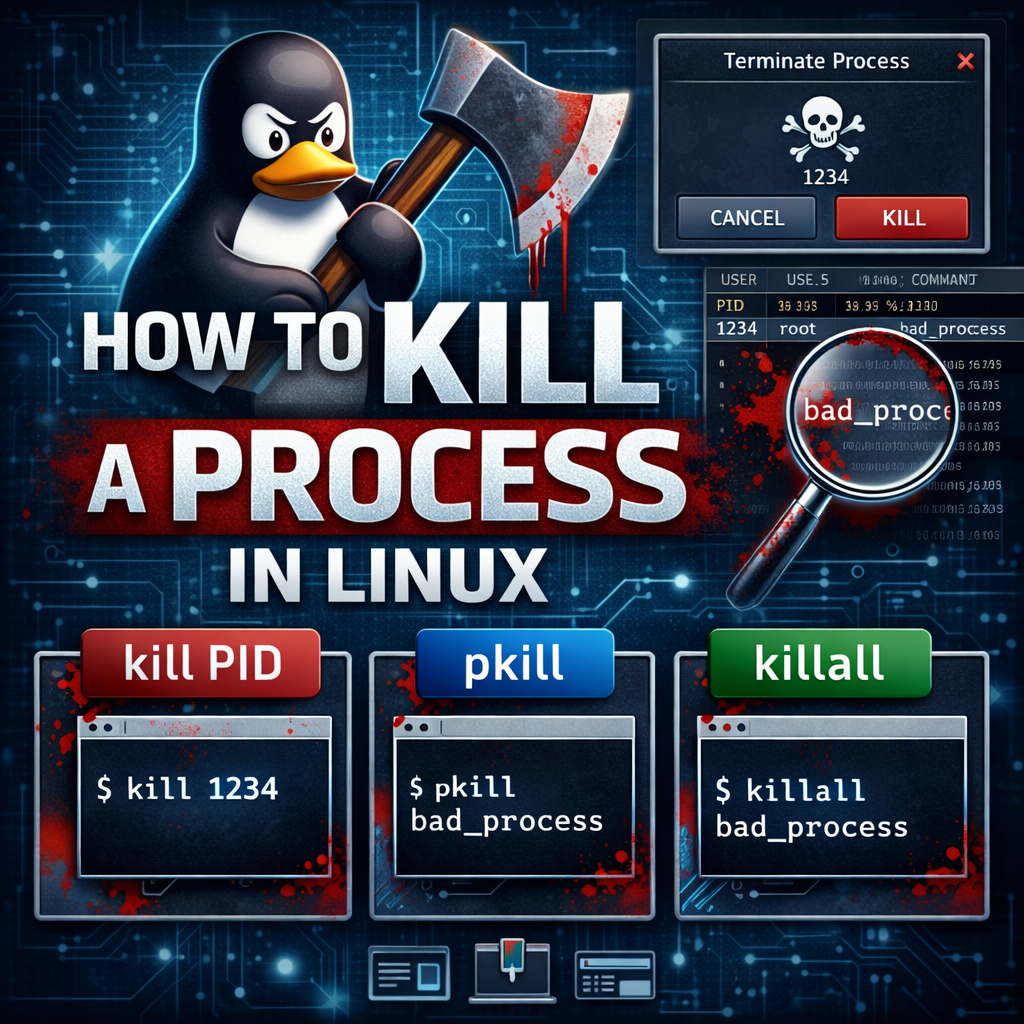
Ever had a Linux application freeze, spike CPU usage, or refuse to close? Whether you’re troubleshooting a misbehaving service, stopping a runaway script, or responding to a security incident, knowing how to kill a process in Linux is a fundamental skill.
Linux gives you precise control over processes—but with that power comes responsibility. In this guide, you’ll learn how to kill a process in Linux safely and effectively, using the right commands, signals, and tools. We’ll cover beginner-friendly methods and advanced techniques used by sysadmins and security teams alike.
What Does “Kill a Process in Linux” Mean?
In Linux, to “kill” a process means to send a signal to a running program. Contrary to the name, killing doesn’t always mean immediate termination. Signals can request a graceful shutdown, pause execution, reload configuration, or force termination when needed.
Understanding how to kill a process in Linux starts with understanding signals and process IDs (PIDs).
Why You Might Need to Kill a Process in Linux
There are many legitimate reasons to terminate a process:
-
An application is frozen or unresponsive
-
A process is consuming excessive CPU or memory
-
A service failed to shut down cleanly
-
A script is stuck in an infinite loop
-
Malware or suspicious activity is detected
-
You need to free locked resources
For IT managers and security teams, knowing how to kill a process in Linux can prevent outages, reduce risk, and restore system stability quickly.
Linux Processes and PIDs Explained
Every running program in Linux is a process, and each process has a unique Process ID (PID).
You can view processes using commands like:
-
ps -
top -
htop
Before you kill a process, you usually need its PID—unless you’re killing it by name.
Method 1: How to Kill a Process in Linux Using
killThe
killcommand is the most common way to terminate a process.Basic Syntax
Example
This sends the default signal (
SIGTERM) to process1234, asking it to terminate gracefully.Common Signals You Should Know
-
SIGTERM (15) – Graceful shutdown (default)
-
SIGKILL (9) – Force kill (cannot be ignored)
-
SIGINT (2) – Interrupt (similar to Ctrl+C)
-
SIGHUP (1) – Reload configuration
Best practice: always try SIGTERM first before using SIGKILL.
Method 2: How to Kill a Process in Linux by Name Using
pkillIf you don’t know the PID,
pkilllets you terminate processes by name.Example
This kills all processes named
firefox.More Precise Matching
The
-fflag matches against the full command line, not just the process name.⚠️ Be careful—
pkillcan terminate multiple processes at once.Method 3: How to Kill a Process in Linux Using
killallkillallsends signals to all processes matching a name.Example
This stops all running
nginxprocesses.Unlike
pkill,killallmatches exact process names, which can be safer in some cases.Method 4: How to Kill a Process in Linux from
toptopprovides a real-time view of system activity and lets you kill processes interactively.Steps
-
Run:
-
Press
k -
Enter the PID
-
Choose a signal (default is 15)
This is useful when diagnosing performance issues visually.
Method 5: How to Kill a Process in Linux Using
htophtopis a more user-friendly alternative totop.Why Use
htop-
Color-coded interface
-
Easier navigation
-
Process tree view
Steps
-
Launch:
-
Select the process
-
Press
F9 -
Choose the signal
-
Confirm
If you manage Linux systems regularly,
htopis highly recommended.Method 6: How to Kill a Hung Terminal Process
If a command locks up your terminal:
Use Ctrl+C
Sends
SIGINTto the foreground process.If That Fails
-
Open a new terminal
-
Find the PID:
-
Kill it:
This is a common scenario when learning how to kill a process in Linux.
Force Killing a Process: When and Why
Sometimes, a process ignores
SIGTERM. In these cases, useSIGKILL.Example
Important Warning
SIGKILL:-
Cannot be ignored
-
Prevents cleanup
-
May cause data loss
Only use it when absolutely necessary.
How to Kill Multiple Processes in Linux
You can kill multiple PIDs at once:
Or by pattern:
This kills all processes owned by a specific user—useful during account cleanup or incident response.
How to Kill Zombie Processes in Linux
Zombie processes are already dead but still listed because the parent process hasn’t collected their exit status.
Key Point
You cannot directly kill a zombie process.
Solution
-
Identify the parent PID (PPID)
-
Restart or kill the parent process
Understanding this distinction is essential when learning how to kill a process in Linux.
How to Kill a Process in Linux Safely (Best Practices)
Follow these guidelines to avoid system damage:
-
Always identify the process first
-
Prefer graceful termination (
SIGTERM) -
Avoid killing system-critical processes
-
Use
sudoonly when required -
Document actions in production environments
For servers, reckless process termination can cause downtime or data corruption.
Security Use Case: Killing Malicious Processes
In cybersecurity scenarios, knowing how to kill a process in Linux is critical.
Signs of Malicious Processes
-
Unusual CPU or network usage
-
Random process names
-
Processes running from
/tmpor hidden directories
Response Steps
-
Isolate the system (if possible)
-
Identify suspicious processes
-
Kill the process
-
Investigate persistence mechanisms
Endpoint containment solutions can automate this process and prevent reinfection.
Automating Process Control with Scripts
Linux admins often automate process management.
Example Script
Automation reduces response time and human error.
How Killing Processes Fits into System Administration
Knowing how to kill a process in Linux is a foundational sysadmin skill.
It supports:
-
Troubleshooting
-
Performance tuning
-
Incident response
-
Maintenance automation
For IT managers, it ensures faster recovery and more stable systems.
Common Mistakes When Killing Linux Processes
Avoid these pitfalls:
❌ Using
kill -9by default
❌ Killing unknown PIDs
❌ Terminating system daemons blindly
❌ Forgetting to verify process ownership
❌ Not checking logs after terminationSmart process control protects uptime and data integrity.
How to Check If a Process Was Killed Successfully
After killing a process, verify:
If no output appears, the process is gone.
You can also check logs:
Frequently Asked Questions (FAQ)
1. What is the safest way to kill a process in Linux?
Using
kill PID(SIGTERM) is the safest method because it allows graceful shutdown.2. What’s the difference between kill and pkill?
killtargets a specific PID, whilepkilltargets processes by name or pattern.3. Why won’t a process die even after kill?
It may be stuck in kernel mode or require
SIGKILL.4. Can killing a process crash Linux?
Killing critical system processes can destabilize the system, especially when using
SIGKILL.5. Do I need sudo to kill a process?
Only if the process belongs to another user or the system.
Final Thoughts
Mastering how to kill a process in Linux gives you precise control over your systems. From everyday troubleshooting to security incident response, the ability to identify and terminate processes safely is essential for Linux users, sysadmins, and security teams.
When combined with modern endpoint security and containment, process control becomes a powerful defense tool—not just a maintenance task.
👉 Want stronger protection and automated threat containment for Linux endpoints?
Request a demo today:
https://www.xcitium.com/request-demo/ -