You probably connected to a wireless network before you finished your first coffee today. Your phone found the home router, your laptop joined the office network, and the café down the street offered free internet with a simple password. Behind every one of those connections is a technology most people use daily but rarely think about: the Wireless LAN.
So, what is Wireless LAN? A Wireless Local Area Network (WLAN) is a group of devices connected within a limited area, such as a home, office, school, or campus, using radio waves instead of physical cables. It lets laptops, smartphones, printers, smart TVs, and IoT devices share data and reach the internet without being plugged into a wall.
In this beginner’s guide, you will learn how a WLAN works, its key components, how it differs from Wi-Fi and a traditional LAN, the main types and standards, its advantages and limitations, and the security practices every organization should follow.
How Does a Wireless LAN Work?
A WLAN replaces copper cables with radio frequency (RF) signals. Data that would normally travel through an Ethernet cable is converted into radio waves, broadcast through the air, and converted back into data by the receiving device.
Here is the basic flow in a typical home or office network:
- The internet enters the building through a modem connected to your Internet Service Provider (ISP).
- A wireless router or access point (AP) takes that connection and broadcasts it as a radio signal, usually on the 2.4 GHz, 5 GHz, or 6 GHz frequency bands.
- The network announces itself using an SSID (Service Set Identifier), which is simply the network name you see in your Wi-Fi list.
- Client devices connect by selecting the SSID and authenticating, typically with a password or corporate credentials.
- Data flows both ways. The access point manages traffic between wireless clients, the wired network, and the internet.
The frequency band matters. The 2.4 GHz band travels farther and passes through walls more easily but is slower and more crowded. The 5 GHz and 6 GHz bands offer much higher speeds and less interference, but their range is shorter. Modern routers use multiple bands at once and steer devices to the best one automatically.
Key Components of a Wireless LAN
Every WLAN, from a small apartment setup to an enterprise campus, is built from the same core building blocks.
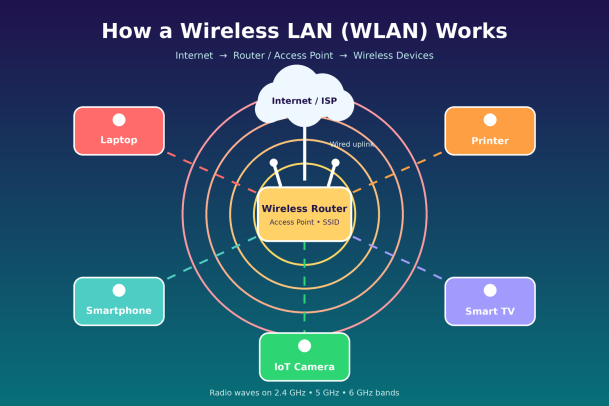
- Wireless Access Point (AP): The central hub that transmits and receives radio signals. In homes, the AP is usually built into the router. In businesses, multiple APs are mounted on ceilings to cover large spaces.
- Wireless Router: Directs traffic between your local network and the internet, assigns IP addresses, and often includes a basic firewall.
- Wireless Network Interface Card (NIC): The adapter inside laptops, phones, and tablets that allows them to send and receive wireless signals.
- Client Devices: Any endpoint that joins the network, including computers, smartphones, printers, cameras, and smart home devices.
- Wireless LAN Controller (WLC): Used in larger deployments to centrally manage dozens or hundreds of access points, push configurations, and balance client loads.
- Antennas: Shape and direct the radio signal. Omnidirectional antennas spread coverage in all directions, while directional antennas focus it toward a specific area.
WLAN vs Wi-Fi vs LAN: What’s the Difference?
Beginners often use these three terms interchangeably, but they mean different things.
LAN (Local Area Network) is the broad category. It refers to any network that connects devices within a limited area. A traditional LAN uses Ethernet cables plugged into switches.
WLAN (Wireless LAN) is a type of LAN that uses radio waves instead of cables. It describes the network itself, regardless of the technology used to build it.
Wi-Fi is a brand name and certification managed by the Wi-Fi Alliance. It refers to products that follow the IEEE 802.11 family of standards. Wi-Fi is the technology that powers almost every WLAN in use today.
In short: every WLAN is a LAN, and Wi-Fi is the most common way to build a WLAN.
| Feature | Wired LAN | Wireless LAN (WLAN) |
|---|---|---|
| Connection medium | Ethernet cables | Radio waves |
| Mobility | Fixed to a port | Move freely within range |
| Typical speed | Very high and consistent | High, but varies with distance and interference |
| Installation | Cabling and ports needed | Fewer cables, faster setup |
| Security exposure | Physical access required | Signal can be reached from outside the building |
Types of Wireless LAN
WLANs are generally set up in one of three ways:
- Infrastructure mode: The most common type. All devices connect through a central access point, which links them to each other and to the wired network. Homes, offices, and public hotspots use this model.
- Ad hoc (peer-to-peer) mode: Devices connect directly to one another without an access point. It is useful for quick file sharing or temporary setups but does not scale well.
- Mesh networks: Multiple nodes work together to blanket a large area with a single seamless network. If one node fails, traffic reroutes through the others. Mesh systems are popular for large homes, campuses, and warehouses.
Common Wi-Fi Standards
The IEEE 802.11 standard has evolved over the years, with each generation bringing faster speeds and better efficiency. Theoretical maximum speeds are shown; real-world speeds are lower.
| Wi-Fi generation | IEEE standard | Frequency bands | Max theoretical speed |
|---|---|---|---|
| Wi-Fi 7 | 802.11be | 2.4, 5, 6 GHz | Up to ~46 Gbps |
| Wi-Fi 6E | 802.11ax | 2.4, 5, 6 GHz | Up to ~9.6 Gbps |
| Wi-Fi 6 | 802.11ax | 2.4, 5 GHz | Up to ~9.6 Gbps |
| Wi-Fi 5 | 802.11ac | 5 GHz | Up to ~3.5 Gbps |
| Wi-Fi 4 | 802.11n | 2.4, 5 GHz | Up to 600 Mbps |
Newer standards are not just faster. Wi-Fi 6 and Wi-Fi 7 handle many devices at once far more efficiently, which matters in busy offices packed with laptops, phones, and IoT sensors.
Advantages and Limitations of WLAN
Advantages
- Mobility: Users can move between rooms, floors, and meeting spaces without losing connectivity.
- Easy installation: Fewer cables mean faster deployment and less disruption, especially in older buildings.
- Scalability: Adding a new user or device is as simple as sharing credentials, not running a new cable.
- Lower long-term cost: Reduced cabling and simpler reconfiguration save money as offices grow or change layout.
- Supports modern work: Hybrid teams, BYOD policies, and IoT devices all depend on reliable wireless access.
Limitations
- Interference: Microwaves, Bluetooth devices, thick walls, and neighboring networks can weaken the signal.
- Variable performance: Speed drops as users move farther from the access point or as more devices share it.
- Limited range: Each access point covers a finite area, so large spaces need careful planning.
- Security risks: Because radio signals travel beyond walls, attackers do not need physical access to try to break in. This is the most important limitation for businesses.
Wireless LAN Security: Threats and Best Practices
A WLAN is only as strong as its weakest connected device. Because wireless signals are broadcast openly, they attract attackers looking for an easy way into corporate systems.
Common WLAN Threats
- Rogue access points: Unauthorized APs plugged into the network, either by careless employees or attackers, that bypass security controls.
- Evil twin attacks: Fake hotspots that imitate a legitimate SSID to trick users into connecting and handing over credentials.
- Eavesdropping: Intercepting unencrypted traffic to steal passwords, emails, or sensitive files.
- Man-in-the-middle (MITM) attacks: Silently relaying and altering communications between a user and the network.
- Weak or outdated encryption: Networks still using WEP or WPA can be cracked in minutes.
- Compromised endpoints: A single infected laptop or IoT device on the WLAN can spread malware or ransomware across the entire network.
Best Practices to Secure Your WLAN
- Use WPA3 encryption (or at minimum WPA2-AES) and retire legacy protocols.
- Enable enterprise authentication with 802.1X and RADIUS so each user signs in with unique credentials.
- Segment the network by separating guest, employee, and IoT traffic into different SSIDs or VLANs.
- Change default credentials on routers and access points and keep firmware updated.
- Monitor for rogue devices using wireless intrusion detection and prevention systems (WIDS/WIPS).
- Adopt a Zero Trust approach, verifying every user and device continuously rather than trusting anything inside the network by default.
- Protect every endpoint with advanced endpoint security that can isolate unknown files and stop threats before they spread.
That last point is critical. Attackers rarely target the Wi-Fi signal itself for long; they target the devices connected to it. Strong endpoint protection is what turns a convenient wireless network into a secure one.
Conclusion: Build a Wireless Network You Can Trust
Now you know the answer to “what is Wireless LAN?” A WLAN is a local network that connects devices through radio waves, powered in most cases by Wi-Fi technology. It gives homes and businesses the freedom to work from anywhere within range, scale quickly, and support the growing number of connected devices that modern work demands.
But that freedom comes with responsibility. Every laptop, phone, and IoT device on your WLAN is a potential entry point for attackers. Encryption and strong passwords are a good start, yet real protection requires visibility and control over every endpoint that touches your network.
Xcitium helps organizations do exactly that. With patented Zero Trust architecture and auto-containment technology, Xcitium isolates unknown and potentially malicious files before they can execute and spread, keeping your wireless network and the business behind it safe.
Ready to secure every device on your wireless network? See how Xcitium stops threats before they cause damage.
Please give us a star rating based on your experience.

 (20 votes, average: 2.20 out of 5, rated)