Imagine sitting at your kitchen table and opening files, running programs, and fixing settings on a computer in an office hundreds of miles away, just as if you were in front of it. That is what Remote Desktop Protocol makes possible every day for millions of IT teams, remote workers, and businesses.
If you’ve ever wondered what is RDP, how it works, and whether it’s safe to use, this guide covers everything you need to know: its core features, common uses, security risks, and the best practices that keep remote access from becoming an open door for attackers.
What Is RDP?
RDP (Remote Desktop Protocol) is a proprietary network protocol developed by Microsoft that lets a user connect to and control another computer over a network connection. With RDP, you see the remote computer’s desktop on your own screen, and your keyboard and mouse actions are sent to that remote machine in real time.
RDP was first introduced with Windows NT 4.0 Terminal Server Edition in the late 1990s and has since become a standard feature in Windows operating systems. Today, RDP clients are available for Windows, macOS, Linux, iOS, and Android, making it one of the most widely used remote access technologies in the world.
In simple terms, RDP turns any device into a window into another computer.
How Does RDP Work?
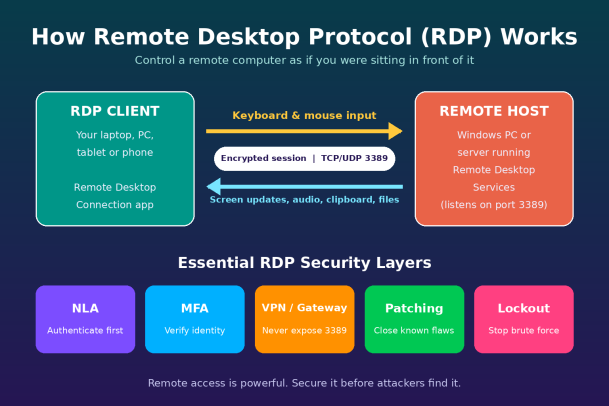
RDP operates on a client-server model. Two components are involved in every session:
- The RDP client: The device you’re using, such as a laptop, desktop, tablet, or phone, running a remote desktop application like Microsoft’s Remote Desktop Connection (mstsc.exe).
- The RDP server (remote host): The computer you want to access, which runs Remote Desktop Services and listens for incoming connections, by default on TCP and UDP port 3389.
When you initiate a connection, the client and host negotiate encryption settings, authenticate the user, and establish a secure session. From that point on, data flows in two directions:
- From client to host: Your keyboard strokes and mouse movements.
- From host to client: Compressed screen updates, audio, clipboard contents, and optionally printer and drive redirection.
Importantly, the applications you use actually run on the remote computer. Only the graphical output travels across the network, which is why RDP can perform well even over modest internet connections.
Key Features of RDP
RDP has evolved significantly over the years. Modern versions include a rich set of features that make remote work seamless:
- Encryption: RDP sessions are encrypted using TLS, protecting data in transit from eavesdropping.
- Network Level Authentication (NLA): Requires users to authenticate before a full session is established, reducing exposure to certain attacks.
- Multi-monitor support: Users can span a remote session across multiple displays.
- Device redirection: Local printers, drives, USB devices, smart cards, and audio can be made available within the remote session.
- Clipboard sharing: Copy and paste text and files between local and remote machines.
- Bandwidth optimization: Adaptive compression and caching keep sessions responsive on slower connections.
- RemoteApp: Instead of a full desktop, individual applications can be delivered so they appear to run locally.
Common Uses of RDP
RDP’s flexibility makes it valuable across many scenarios. Here are the most common ways organizations and individuals use it.
1. Remote Work and Telecommuting
Employees can access their office workstations from home or while traveling, with full access to company applications, files, and resources. This became especially critical as hybrid and remote work models spread worldwide.
2. IT Administration and Technical Support
System administrators use RDP to manage servers, install updates, troubleshoot problems, and configure settings without being physically present in a data center. Help desk teams can also connect to user machines to resolve issues quickly.
3. Server Management
Most Windows servers, whether on-premises or in cloud platforms like Microsoft Azure and Amazon Web Services, are managed through RDP. It gives administrators a familiar graphical interface for complex tasks.
4. Virtual Desktop Infrastructure (VDI)
Organizations use Remote Desktop Services to host centralized virtual desktops that many users can access. This simplifies software deployment, improves data control, and extends the life of older end-user hardware.
5. Accessing Resource-Intensive Applications
Engineers, analysts, and designers can run demanding software on powerful remote machines from a lightweight laptop, since the heavy processing happens on the host.
6. Education and Training
Instructors can demonstrate software or give students access to lab environments remotely, making technical education more accessible.
Benefits of Using RDP
Why is RDP so popular? Its advantages are compelling:
- Built into Windows: No additional licensing is needed for basic use on Windows Pro and Server editions.
- Productivity from anywhere: Users access their full work environment from any location.
- Centralized data: Files stay on the host system rather than being scattered across personal devices, which supports data governance.
- Cost efficiency: Businesses reduce travel for IT support and can centralize computing resources.
- Cross-platform access: Official clients exist for most major operating systems.
RDP Security Risks You Should Know
Despite its usefulness, RDP is one of the most targeted services on the internet. Security researchers consistently find that exposed RDP is a leading entry point for ransomware and other cyberattacks. Understanding the risks is the first step toward mitigating them.
Brute-Force and Credential Stuffing Attacks
When RDP is exposed directly to the internet on port 3389, automated bots scan for it constantly. Attackers then try thousands of username and password combinations, or reuse credentials leaked from other breaches, until one works.
Unpatched Vulnerabilities
RDP has had serious vulnerabilities over the years. The most famous is BlueKeep (CVE-2019-0708), a “wormable” flaw that allowed remote code execution without authentication on older Windows systems. Related vulnerabilities, sometimes grouped as DejaBlue, affected newer versions too. Unpatched systems remain easy targets.
Ransomware Delivery
Many ransomware groups rely on compromised RDP access to get inside networks. Once logged in, attackers can disable security tools, move laterally, steal data, and deploy ransomware across the organization.
Man-in-the-Middle Attacks
Poorly configured RDP sessions, especially those that ignore certificate warnings or use outdated security settings, can be intercepted by attackers who position themselves between client and host.
Credentials Sold on the Dark Web
Access to compromised RDP servers is regularly bought and sold on criminal marketplaces, giving attackers a ready-made foothold into victim networks.
Best Practices for Securing RDP
The good news is that RDP can be used safely when properly configured. Follow these best practices to dramatically reduce your risk:
- Never expose RDP directly to the internet. Place it behind a VPN, a zero-trust access solution, or a Remote Desktop Gateway so port 3389 isn’t publicly reachable.
- Enable Network Level Authentication (NLA). This forces authentication before a session is created, blocking many pre-authentication exploits.
- Enforce Multi-Factor Authentication (MFA). Even if a password is stolen, MFA prevents unauthorized logins.
- Use strong, unique passwords. Weak or reused credentials are the root cause of most RDP compromises.
- Apply account lockout policies. Lock accounts after a set number of failed attempts to stop brute-force attacks.
- Keep systems patched. Install Windows security updates promptly to close known RDP vulnerabilities.
- Limit user access. Grant RDP rights only to users who truly need them, and remove administrator privileges where possible.
- Monitor and log RDP activity. Watch for unusual login times, repeated failures, and connections from unexpected locations.
- Deploy endpoint protection. Advanced endpoint security can detect and contain malicious activity even if an attacker gains access.
- Disable RDP where it isn’t needed. Every unused remote access service is an unnecessary risk.
RDP vs. Other Remote Access Solutions
RDP isn’t the only way to access computers remotely. Here’s how it compares to some alternatives.
RDP vs. VNC: Virtual Network Computing (VNC) shares the actual screen of the remote machine, which is useful for collaborative support. RDP creates a separate session, generally offering better performance and deeper Windows integration.
RDP vs. VPN: A VPN connects your device to a remote network, while RDP gives you control of a specific computer. They work best together: the VPN secures network access, and RDP provides the desktop.
RDP vs. Third-Party Remote Tools: Commercial tools such as TeamViewer or AnyDesk simplify connections across firewalls without configuration, but they introduce additional vendors, costs, and their own security considerations.
Frequently Asked Questions About RDP
1. Is RDP free?
The RDP client is free, and hosting RDP is included in Windows Pro, Enterprise, and Server editions. Windows Home editions cannot act as an RDP host. Multi-user Remote Desktop Services deployments require additional client access licenses.
2. What port does RDP use?
RDP uses TCP and UDP port 3389 by default. Changing the port can reduce automated scanning noise, but it is not a substitute for real security controls.
3. Is RDP secure?
RDP is encrypted, but its security depends heavily on configuration. With NLA, MFA, patching, and no direct internet exposure, it can be used safely.
4. Can I use RDP on a Mac or phone?
Yes. Microsoft offers official Remote Desktop apps for macOS, iOS, and Android.
Final Thoughts
So, what is RDP? It’s a powerful, built-in protocol that lets you control computers remotely, supporting remote work, IT administration, server management, and virtual desktops. Its convenience, however, makes it a favorite target for cybercriminals. The difference between a productivity tool and a security liability comes down to how well you protect it.
Securing remote access requires more than strong passwords. It takes layered defenses that stop threats at the endpoint before they can spread across your network.
Protect Your Remote Endpoints with Xcitium
Exposed and poorly secured RDP connections remain one of the fastest routes attackers use to deploy ransomware. Xcitium’s zero-trust endpoint protection helps contain unknown threats before they can cause damage, so your team can work remotely with confidence.
Don’t wait for a breach to rethink your remote access security. See how Xcitium can protect every endpoint in your organization.
Please give us a star rating based on your experience.


 (20 votes, average: 2.55 out of 5, rated)