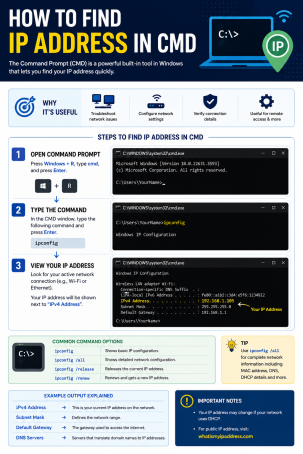
Ever tried to troubleshoot a network issue, set up a VPN, or configure a firewall rule only to realize you don’t actually know your device’s IP address? You’re not alone. Nearly every network problem — from a printer that won’t connect to a suspicious login attempt — starts with one question: what’s my IP address? The good news is that how to find IP address in CMD is one of the simplest and most reliable skills any Windows user can learn, and it takes less than a minute.
Whether you’re a home user trying to fix a Wi-Fi issue or an IT professional auditing a corporate network for cybersecurity purposes, the Command Prompt (CMD) gives you instant access to your system’s networking details — no third-party software required. In this guide, we’ll walk through every method for finding your IP address in CMD, explain the difference between local and public IP addresses, and share security tips to keep your network safe from prying eyes.
Why You Need to Know How to Find IP Address in CMD
Your IP address is essentially your device’s identity card on a network. It allows computers, routers, and servers to locate and communicate with each other. Knowing how to find IP address in CMD is useful for:
- Diagnosing slow or dropped internet connections
- Setting up remote desktop access or file sharing
- Configuring static IPs, DNS servers, or port forwarding
- Verifying VPN or proxy connections are working correctly
- Investigating unauthorized devices on your network for cybersecurity monitoring
- Troubleshooting firewall and router configuration issues
For cybersecurity and internet security professionals, this is more than a convenience — it’s a foundational diagnostic step. Attackers often probe networks by scanning IP ranges, so understanding your own IP configuration helps you spot anomalies before they become breaches.
Method 1: Find Your Local IP Address Using ipconfig
The most common and fastest way to find IP address in CMD is with the built-in ipconfig command.
Steps to Use ipconfig
- Press Windows + R to open the Run dialog box.
- Type cmd and press Enter to open Command Prompt.
- In the black window, type
ipconfigand press Enter. - Look for IPv4 Address under your active network adapter (Wi-Fi or Ethernet).
This will display your private (local) IP address — the one your router assigns to your device within your home or office network.
Getting More Detail with ipconfig /all
If you need additional information such as your MAC address, DNS servers, or subnet mask, use:
ipconfig /allThis extended command is especially helpful for network administrators performing detailed audits or troubleshooting DHCP-related connectivity issues.
Method 2: Find Your Public IP Address Using CMD
Your public IP address is the one visible to websites and external servers — it’s different from your local IP and is assigned by your Internet Service Provider (ISP). While CMD doesn’t have a direct built-in command for this, you can retrieve it using the nslookup command combined with a DNS resolver.
Steps to Check Public IP via CMD
- Open Command Prompt as described above.
- Type the following command and press Enter:
nslookup myip.opendns.com resolver1.opendns.com- The result will display your public IP address under “Address.”
This method is particularly useful for cybersecurity checks, such as confirming whether your VPN is masking your real public IP address or verifying that a firewall rule is targeting the correct external address.
Method 3: Using PowerShell Commands Inside CMD for Advanced Users
For more advanced network diagnostics, Windows also allows PowerShell-style commands to complement traditional CMD queries. While ipconfig handles most needs, IT professionals managing larger environments may use:
Get-NetIPAddressThis command (run in PowerShell rather than classic CMD) returns a more structured, table-style output of all IP addresses assigned to your machine, including IPv6 addresses — useful when auditing devices for compliance or security monitoring purposes.
Common Errors When Finding IP Address in CMD (And How to Fix Them)
Even a simple task like this can run into hiccups. Here are frequent issues users report:
- “ipconfig is not recognized as an internal or external command” — This usually means CMD wasn’t opened with proper system privileges, or the system PATH variable is misconfigured. Restarting CMD as Administrator typically resolves it.
- No IPv4 address showing — This can indicate a disabled network adapter or a failed DHCP request. Try
ipconfig /releasefollowed byipconfig /renew. - Multiple IP addresses listed — If you have both Wi-Fi and Ethernet enabled, or a VPN adapter active, CMD will show multiple entries. Identify the correct one by checking which adapter shows “Media State: Connected.”
Security Tips for Managing Your IP Address
Learning how to find IP address in CMD is just the first step. Protecting that information matters just as much, especially from an internet security standpoint:
- Avoid sharing your public IP address publicly on forums, gaming platforms, or social media, as it can be used for targeted attacks like DDoS.
- Use a VPN to mask your real IP address when browsing on public or untrusted networks.
- Monitor connected devices on your router’s admin panel regularly to catch unauthorized access early.
- Keep firewall and antivirus protections active, since a known IP address can become an entry point for network scanning and intrusion attempts.
- Rotate or reset your IP address periodically if you suspect it has been exposed or targeted.
These small habits, combined with an endpoint security solution, significantly reduce your exposure to network-based cyber threats.
Frequently Asked Questions (FAQ)
1. How do I find my IP address in CMD without internet access?
You can still find your local IP address offline. Simply open Command Prompt and run ipconfig. This displays your private IPv4 address as assigned by your router, even without an active internet connection.
2. What is the difference between a local and public IP address?
A local IP address identifies your device within your home or office network (assigned by your router), while a public IP address identifies your entire network to the outside internet (assigned by your ISP). CMD can retrieve both using different commands.
3. Can I find someone else’s IP address using CMD?
You can find the IP address of a website or server you’re connected to using commands like ping or tracert, but you cannot directly obtain another user’s private IP address through CMD without their device being on a shared network or without their explicit connection to you.
4. Why does ipconfig show more than one IP address?
Multiple IP addresses usually appear when several network adapters are active at once — such as Wi-Fi, Ethernet, or a VPN connection. Check the adapter labeled “Connected” to identify the one currently in use.
5. Is it safe to share my IP address with tech support?
Generally yes, if you’re speaking with a verified support agent from a trusted company, since your IP address alone cannot compromise your device. However, avoid sharing it with unknown parties, as it can be used alongside other data for reconnaissance in a cyberattack.
Final Thoughts
Knowing how to find IP address in CMD is a small but essential skill for anyone who cares about network performance and online security. From troubleshooting connectivity issues to verifying VPN protection, this quick command-line trick puts you in control of your network visibility. But identifying your IP address is only half the battle — protecting your devices from the threats that target it is just as critical.
If you’re serious about safeguarding your network beyond the basics, it’s time to see how proactive cybersecurity can protect every device on your network, not just your IP address. Request a free demo with Xcitium today and discover how advanced endpoint protection keeps your business secure around the clock.
Please give us a star rating based on your experience.


 (16 votes, average: 2.44 out of 5, rated)