Is your taskbar frozen, your desktop blank, or your File Explorer stuck on “Not Responding”? Knowing how to restart Windows Explorer can fix these problems in seconds, without rebooting your PC or losing your open work.
Windows Explorer (explorer.exe) runs your desktop, taskbar, Start menu, and File Explorer windows. When it crashes, Windows can feel broken even though everything else is running fine. This guide shows you how to restart Windows Explorer with five simple methods. It also explains why this process matters to your cybersecurity, because attackers love to hide behind it.
What Is Windows Explorer and Why Does It Freeze?
Windows Explorer is the system process that draws the graphical interface you use every day. It handles the taskbar, Start menu, desktop icons, and File Explorer.
Common reasons it freezes or crashes include:
- Buggy or outdated display drivers
- Corrupted system files
- Faulty shell extensions or third-party add-ins
- Low memory or heavy system load
- Malware or unwanted software interfering with the process
Restarting the process is often the quickest fix. If it keeps freezing, it is worth checking for deeper problems, including security threats.
How to Restart Windows Explorer Using Task Manager
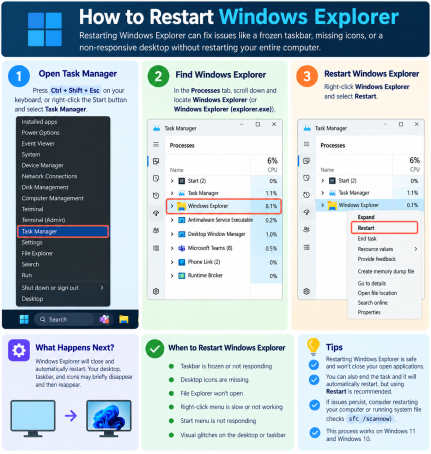
This is the easiest and most popular way to restart Windows Explorer.
- Press Ctrl + Shift + Esc to open Task Manager.
- Click More details if you see the compact view.
- On the Processes tab, find Windows Explorer.
- Right-click it and select Restart.
Your screen will flicker for a moment as the taskbar and desktop reload. Open File Explorer windows may close, so save your work first.
Tip: If you cannot find it, look under “Windows processes” or use the search box at the top of Task Manager.
How to Restart Windows Explorer from Command Prompt
If Task Manager is unavailable or you prefer the command line, use CMD. This method is useful for IT admins and for scripts.
- Open Task Manager and choose File > Run new task, or press Win + R.
- Type
cmdand press Enter. - Run this command to stop the process:
taskkill /f /im explorer.exe- Then restart it:
start explorer.exeYour screen may go blank after the first command. That is normal. If the desktop does not return, use Ctrl + Shift + Esc, choose File > Run new task, type explorer.exe, and press Enter.
How to Restart Windows Explorer with PowerShell
PowerShell offers a one-line option:
Stop-Process -Name explorer -ForceWindows usually relaunches explorer.exe automatically after this command. If it does not, type explorer.exe in a new task to bring it back.
Other Quick Ways to Restart Explorer.exe
Here are two more options when the first methods are not convenient:
- Exit Explorer from the taskbar: Hold Ctrl + Shift and right-click an empty area of the taskbar. Select Exit Explorer if the option appears, then launch it again through Task Manager’s Run new task.
- Create a batch file: Save the following as
restart-explorer.batfor one-click use:
@echo off
taskkill /f /im explorer.exe
start explorer.exe
Quick Comparison of Methods
| Method | Best For | Skill Level |
|---|---|---|
| Task Manager | Everyday users | Beginner |
| Command Prompt | Admins and scripts | Intermediate |
| PowerShell | Automation | Intermediate |
| Taskbar exit option | Frozen desktops | Beginner |
| Batch file | Repeated use | Intermediate |
What to Do If Windows Explorer Keeps Crashing
If you need to restart Windows Explorer more than once or twice a week, try these fixes:
- Update Windows and drivers. Install pending updates and refresh your graphics driver.
- Run system repair tools. Open an administrator Command Prompt and run
sfc /scannow, thenDISM /Online /Cleanup-Image /RestoreHealth. - Clear File Explorer history. Open File Explorer Options and select Clear under Privacy.
- Disable unused shell extensions. Third-party add-ins are a frequent cause of crashes.
- Run a full security scan. Repeated crashes can be a sign of malware.
Why Restarting Windows Explorer Matters for Cybersecurity
Explorer.exe runs on almost every Windows PC, so attackers target it. Malware can disguise itself with the same name to blend in. MITRE ATT&CK calls this technique “masquerading,” where an attacker gives a malicious file a legitimate-sounding name or location.
Watch for these red flags:
- Multiple explorer.exe processes running unexpectedly. A normal setup has one main desktop instance, though extra instances can appear when File Explorer is set to open folder windows in separate processes.
- Explorer.exe running from the wrong folder. The legitimate file lives in
C:\Windows\. To check, right-click the process in Task Manager and select Open file location. - Odd network activity or high CPU use from explorer.exe.
- Constant crashes right after you open a downloaded file or email attachment.
- Misspelled look-alikes such as “explore.exe” or “explorer32.exe.”
If anything looks suspicious, disconnect the device from the network and run a full endpoint scan. Do not simply keep restarting Windows Explorer and ignoring the symptoms.
Security Best Practices for Windows Endpoints
Use these habits to reduce risk:
- Keep Windows fully patched to close known vulnerabilities.
- Use standard user accounts and grant administrator rights only when needed (least privilege).
- Avoid unverified downloads and attachments. Many attacks begin with one careless click.
- Monitor processes centrally. Use endpoint detection and response (EDR) to flag abnormal behavior from system processes.
- Adopt a zero-trust approach. Treat unknown files as untrusted until they are proven safe. Running them in an isolated environment limits the damage if they turn out to be malicious.
- Back up important data so a crash or attack does not cost you your files.
Frequently Asked Questions (FAQ)
1. How do I restart Windows Explorer quickly?
Press Ctrl + Shift + Esc, find Windows Explorer in the Processes tab, right-click it, and choose Restart. It takes only a few seconds.
2. Will I lose my work if I restart Windows Explorer?
Your open apps, such as browsers and documents, keep running. However, open File Explorer windows will close, so save your work and note any folders you were using.
3. What if my taskbar disappears after I stop explorer.exe?
Press Ctrl + Shift + Esc, select File > Run new task, type explorer.exe, and press Enter. The taskbar and desktop should return.
4. Is restarting Windows Explorer the same as restarting my computer?
No. It only reloads the desktop interface (taskbar, Start menu, and File Explorer). It does not close your other programs or clear system memory like a full reboot.
5. Can malware cause Windows Explorer to crash?
Yes. Malware can inject code into explorer.exe or imitate it, causing crashes, slowdowns, or unusual behavior. If crashes are frequent, run a full scan with a trusted endpoint security solution.
Conclusion: Fix the Freeze, Then Secure the System
Now you know how to restart Windows Explorer using Task Manager, CMD, PowerShell, and more. These quick fixes get your desktop back in seconds. But if your system keeps freezing, or you notice suspicious process behavior, it may be more than a glitch. Traditional antivirus can miss unknown threats that hide behind trusted Windows processes.
Xcitium’s zero-trust endpoint protection contains unknown files before they can harm your system, so a frozen desktop never becomes a full-blown breach.
👉 Request a Demo and see how Xcitium protects your endpoints, users, and data.
Please give us a star rating based on your experience.


 (27 votes, average: 2.33 out of 5, rated)