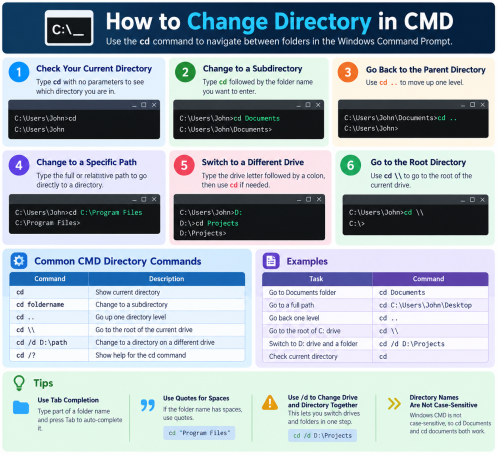
Ever opened Command Prompt, typed a command, and got “The system cannot find the path specified”? Learning how to change directory in CMD is the fix. It is one of the first skills every Windows user, IT admin, and security analyst needs.
The Windows command line is fast and powerful, and attackers know it. MITRE ATT&CK tracks the Windows Command Shell as a technique adversaries use to run commands, move around systems, and launch malware. This guide shows you how to change directory in CMD, step by step. It also explains why safe command-line habits matter for your organization’s security.
What Is a Directory in CMD?
A directory is simply a folder. In Command Prompt, your working directory is the folder where commands run by default. You can see it in the prompt, for example C:\Users\Alex>.
Before you change directory in CMD, check where you are. Type cd on its own and press Enter to print the current path.
How to Change Directory in CMD with the cd Command
The easiest way to change directory in CMD is the cd (change directory) command. Its syntax is:
cd [path]Move Into a Subfolder
If you are in C:\Users\Alex and want to open Documents:
cd DocumentsYou can use a relative path (starting from where you are) or an absolute path (starting from the drive):
cd C:\Users\Alex\Documents\ReportsHandle Folder Names With Spaces
Folder names with spaces need quotation marks:
cd "C:\Program Files\Common Files"Without the quotes, CMD reads the space as the end of the path and returns an error.
Go Up One Level
To move to the parent folder, use two dots:
cd ..Chain them to climb several levels: cd ..\..
Jump Straight to the Root Directory
To return to the top of the current drive:
cd \How to Change Drive in CMD Using cd /d
Typing cd D:\Projects while you are on the C: drive will not switch drives. It only changes the saved folder on D:. To change directory in CMD across drives, add the /d switch:
cd /d D:\ProjectsYou can also switch drives by typing the drive letter and a colon:
D:Both methods work. cd /d is better in scripts because it changes drive and folder in one step.
Time-Saving Shortcuts to Change Directory in CMD
Once you know the basics, these tricks make it much faster to navigate directories:
- Tab completion: Type the first letters of a folder name (
cd Doc) and press Tab. CMD completes the name. Press Tab again to cycle through matches. - Drag and drop: Type
cd(with a trailing space), then drag a folder from File Explorer into the window. CMD pastes the full path. - Open CMD in the right folder: In File Explorer, click the address bar, type
cmd, and press Enter. Command Prompt opens already in that folder. - pushd and popd:
pushd C:\Logssaves your current location and moves you toC:\Logs. Typepopdto return. This is useful in scripts and long troubleshooting sessions. - Command history: Press the Up Arrow to recall previous commands, including long
cdpaths.
Quick Reference Table
| Goal | Command |
|---|---|
| Show current directory | cd |
| Open a subfolder | cd FolderName |
| Open a path with spaces | cd "C:\My Folder" |
| Go up one level | cd .. |
| Go to the root | cd \ |
| Change drive and folder | cd /d D:\Folder |
| Save and return to a location | pushd / popd |
Common Errors When You Change Directory in CMD
Even experienced users hit these problems:
- “The system cannot find the path specified.” The folder name is misspelled or does not exist. Run
dirto list what is in the current folder. - “The filename, directory name, or volume label syntax is incorrect.” This usually means missing quotes around a path with spaces.
- Drive does not change. You forgot the
/dswitch. - “Access is denied.” Your account lacks permission. Do not simply run CMD as administrator to get around this. Check whether you should have access in the first place.
Why Knowing How to Change Directory in CMD Matters for Cybersecurity
Navigating folders may seem like a basic task, but it sits at the center of both IT administration and attacks. Security teams use the command line to investigate suspicious files, review logs, and check system folders. Attackers use the same tools after gaining a foothold, browsing directories to find sensitive data, credentials, and backups.
That is why understanding CMD helps defenders. If you know how to change directory in CMD and what normal activity looks like, you can better spot abnormal behavior such as:
- Command Prompt launched by an Office document or browser
- Scripts moving into user folders, temp directories, or
System32in unusual ways - Repeated
cdanddircommands run by a service account - Command-line activity outside business hours
Command Prompt Security Best Practices
Use these habits to keep command-line access safe:
- Apply least privilege. Give users standard accounts, and use administrator rights only when needed.
- Verify before you run. Never paste a command from an unknown website or email. It may download malware.
- Monitor command-line activity. Turn on process creation logging and use endpoint detection and response (EDR) to flag suspicious CMD and PowerShell behavior.
- Restrict who can open CMD. On shared or kiosk systems, use Group Policy to limit access to the command line.
- Keep systems patched. Attackers often chain command-line access with known vulnerabilities.
- Adopt a zero-trust approach. Treat unknown files and processes as untrusted until proven safe. Containing unknown threats before they touch your real system limits the damage even when something slips through.
Frequently Asked Questions (FAQ)
1. How do I change directory in CMD?
Type cd followed by the folder path and press Enter, for example cd C:\Users\Alex\Documents. Use quotes if the path contains spaces.
2. How do I change directory in CMD to another drive?
Use cd /d D:\FolderName. You can also type the drive letter and colon (D:) to switch drives first, then use cd.
3. How do I go back to the previous folder in CMD?
Type cd .. to move up one level. Type cd \ to go to the root of the drive. If you used pushd earlier, popd returns you to the saved location.
4. Is the cd command case-sensitive in Windows?
No. cd documents and cd Documents work the same in CMD, because Windows paths are not case-sensitive by default.
5. Is CMD safe to use?
CMD is a legitimate Windows tool, but attackers can abuse it. Use least-privilege accounts, avoid running unverified commands, and monitor command-line activity with a modern endpoint security platform.
Conclusion: Master the Command Line, Then Protect It
Now that you know how to change directory in CMD, you can move around Windows faster and troubleshoot with confidence. But every powerful tool needs protection. Attackers target command-line access, and traditional detection can miss threats until it is too late.
Xcitium’s zero-trust endpoint protection helps stop unknown threats before they cause damage, without slowing your team down.
👉 Request a Demo and see how Xcitium can secure your endpoints, your users, and your data.
Please give us a star rating based on your experience.

 (17 votes, average: 2.24 out of 5, rated)