How Can I Set Up a VPN? The Complete 2026 Guide for Professionals, IT Teams & Security-Minded Users
Updated on November 26, 2025, by Xcitium
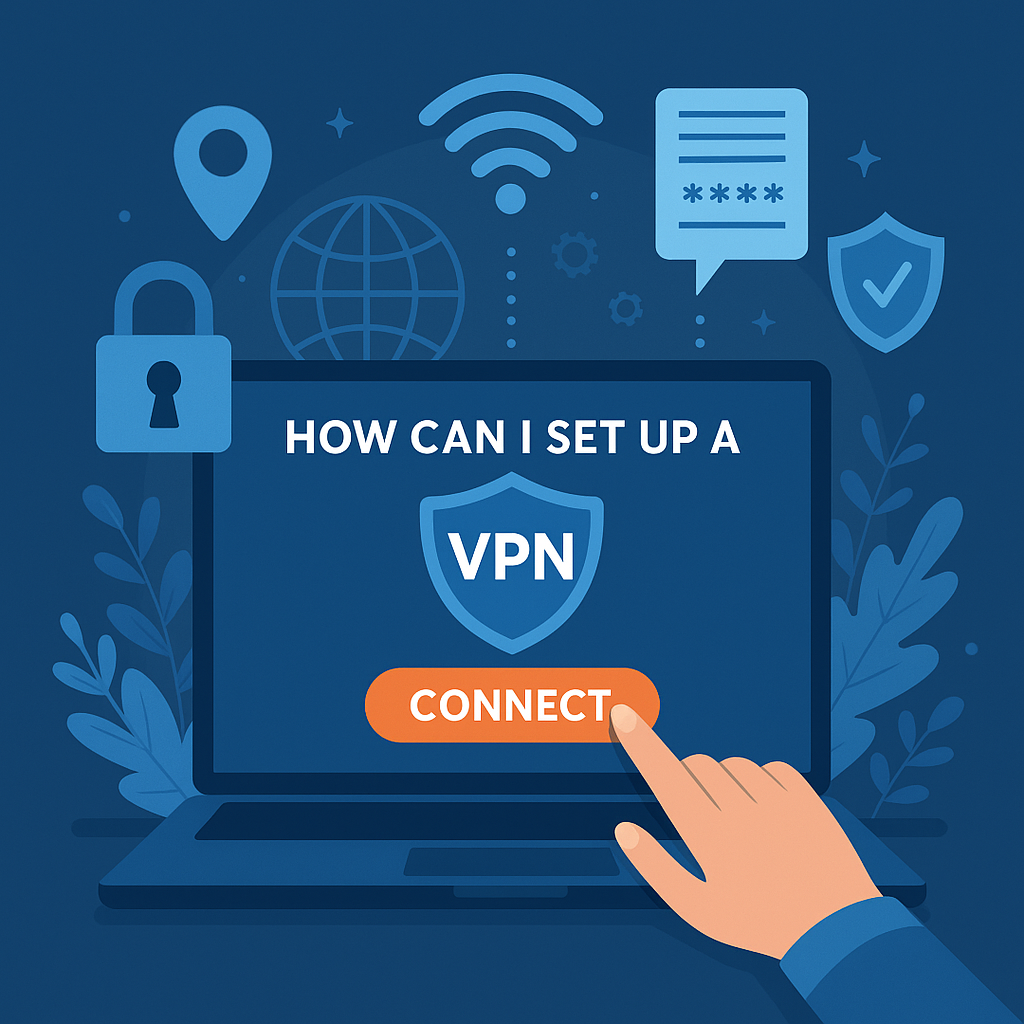
Online privacy is no longer optional — it’s a necessity. Cyberattacks are rising, public Wi-Fi risks continue to grow, and businesses rely heavily on secure remote access. If you’ve ever wondered how can I set up a VPN, you’re not alone. Millions of users search for simple and reliable ways to encrypt their internet traffic and protect sensitive data.
A Virtual Private Network (VPN) is one of the most effective tools for securing your digital activity. It hides your IP address, encrypts your data, and keeps your browsing private from cybercriminals, ISPs, and unsecured networks. Whether you’re an IT manager rolling out VPN access across your organization or an individual user trying to protect personal information, the process is easier than you may think.
In this complete guide, you’ll learn how to set up a VPN on Windows, macOS, Android, iPhone, and routers — with step-by-step instructions for every environment.
What Is a VPN and Why Do You Need One?
Before diving into the steps, let’s quickly define what a VPN does.
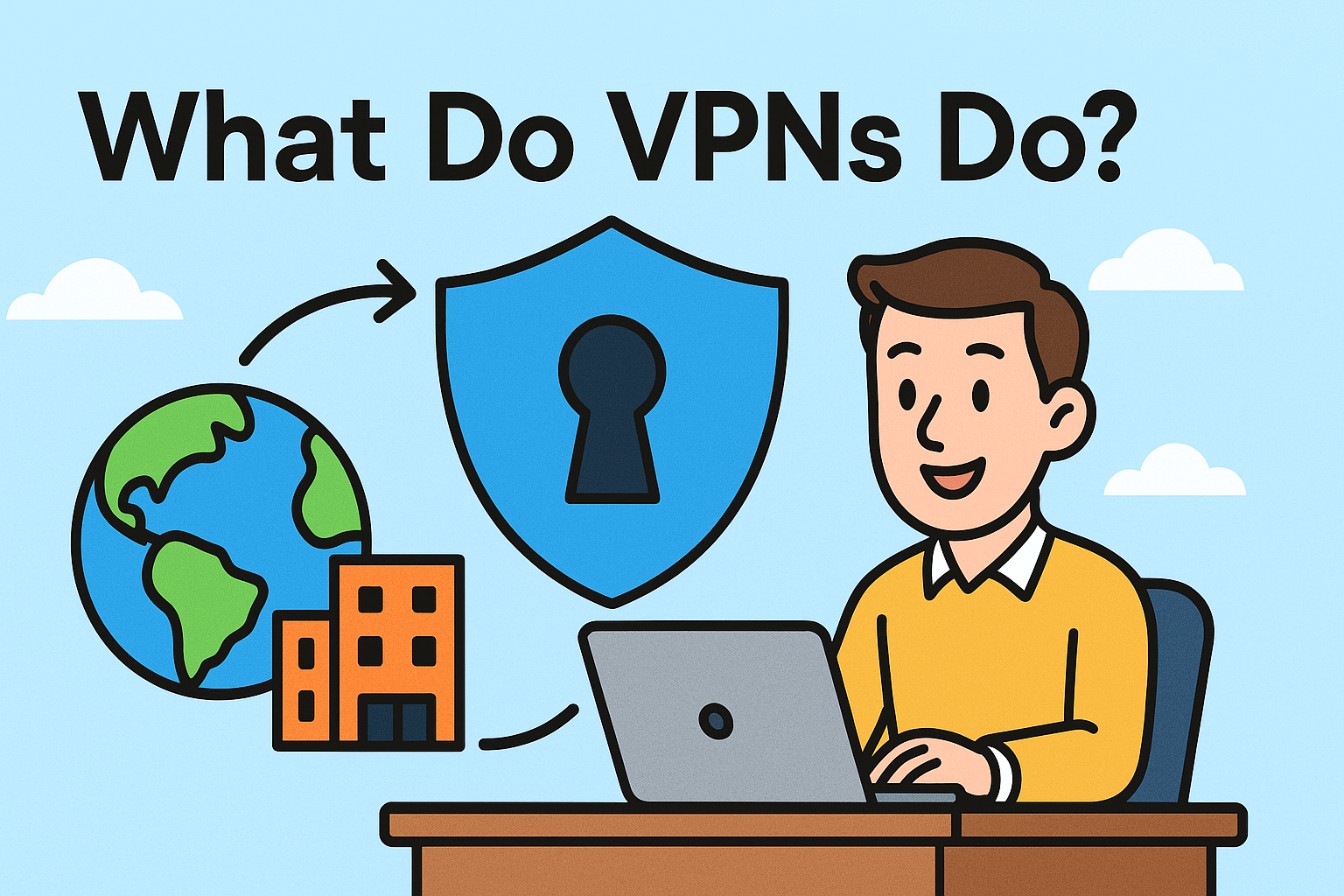
A VPN (Virtual Private Network) establishes a secure, encrypted tunnel between your device and the internet. This prevents third parties — including hackers, internet service providers, government entities, and public Wi-Fi snoopers — from seeing your real IP address or tracking your online activity.
Here’s why VPN usage is exploding among businesses and individuals:
✔ Enhanced online privacy
Your internet activity becomes untraceable.
✔ Encrypted data transmission
Critical for preventing credential theft and man-in-the-middle attacks.
✔ Safe browsing on public Wi-Fi
Protects your device at airports, hotels, and cafes.
✔ Remote work security
A must for employees accessing sensitive company systems.
✔ Access to geo-restricted content
Stream services and websites not available in your region.
✔ Compliance and cybersecurity standards
Required for many organizations under HIPAA, PCI-DSS, and SOC 2.
How Can I Set Up a VPN? Step-by-Step for Every Device
Below are the most accurate and updated VPN setup instructions for 2026.
🖥️ How to Set Up a VPN on Windows (10/11)
Setting up a VPN on Windows is simple, with or without a dedicated app.
Option 1: Using a VPN App (Recommended)
-
Choose a VPN provider
-
Download the Windows VPN app
-
Install and launch the application
-
Sign in using your account
-
Select a server location
-
Click Connect
This method offers:
-
One-click connection
-
Automatic kill switch
-
Auto-connect at startup
-
DNS leak protection
-
Fast protocol switching
Option 2: Manual Windows VPN Setup
-
Go to Settings → Network & Internet → VPN
-
Click Add a VPN Connection
-
Fill out the form:
-
VPN provider: Windows (built-in)
-
Connection name: Any name (e.g., Work VPN)
-
Server name or address: Provided by your VPN
-
VPN type: Choose (IKEv2 / L2TP / OpenVPN*)
-
Sign-in info: Username/password
-
-
Save
-
Click Connect
⚠️ Note: Windows does not support OpenVPN natively. It requires a third-party app.
💻 How to Set Up a VPN on macOS (Big Sur, Monterey, Ventura, Sonoma)
Using a VPN App (Fastest Option)
-
Download the macOS VPN app from the provider
-
Install and open it
-
Log in
-
Select a server
-
Click Connect
Manual VPN Setup on a Mac
-
Open System Settings → VPN
-
Click Add VPN Configuration
-
Choose your VPN type
-
Enter server address
-
Add account name and password
-
Save and toggle Connect
📱 How to Set Up a VPN on iPhone (iOS 15–17)
Using the VPN App
-
Install the VPN provider’s iOS app
-
Open the app
-
Tap Allow when asked to add a VPN profile
-
Choose a server
-
Tap Connect
Manually Add a VPN Profile
-
Go to Settings → General → VPN & Device Management
-
Tap Add VPN Configuration
-
Choose between:
-
IKEv2
-
IPSec
-
L2TP
-
-
Enter your VPN server details
-
Tap Done → Connect
📱 How to Set Up a VPN on Android (Samsung, Pixel, OnePlus, etc.)
Using a VPN App
-
Install the VPN app via Google Play
-
Log in
-
Tap Connect
Manual Android VPN Setup
-
Go to Settings → Network & Internet → VPN
-
Tap Add VPN
-
Enter VPN details
-
Tap Save
-
Select the new profile → Connect
🌐 How to Set Up a VPN on Your Router
Setting up a VPN on your router protects your entire network, including:
-
Smart TVs
-
IoT devices
-
Laptops
-
Tablets
-
Smartphones
-
Printers
Steps to Install a VPN on a Router
-
Log into your router (usually 192.168.1.1)
-
Navigate to the VPN section
-
Choose VPN client mode
-
Upload the VPN configuration (.ovpn file or server config)
-
Enter your login credentials
-
Save and reboot
-
Test connection
Router Models Compatible with VPNs
✔ AsusWRT & AsusWRT-Merlin
✔ Netgear Nighthawk
✔ Linksys WRT series
✔ TP-Link high-end models
✔ DD-WRT flashed routers
✔ GL.iNet routers
⚠️ ISP-provided routers often do not support VPN client mode.
🔐 Choosing the Best VPN Protocol for Your Setup
Every VPN uses a protocol that determines speed, stability, and security.
| Protocol | Speed | Security | Best For |
|---|---|---|---|
| WireGuard | ⭐⭐⭐⭐⭐ | ⭐⭐⭐⭐ | Fastest, modern VPN |
| OpenVPN | ⭐⭐⭐⭐ | ⭐⭐⭐⭐⭐ | Enterprise-level security |
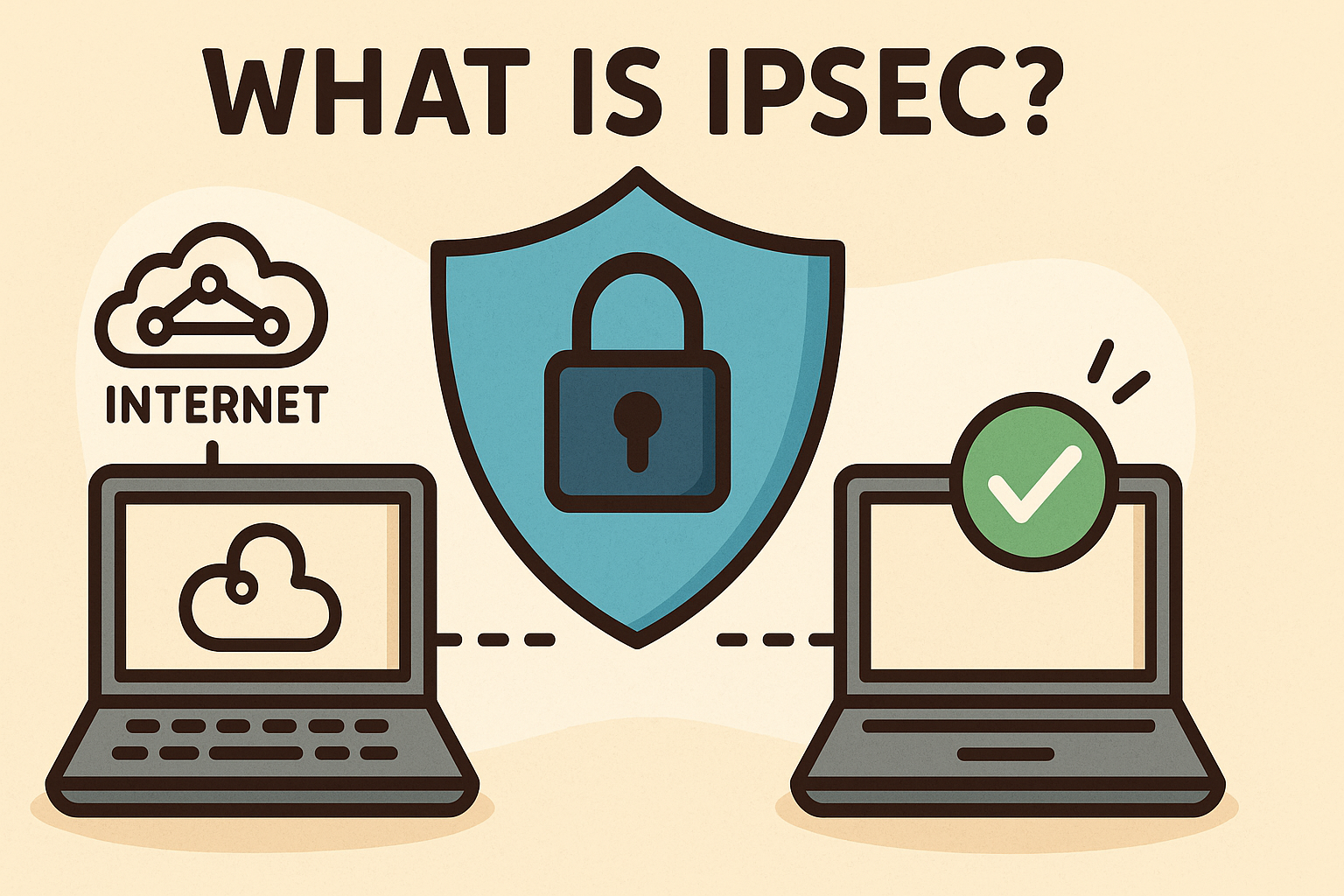
| IKEv2/IPSec | ⭐⭐⭐⭐ | ⭐⭐⭐⭐ | Mobile devices |
| L2TP/IPSec | ⭐⭐⭐ | ⭐⭐⭐ | Legacy systems |
| PPTP | ⭐⭐ | ⭐ | Not recommended (weak encryption) |
🎯 What to Do After Setting Up Your VPN (Important!)
Setting up a VPN is only the first step. Do these next:
1. Enable Kill Switch
Prevents IP leaks if your VPN disconnects.
2. Turn On Auto-Connect
Especially useful on public Wi-Fi.
3. Choose a Nearby Server for Better Speed
Lower latency = faster connection.
4. Update VPN Software Regularly
Fixes vulnerabilities and enhances performance.
5. Test for DNS & IP Leaks
Use sites like:
-
dnsleaktest.com
-
ipleak.net
🛠️ Troubleshooting: VPN Not Connecting?
If your VPN fails, here are common fixes:
✔ Restart VPN app
✔ Try a different server
✔ Switch protocols (OpenVPN ↔ WireGuard)
✔ Restart your router
✔ Clear DNS cache
✔ Disable firewall temporarily
✔ Update VPN software
✔ Check your login credentials
❓ FAQ — Frequently Asked Questions
1. How can I set up a VPN for free?
You can use free VPNs, but many limit speed and security. A paid VPN is safer.
2. Is a VPN legal?
Yes, VPNs are legal in most countries.
3. Can I set up a VPN without an app?
Yes — using built-in VPN settings on Windows, macOS, iOS, Android, and routers.
4. What is the easiest way to set up a VPN?
Using the VPN provider’s official app.
5. Should I leave my VPN on all the time?
Yes — especially on public Wi-Fi and mobile networks.
Final Thoughts: Setting Up a VPN Is Simple — Staying Secure Is Essential
Learning how can I set up a VPN is vital for protecting your identity, securing your devices, and preventing unauthorized access. Whether you’re setting up a VPN for work, travel, streaming, gaming, or general privacy, the steps are easy and the benefits enormous.
A VPN is one of the most powerful cybersecurity tools available — but combining it with Zero-Trust protection boosts your security even further.
🚀 Strengthen Your Security with Zero-Trust Protection
Protect every device and endpoint with real-time isolation and threat prevention.
👉 Request a Free Demo: https://www.xcitium.com/request-demo/