Attackers no longer need to trick you into running an obvious .exe file. Today, some of the most damaging malware infections begin with a few lines of script hidden in an email attachment, a document macro, or a malicious web page. Scripts are flexible, easy to disguise, and often run using tools that are already built into your operating system.
For security teams, that is a serious problem. When malware hides inside trusted processes like PowerShell, Windows Script Host, or a browser engine, traditional antivirus tools that look for known bad files can miss it entirely. In this guide, we explain how an attacker can execute malware through a script, why these attacks are so effective, and what your organization can do to stop them before they cause damage.
What is Script-Based Malware
Script-based malware is malicious code written in an interpreted scripting language rather than compiled into a standalone program. Instead of dropping a traditional executable, the attacker delivers instructions that a legitimate interpreter on the victim’s machine reads and runs.
Common scripting languages abused by attackers include:
- PowerShell – a powerful Windows automation framework with deep access to the operating system, network, and memory.
- VBScript and JScript – older Windows scripting languages run by Windows Script Host (wscript.exe and cscript.exe).
- JavaScript – used in browsers and, outside the browser, through runtimes and Windows Script Host.
- VBA macros – scripts embedded in Microsoft Office documents such as Word and Excel files.
- Batch files and shell scripts – simple command files (.bat, .cmd, .sh) that chain system commands together.
- Python – increasingly abused on systems where it is installed, especially in developer and Linux environments.
Because these interpreters are signed, trusted, and often required for daily IT operations, the malware effectively borrows their legitimacy. Security researchers call this approach “living off the land,” since the attacker uses tools already present on the system instead of bringing their own.
How Can an Attacker Execute Malware Through a Script?
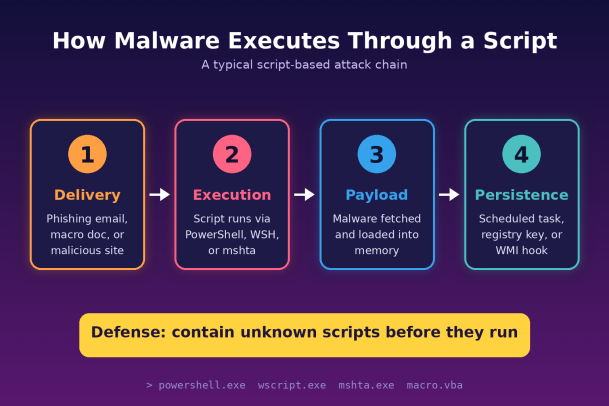
Most script-based attacks follow a similar chain: deliver the script, get it to run, retrieve or unpack the real payload, and then establish persistence. Here are the most common paths attackers use.
1. Malicious Email Attachments
Phishing remains the top delivery method. Attackers attach files such as .js, .vbs, .hta, or compressed archives containing scripts, often disguised with double extensions like invoice.pdf.js. When a user opens the file, Windows Script Host runs it automatically. The script typically contacts an attacker-controlled server and downloads the main malware payload, such as ransomware, an info-stealer, or a remote access trojan.
2. Office Documents with Macros
A Word or Excel file arrives with a message urging the user to “Enable Content” to view the document properly. Once macros are enabled, embedded VBA code launches, frequently spawning PowerShell or another interpreter to fetch additional malware. Microsoft now blocks macros from internet-sourced files by default, which has pushed attackers toward other formats, but macro attacks still succeed in environments with older settings or relaxed policies.
3. Fileless PowerShell Attacks
In fileless attacks, the script never writes a traditional malware file to disk. Instead, PowerShell downloads code and loads it straight into memory, where it executes inside a trusted process. Attackers frequently encode or obfuscate these commands so they look like random text in logs. Because there is no file to scan, signature-based antivirus often has nothing to inspect.
4. Shortcut (LNK), HTA, and Container Files
Attackers increasingly hide scripts inside Windows shortcut files, HTML Application (.hta) files, or disk image and archive formats such as ISO, IMG, and ZIP. A shortcut can look like a harmless document icon while its target field quietly launches a script interpreter with malicious arguments. Container formats have also been used to sidestep the “Mark of the Web” warnings that would normally flag downloaded files.
5. Malicious Websites and Drive-By Downloads
Compromised or fake websites can serve malicious JavaScript that redirects visitors, exploits browser or plugin vulnerabilities, or pushes fake update prompts. One popular social-engineering trick shows a fake CAPTCHA or error message instructing the user to copy and paste a command into the Run dialog or a terminal, which then executes a script that installs malware.
6. Abuse of Legitimate System Binaries
Windows includes many trusted utilities, such as mshta.exe, rundll32.exe, regsvr32.exe, and wmic.exe, that can execute scripts or load remote code. Attackers chain these “LOLBins” together so every step looks like normal administrator activity, making detection much harder.
7. Persistence Through Scheduled Tasks and Registry
After the initial infection, scripts are often used to make the malware survive reboots. An attacker might create a scheduled task, a registry Run key, or a WMI event subscription that silently relaunches a malicious script every time the system starts or a user logs in.
Why Script-Based Malware Evades Traditional Defenses
Script attacks are popular because they exploit gaps in how many organizations still approach endpoint security.
- Trusted processes: PowerShell, wscript.exe, and Office applications are legitimate and signed, so blocking them outright would disrupt the business.
- Obfuscation: Attackers use encoding, string splitting, variable renaming, and layered packing so that each sample looks unique, which defeats simple signature matching.
- Memory-only execution: Fileless techniques leave little or no trace on disk, limiting what file scanners can examine.
- Low cost and fast iteration: Scripts are easy to modify, so attackers can produce new variants faster than signature databases can update.
- Detect-then-respond gaps: Many tools only act after they recognize something as bad. Unknown scripts are often allowed to run while analysis happens, and that small window is enough for ransomware to start encrypting files.
This is why a “default allow” security model, where anything not known to be malicious is permitted, struggles against modern script-based malware.
Warning Signs of a Script-Based Malware Attack
Security teams should watch for these indicators:
- Office applications such as Word or Excel spawning PowerShell, cmd.exe, or wscript.exe
- PowerShell commands containing long encoded strings or hidden-window flags
- Script interpreters making outbound network connections to unfamiliar domains
- New scheduled tasks, registry Run keys, or WMI subscriptions created without a change request
- Unexpected .js, .vbs, .hta, or .lnk files in Downloads, Temp, or user profile folders
- Sudden spikes in CPU usage, file renaming, or disabled security services
How to Defend Against Script-Based Malware
Stopping script attacks requires layered controls that limit what scripts can do, increase visibility, and contain anything unknown before it causes harm.
- Restrict script interpreters. Use application control policies such as AppLocker or Windows Defender Application Control to limit who can run PowerShell, Windows Script Host, and mshta. Change the default file association for .js, .vbs, and .hta files so they open in a text editor instead of executing.
- Harden PowerShell. Enable Constrained Language Mode for standard users, turn on script block logging and module logging, and make sure the Antimalware Scan Interface (AMSI) is active so obfuscated scripts can be inspected at runtime.
- Lock down macros. Block macros from internet-sourced files through Group Policy, and allow only digitally signed macros from trusted publishers.
- Filter email and web traffic. Strip or quarantine risky attachment types, including scripts, HTA files, and disk images, and use web filtering to block known malicious domains.
- Apply least privilege. Remove local administrator rights from everyday user accounts so a successful script has less power to install software or change system settings.
- Deploy EDR with behavioral detection. Endpoint Detection and Response tools monitor process chains, memory activity, and network behavior, catching suspicious patterns even when no malicious file exists.
- Contain unknown code automatically. The strongest approach is a Zero Trust model for execution: any unknown script or file runs in an isolated container where it cannot touch real files, the registry, or the network until it is verified as safe. This closes the gap that detect-then-respond tools leave open.
- Train your users. Teach employees to recognize phishing, refuse “enable content” prompts, and never paste commands from websites into Run dialogs or terminals.
Conclusion
Scripts give attackers a fast, cheap, and stealthy way to deliver malware. By abusing trusted tools like PowerShell, Office macros, and Windows Script Host, they can slip past defenses that only look for known bad files. The answer is not to wait and react, but to make sure unknown code can never harm your environment in the first place.
Xcitium’s Zero Trust architecture does exactly that. Its patented auto-containment technology isolates every unknown file and script the moment it tries to run, so malware is neutralized before it can encrypt data, steal credentials, or spread across your network, while your users keep working without interruption.
Don’t leave a single script to chance. See how Xcitium stops script-based malware in real time.
Please give us a star rating based on your experience.


 (19 votes, average: 2.53 out of 5, rated)