Have you ever been asked, “How can I find the MAC address on this device?” You’re not alone. Whether you’re configuring a secure network, troubleshooting connectivity issues, or enforcing access controls, knowing how can I find the MAC address is a fundamental skill in today’s connected world.
A MAC address acts like a digital fingerprint for your device. It helps networks identify and manage connected systems securely. For IT managers, cybersecurity teams, and business leaders, understanding how can I find the MAC address is essential for maintaining network visibility and control.
In this guide, we’ll walk through simple, step-by-step methods to find MAC addresses on all major devices and explain why it matters for security.
What Is a MAC Address and Why Does It Matter?
Before answering how can I find the MAC address, it helps to understand what it is.
A MAC address (Media Access Control address) is a unique 12-character alphanumeric identifier assigned to a network interface. It is used by networks to recognize devices and manage communication.
Why MAC Addresses Are Important
-
Identify devices on a local network
-
Enable MAC address filtering for security
-
Troubleshoot network connectivity issues
-
Support asset tracking and device management
For organizations, MAC addresses play a key role in network security, access control, and device monitoring.
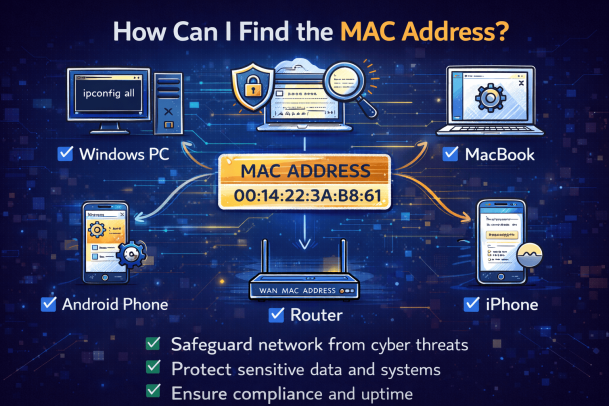
How Can I Find the MAC Address on Windows?
If you’re using a Windows laptop or desktop, finding the MAC address is quick and straightforward.
Method 1: Using Command Prompt
-
Press Windows + R and type
cmd -
Hit Enter
-
Type
ipconfig /all -
Look for Physical Address
That physical address is your MAC address.
Method 2: Through Network Settings
-
Open Settings
-
Go to Network & Internet
-
Select Advanced network settings
-
Click Hardware and connection properties
This mention of how can I find the MAC address is one of the most searched Windows-related queries.
How Can I Find the MAC Address on macOS?
Mac users can locate their MAC address in just a few clicks.
Steps for macOS
-
Click the Apple menu
-
Select System Settings
-
Choose Network
-
Select your active connection (Wi-Fi or Ethernet)
-
Click Details or Advanced
You’ll see the MAC address listed as Wi-Fi Address or Ethernet Address.
Knowing how can I find the MAC address on macOS is especially useful for secure Wi-Fi access in corporate environments.
How Can I Find the MAC Address on Android Devices?
Android devices display MAC addresses differently depending on the version.
Steps for Most Android Phones
-
Open Settings
-
Tap About phone
-
Select Status
-
Look for MAC address
Important Security Note
Newer Android versions use randomized MAC addresses by default to enhance privacy. For enterprise networks, IT teams often require the device MAC address, not the randomized one.
This makes helping users understand how can I find the MAC address even more important.
How Can I Find the MAC Address on iPhone or iPad?
Apple keeps things simple for iOS users.
Steps for iPhone and iPad
-
Open Settings
-
Tap General
-
Select About
-
Scroll down to Wi-Fi Address
That Wi-Fi address is the MAC address.
For business networks, disabling Private Wi-Fi Address may be required for consistent identification.
How Can I Find the MAC Address on a Router?
Sometimes the question isn’t about a device—it’s about the network itself.
Steps to Find Router MAC Address
-
Log in to your router’s admin panel
-
Navigate to Status or Network Information
-
Look for MAC Address or WAN MAC Address
IT managers often ask how can I find the MAC address of routers when configuring firewalls or monitoring traffic.
How Can I Find the MAC Address Using Network Tools?
Advanced users and cybersecurity professionals often rely on command-line or network scanning tools.
Popular Methods
-
arp -acommand (Windows/macOS/Linux) -
Network scanners like Nmap
-
Router DHCP client lists
These tools help map devices and their MAC addresses across enterprise networks.
Security Risks and Best Practices Around MAC Addresses
While MAC addresses are useful, they also carry security considerations.
Risks
-
MAC spoofing by attackers
-
Unauthorized device access
-
Network fingerprinting
Best Practices
-
Combine MAC filtering with authentication
-
Monitor unusual MAC address changes
-
Use endpoint detection tools
-
Apply Zero Trust principles
Understanding how can I find the MAC address is only the first step—protecting it matters just as much.
When IT Teams Need to Find MAC Addresses
For organizations, MAC addresses are used daily.
Common Business Scenarios
-
Network access control (NAC)
-
Device onboarding
-
Security audits
-
Asset tracking
-
Incident investigations
This is why how can I find the MAC address remains a top search query for IT managers and cybersecurity teams.
Troubleshooting: Why Can’t I Find the MAC Address?
Sometimes users struggle to locate it.
Common Reasons
-
MAC randomization enabled
-
Inactive network adapter
-
Limited user permissions
Quick Fixes
-
Disable private MAC settings
-
Enable the network interface
-
Use command-line tools
Clear documentation helps reduce helpdesk tickets related to how can I find the MAC address.
The Role of MAC Addresses in Cybersecurity
In modern cybersecurity strategies, MAC addresses support:
-
Endpoint identification
-
Network segmentation
-
Anomaly detection
-
Access enforcement
While not a standalone security control, MAC addresses enhance visibility when combined with endpoint and network security platforms.
Frequently Asked Questions (FAQ)
1. How can I find the MAC address on any device?
You can find it through network settings, device information pages, or command-line tools like ipconfig or ifconfig.
2. Is a MAC address the same as an IP address?
No. A MAC address identifies the device, while an IP address identifies its network location.
3. Can MAC addresses be changed?
Yes. MAC spoofing allows temporary changes, which is why additional security controls are required.
4. Why do companies track MAC addresses?
To manage devices, control network access, and improve security visibility.
5. Are MAC addresses a privacy risk?
They can be if exposed publicly. Modern systems use MAC randomization to reduce tracking risks.
Final Thoughts: Why Knowing How Can I Find the MAC Address Matters
Whether you’re securing a business network or helping an employee connect to Wi-Fi, understanding how can I find the MAC address is a practical and essential skill. It improves troubleshooting, strengthens security, and supports better device management.
If you’re looking to enhance visibility and control across your organization’s devices, now is the time to take the next step.
👉 Request a demo and strengthen your security posture today:
https://www.xcitium.com/request-demo/
Please give us a star rating based on your experience.
 (1 votes, average: 5.00 out of 5)