If you’ve just updated your email password and now your iPhone won’t send or receive messages, you’re not alone. It’s one of the most common post-password-change headaches, and it happens because your iPhone doesn’t automatically know about the change — it only syncs the password it already has stored. Until you update it manually, Mail will keep trying (and failing) to log in with the old credentials.
Whether you’re changing your password because of a security warning, a suspected hack, or simple routine hygiene, this guide walks you through exactly how to update your email password on an iPhone — covering iCloud, Gmail, Outlook, Yahoo, and other providers, across both current and older versions of iOS.
Why You Can’t Just “Edit” a Password in the Mail App
A lot of people open the Mail app expecting to find a password field somewhere in the account view. There isn’t one. The Mail app is only a client — it displays and sends your messages, but it doesn’t own your credentials. Your actual password lives with your email provider (Apple, Google, Microsoft, Yahoo, or your company’s mail server), and the Mail app simply stores a synced copy so it can log in automatically.
That means the real process always has two parts:
- Change the password at the source — on your email provider’s website or app.
- Update the copy stored on your iPhone — through Settings, so Mail can authenticate again.
Skipping either step is the number one reason people get stuck with a spinning wheel or a “Cannot Connect to Server” error after a password reset.
Before You Start
A little prep makes this go smoothly:
- Know your new password. Change it at your provider’s website first, if you haven’t already.
- Check your internet connection. You’ll need Wi-Fi or cellular data to verify the new credentials.
- Have your two-factor authentication method ready if your account uses it — you may need a verification code or backup code.
- Update iOS if you’re several versions behind. Menu names shift slightly between iOS releases, and outdated software occasionally causes sync glitches.
How to Change Your Email Password on iPhone
The steps differ slightly depending on which email service you use and which iOS version your phone is running. Here’s the breakdown.
For iCloud Mail
iCloud is tied directly to your Apple ID, so you won’t find a password field inside the Mail app at all. Instead:
- Open Settings.
- Tap [Your Name] at the top of the screen.
- Tap Sign-In & Security.
- Tap Change Password.
- Enter your current password, then create and confirm your new one.
Once it’s saved, your iPhone updates automatically across Mail, iCloud, and any other Apple services signed in with that Apple ID — no separate Mail settings step required.
For Gmail, Outlook, Yahoo, and Other Modern Accounts
Most major providers use “modern authentication,” which usually means a simple re-enter-password prompt rather than a full account reset.
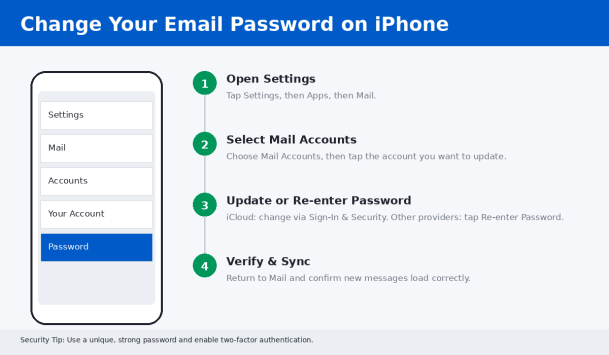
- Open Settings.
- Tap Apps, then tap Mail.
- Tap Mail Accounts.
- Select the account you want to update.
- Look for Re-enter Password (or simply Password) and tap it.
- Enter your new password. For Gmail and some Microsoft 365 or Outlook work accounts, this may open a secure sign-in screen inside Safari instead of a plain text field — that’s expected.
- If prompted, complete two-factor verification.
- Return to the Mail app and check that new messages load correctly.
If you don’t see a password field at all in your account settings, your iOS version may not support in-place editing for that provider. In that case, the fastest fix is to remove the account and add it back:
- In Mail Accounts, tap the account.
- Tap Delete Account.
- Tap Add Account, choose your provider, and sign in with your new password.
This re-creates the connection from scratch and resolves the vast majority of stubborn sync errors.
For Older iOS Versions
If your Settings menu looks different from the steps above, you’re likely on an older release. Look for Passwords & Accounts instead of Mail > Accounts, then follow the same logic: select the account, find the password field, and enter your new credentials.
For Custom, Work, or School Email Accounts (IMAP/SMTP)
Accounts hosted on a company mail server or a smaller provider often use traditional authentication, which means you may need to update the password in two places: the incoming mail server and the outgoing (SMTP) server.
- Go to Settings > Apps > Mail > Mail Accounts.
- Tap the account, then tap Account again to view advanced settings.
- Under Incoming Mail Server, clear the existing password field and enter the new one.
- Scroll down to Outgoing Mail Server, tap SMTP, then tap your primary server.
- Update the password field there too, then tap Done.
- Tap Done again on the previous screens to save everything.
Missing the SMTP step is a common reason people can receive email but suddenly can’t send it after a password change.
Using the Passwords App as a Shortcut
On newer iPhones, the built-in Passwords app can also store and update saved logins, including email accounts you’ve used to sign into websites or apps.
- Open the Passwords app and authenticate with Face ID, Touch ID, or your device passcode.
- Search for the account you want to update.
- Tap it, then tap Edit.
- Enter the new password and tap Done.
Keep in mind this updates the saved login for autofill purposes — it doesn’t automatically push the change to the Mail app’s account settings, so you may still need to complete the Mail Accounts steps above for email to sync properly.
Troubleshooting: Mail Still Won’t Connect
If you’ve updated the password everywhere and Mail is still stuck, work through these checks in order:
- Confirm the password actually works. Log into your provider’s website in Safari first to rule out a typo.
- Toggle Wi-Fi and cellular. Switch networks and try again — some networks intermittently block mail ports.
- Check for app-specific passwords. Gmail and some work accounts with two-factor authentication require a separate app password rather than your regular login.
- Review third-party app access. In your Google Account security settings, make sure “Less secure app access” or app passwords are configured correctly if required.
- Disable VPN temporarily. Some VPNs block the ports mail servers use (commonly 993 for IMAP and 587 for SMTP).
- Restart your iPhone. A simple reboot clears cached authentication tokens that sometimes get stuck.
- Update iOS. Go to Settings > General > Software Update and install the latest version.
- As a last reset, delete and re-add the account. This forces a completely fresh authentication handshake.
Security Tips While You’re In There
Since you’re already updating your password, it’s a good moment to tighten things up further:
- Use a long, unique password for your email account — never reuse passwords across services.
- Turn on two-factor authentication if you haven’t already; email accounts are a common target because they can be used to reset passwords on other services.
- Review connected apps and devices in your provider’s security settings and remove anything you don’t recognize.
- Lock the Mail app itself with Face ID or Touch ID for an extra layer of protection on your device.
- Watch for phishing attempts that try to trick you into “re-verifying” your password through a fake login page — always change passwords directly through your provider’s official app or website.
Final Thoughts
Changing your email password on an iPhone isn’t complicated once you understand that it’s a two-step process: update it with your provider, then update it on your device. iCloud handles this through your Apple ID settings, most modern webmail providers use a simple re-enter-password prompt, and older or custom accounts may need the password updated in both the incoming and outgoing mail server fields. If anything gets stuck, removing and re-adding the account almost always clears it up.
A compromised or weak email password can be the single point of failure that exposes your banking, social media, and work accounts too, since email is usually the master key used to reset everything else. Personal habits like unique passwords and two-factor authentication help, but individuals and businesses alike also benefit from stronger, proactive protection against phishing, credential theft, and malware that target inboxes in the first place.
Want to stop email-based threats before they ever reach an inbox? Xcitium’s advanced endpoint and email security solutions help individuals and organizations detect and contain phishing attempts, credential-stealing malware, and other threats in real time — before a compromised password becomes a bigger problem.
Please give us a star rating based on your experience.


 (19 votes, average: 2.42 out of 5, rated)