How to Login to Netgear Router: The Complete 2026 Guide for IT & Security Professionals
Updated on November 18, 2025, by Xcitium
Ever wondered how to login to your Netgear router without risking network security or misconfigurations? Whether you’re an IT manager handling dozens of endpoints or a CEO ensuring your organization’s infrastructure is safe, gaining proper access to your router dashboard is the first critical step in strengthening your cybersecurity posture.
This guide walks you through how to login to Netgear router in a secure, structured, and user-friendly way. From default IP addresses to login credentials, advanced security practices, and troubleshooting, this article gives you everything you need—written with clarity for both technical and executive audiences.
What You Need Before Logging In
Before diving into how to login to Netgear router, ensure you have:
- A Netgear router (any model: Nighthawk, Orbi, AC series, etc.)
-
A connected device (wired Ethernet is recommended for IT admins)
-
Default credentials (or updated admin credentials)
-
The router’s IP address or login URL
This preparation avoids timeout errors or incorrect login loops—common issues in enterprise environments.
Why Router Login Matters for Enterprise Security
Gaining access to your Netgear admin panel isn’t just about connectivity—it’s a security checkpoint.
IT managers and cybersecurity teams use the dashboard to:
-
Update firmware to close vulnerabilities
-
Configure firewall rules
-
Block suspicious devices
-
Optimize Wi-Fi channels
-
Monitor network traffic for anomalies
For CEOs and founders, understanding router access is essential for maintaining a zero-trust infrastructure and reducing risk exposure.
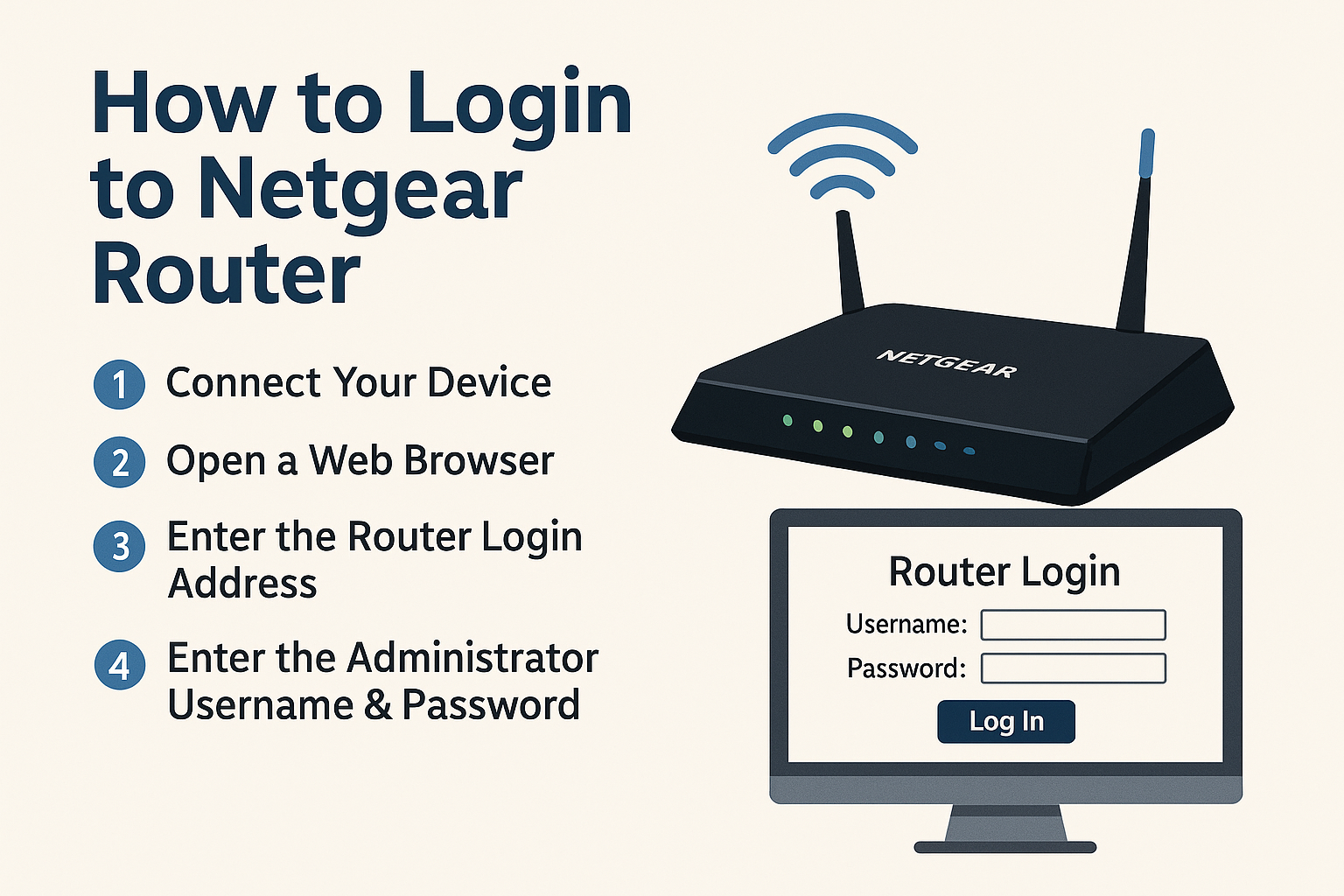
How to Login to Netgear Router (Step-by-Step Guide)
1. Connect Your Device to the Netgear Router
To start, ensure that your computer or mobile device is connected to the router via:
-
Ethernet cable (recommended for secure environments)
-
Wi-Fi connection (ensure private, not guest network)
This connection allows local access to the router’s admin interface.
2. Open a Web Browser
Use any modern browser:
-
Chrome
-
Firefox
-
Safari
-
Edge
Type the router login URL in the address bar.
3. Enter the Netgear Router Login Address
Most Netgear routers use:
If you’re uncertain, IT administrators can run this command:
Windows:
Look for Default Gateway.
macOS/Linux:
The gateway IP is your router’s login address.
4. Enter the Administrator Username & Password
By default (if never changed):
-
Username: admin
-
Password: password
⚠️ Important:
Change these immediately after login. Default credentials are a major exploitation vector in corporate networks.
If you’re using a preconfigured router, use the credentials printed on the device label.
5. Accessing the Netgear Dashboard
Once logged in, you’ll reach the Netgear Genie or Nighthawk interface depending on your model.
From this dashboard, IT teams can:
-
Configure network settings
-
Set up SSIDs and VLANs
-
Update security policies
-
Monitor bandwidth
-
Enable guest networks
🔐 Security Best Practices After Logging In
Simply learning how to login to Netgear router is not enough. Cybersecurity begins after access.
1. Change the Default Admin Password
Use a strong combo of:
-
Upper/lowercase letters
-
Symbols
-
Numbers
-
Minimum 12–16 characters
2. Enable WPA3 (or WPA2 if WPA3 not available)
WPA3 reduces brute-force and offline dictionary attack risks.
3. Update Router Firmware Regularly
Cyber attackers exploit outdated firmware.
In the dashboard:
Advanced → Administration → Firmware Update
Enable Auto-Update if available.
4. Disable Remote Management (Unless Required)
Remote management exposes your router to the open Internet.
Only enable for:
-
Enterprise VPN setups
-
Secure IT-managed infrastructure
-
Zero-trust environments with strong access policies
5. Create a Guest Network
IT leaders should separate core corporate devices from:
-
Interns
-
Visitors
-
IoT devices
-
Smart displays
This reduces lateral movement during cyberattacks.
Troubleshooting: Netgear Login Not Working?
Even after following the correct steps for how to login to Netgear router, issues can occur.
Here are the most common fixes:
1. Check Your Connection
Ensure you’re connected to the router:
-
Wi-Fi connected
-
Ethernet plugged in
-
No VPN active (VPN may reroute traffic)
2. Reboot the Router
Turn off → Wait 10 seconds → Turn on
Rebooting clears temporary cache issues.
3. Clear Browser Cache or Use Incognito Mode
Cookies sometimes interfere with router login portals.
4. Incorrect IP Address?
Use command-line methods (shown earlier) to find the correct gateway.
5. Forgot Admin Password?
Perform a factory reset:
-
Hold the Reset button for 7–10 seconds
-
Reconfigure router settings
⚠️ This restores all settings to default.
Advanced Settings IT Managers Should Review
1. Configure Firewall Controls
Add custom rules to block:
-
Suspicious ports
-
Unused services
-
LAN-to-WAN vulnerabilities
2. Create VLANs for Corporate Segmentation
Segment departments like:
-
Finance
-
HR
-
Development
-
Guest
Reduces internal breach exposure.
3. Set Up QoS (Quality of Service)
Prioritize traffic for:
-
Video conferencing
-
VoIP
-
Critical cloud applications
4. Enable Logging and Alerts
Route logs to:
-
SIEM
-
Syslog
-
Network monitoring solutions
Useful for tracking intrusion attempts.
How to Login to Netgear Router from Mobile
Yes, you can access your router using the Netgear Nighthawk App.
Steps:
-
Install the Nighthawk App (iOS/Android)
-
Connect to your Netgear Wi-Fi
-
Tap Log In
-
Manage settings remotely (if enabled)
Mobile access is ideal for on-the-go administrators.
Enterprise-Level Router Security Tips
For organizations, here’s what CISOs and IT managers should implement immediately after learning how to login to Netgear router:
-
Disable WPS (prone to brute-force attacks)
-
Use MAC filtering for device-level access control
-
Set static IPs for critical servers
-
Enable DoS protection
-
Use VPN for remote access
These minimize vulnerability exposure.
Conclusion: Secure Your Netgear Router for a Stronger Cyber Defense
Understanding how to login to Netgear router is more than a basic networking task—it’s the foundation of your entire cybersecurity framework. Once you access the admin dashboard, prioritize strengthening security policies, updating firmware, and managing network performance regularly.
When your router is secure, your business is more resilient against cyber threats.
👉 Want enterprise-grade cybersecurity that strengthens your entire network?
Request a personalized demo today:
🔒 https://www.xcitium.com/request-demo/
FAQs About How to Login to Netgear Router
1. What is the default login for Netgear router?
Default username: admin
Default password: password
Always change these after your first login.
2. What is the default Netgear router login IP?
Most Netgear routers use:
-
192.168.1.1
-
192.168.0.1
Check your gateway using ipconfig or terminal commands.
3. Why is my Netgear login not working?
Possible causes:
-
Wrong IP address
-
Incorrect credentials
-
Browser cache issues
-
VPN interference
-
Router firmware issues
Restart or reset if necessary.
4. Can I login to Netgear router without Internet?
Yes. Router login works offline using LAN or Wi-Fi since the admin page is hosted locally.
5. How do I secure my Netgear router after logging in?
-
Change the default password
-
Enable WPA3
-
Update firmware
-
Disable remote management
-
Create a guest network