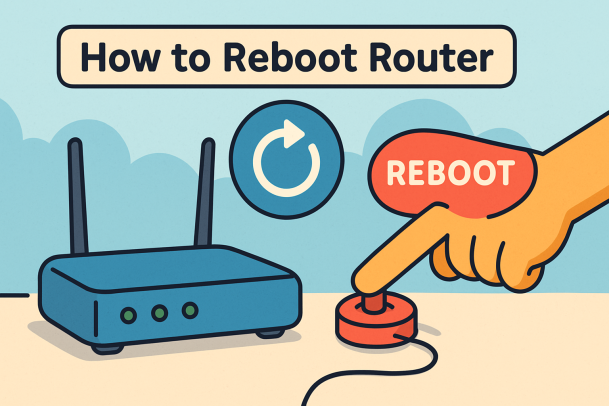
Ever found yourself stuck with slow internet or no connection at all? You’re not alone. One of the simplest fixes to restore connectivity is learning how to reboot router properly. Whether you’re an IT manager or just trying to stream your favorite show, a reboot can work wonders. In this guide, we’ll explain how to do it safely, the tools you can use (like rebooting from your phone or computer), and when it’s time to go beyond just restarting.
What Does It Mean to Reboot a Router?
Rebooting a router means turning it off and then back on to refresh its memory, stop background glitches, and restore optimal performance. This clears the cache and terminates any minor errors, without resetting saved configurations or credentials.
Key Benefits of Rebooting Your Router:
- Fixes temporary network issues
- Speeds up a slow internet connection
- Refreshes your IP address (if assigned dynamically)
- Can resolve minor software bugs
How to Reboot Router Manually (Physical Reboot)
Step-by-Step:
- Unplug the power cable from the router and modem.
- Wait at least 30 seconds to 1 minute.
- Plug the modem back in first, wait for it to fully power up.
- Plug the router back in and wait for the lights to stabilize.
This process also applies when you want to restart modem and router simultaneously.
How to Restart Router from Phone or App
Many modern routers come with companion apps that allow remote rebooting.
Using a Smartphone App (e.g., TP-Link, Netgear, Linksys):
- Open the router management app.
- Log in using your admin credentials.
- Go to Settings or System tools.
- Choose Reboot and confirm.
Pro Tip: This is especially helpful for IT managers working remotely or users managing multiple access points.
How to Restart Router from Computer
If your router doesn’t have an app, you can access it via a browser.
Step-by-Step:
- Open a web browser and type in the router’s IP address (commonly 192.168.0.1 or 192.168.1.1).
- Enter your username and password.
- Navigate to the System or Maintenance section.
- Select the Reboot option.
Be cautious not to hit Factory Reset, which will erase all configurations.
When Should You Reboot Your Router?
- Internet is sluggish or keeps disconnecting
- Devices can’t connect to Wi-Fi
- You’ve changed settings and they haven’t taken effect
- As routine maintenance (every few weeks)
Tips for Seamless Router Management
- Label cables to avoid confusion during troubleshooting
- Use surge protectors to guard against power surges
- Set auto-reboot schedule (if supported by your router)
- Update firmware regularly
Common Mistakes to Avoid
- Holding the reset button instead of unplugging
- Rebooting too frequently (once every few weeks is enough)
- Not waiting long enough before plugging the router back in
Bonus: Tools That Simplify Rebooting
- Smart plugs: Allow remote powering on/off
- Router control apps: TP-Link Tether, Netgear Genie, Linksys Smart Wi-Fi
Final Thoughts
Learning how to reboot router is a crucial troubleshooting skill for anyone relying on internet connectivity—which is essentially everyone. Whether you’re restarting from your phone, PC, or manually unplugging it, these quick fixes can dramatically improve your browsing experience.
Want enterprise-grade tools for managing network health and cybersecurity?
👉 Request a demo from Xcitium today
FAQ: How to Reboot Router
1. How often should I reboot my router?
At least once every two to four weeks for performance maintenance.
2. Does rebooting the router delete settings?
No, rebooting only clears temporary memory—settings remain intact.
3. Can I schedule automatic reboots?
Yes, many routers offer this feature via their firmware or companion app.
4. Is rebooting different from resetting?
Yes. Rebooting is temporary and safe. Resetting erases all configurations.
5. What if my router doesn’t respond after rebooting?
Check for power supply issues, or contact your ISP or the router’s support.
Please give us a star rating based on your experience.

 (24 votes, average: 2.21 out of 5, rated)