How to Check PC Temps: A Complete Guide for Beginners and Professionals
Updated on August 21, 2025, by Xcitium
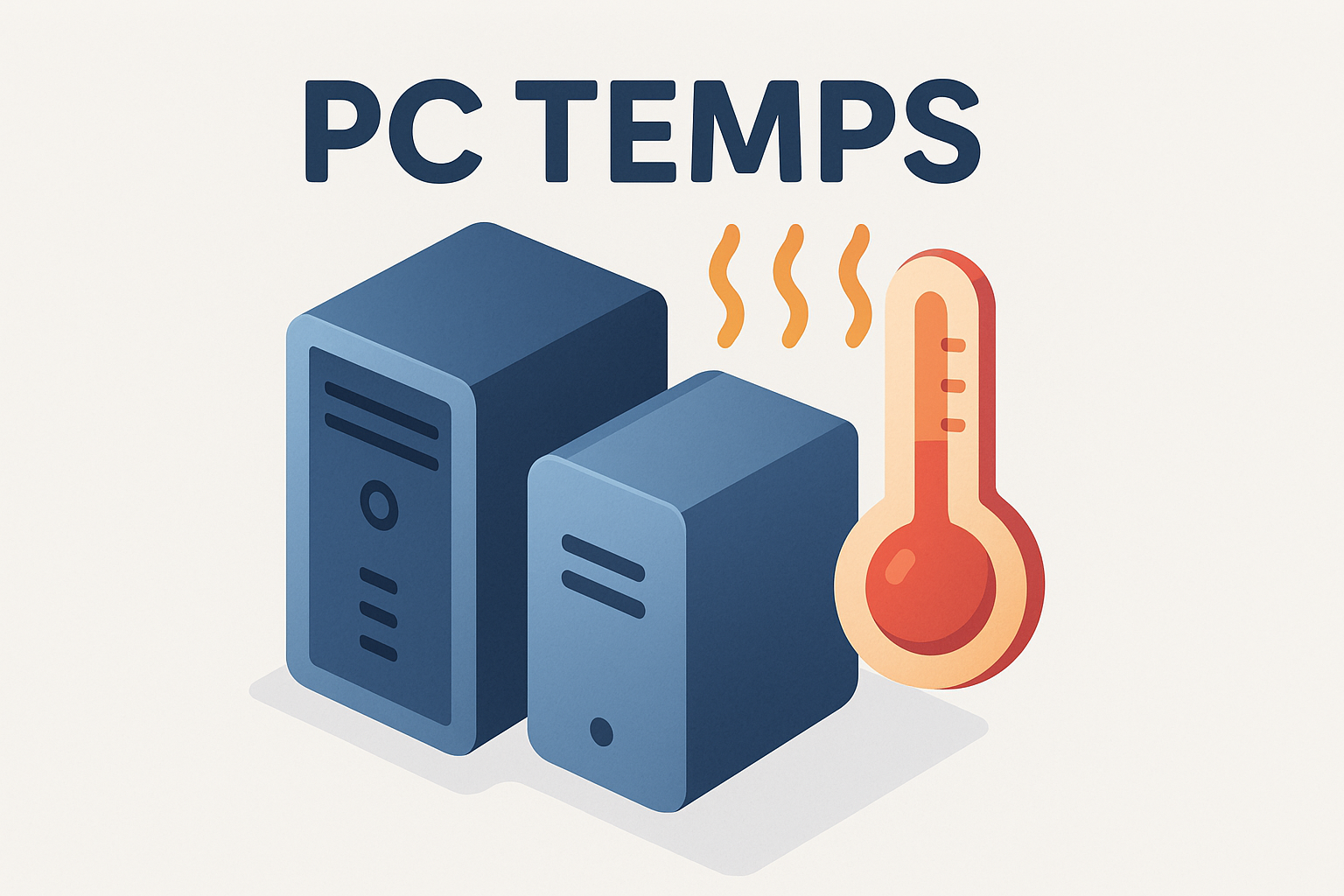
Did you know that overheating is one of the top reasons for hardware failures in PCs? If you’ve ever wondered how to check PC temps on your system, you’re already ahead of the curve. Monitoring CPU, GPU, and overall system temperatures is crucial for IT managers, cybersecurity professionals, and business leaders, as it helps prevent downtime, data loss, and unexpected crashes.
Whether you’re a casual user, gamer, or IT professional managing multiple endpoints, learning how to track your computer’s temperature ensures stability, performance, and system longevity.
Understanding PC Temperatures
Your PC generates heat whenever it runs applications. Key components affected include:
- CPU (Central Processing Unit) – the brain of your computer.
- GPU (Graphics Processing Unit) – vital for graphics-heavy tasks like gaming or AI workloads.
- Motherboard & Chipset – essential for overall system stability.
- Hard Drives/SSDs – storage devices that also heat up under heavy load.
Keeping these components cool prevents performance throttling, reduces risks of malicious crashes, and extends hardware life.
How to Check PC Temps Using Built-in Tools
Windows doesn’t have a dedicated built-in CPU temperature monitor, but you can still check hardware status through:
1. Task Manager (for general performance, not exact temps)
- Press Ctrl + Shift + Esc.
- Go to the Performance tab.
- While you won’t see exact temperatures here, it helps identify processes causing heat.
2. BIOS/UEFI Settings
- Restart your PC and press the BIOS key (usually F2, DEL, or ESC).
- Navigate to Hardware Monitor or System Health.
- View CPU and motherboard temps in real time.
Ideal for quick checks, but not convenient for continuous monitoring.
How to Check PC Temps with Third-Party Tools
For detailed readings, specialized software is the best choice. Popular tools include:
- HWMonitor – Lightweight, shows CPU, GPU, and fan speeds.
- Core Temp – Focuses on CPU temperatures per core.
- MSI Afterburner – Perfect for gamers, with GPU monitoring and fan control.
- Open Hardware Monitor – Open-source, covers temps, voltages, and loads.
Safe Temperature Ranges
Here’s a quick reference for optimal operating temperatures:
| Component | Safe Idle Temp | Safe Load Temp | Danger Zone |
| CPU | 30–40°C | 60–80°C | 90°C+ |
| GPU | 30–45°C | 65–85°C | 95°C+ |
| SSD/HDD | 30–40°C | 50–60°C | 70°C+ |
If temps exceed these ranges, your PC may throttle performance or shut down unexpectedly.
Tips to Keep Your PC Cool
- Clean Dust – Use compressed air to clear vents and fans.
- Improve Airflow – Ensure your case has intake and exhaust fans.
- Apply Thermal Paste – Replace old paste on CPUs/GPUs for better heat transfer.
- Upgrade Cooling – Consider liquid cooling or better heatsinks for high-performance systems.
- Monitor Software – Set alerts for critical temperature levels.
Why Monitoring Temps is Crucial for Cybersecurity
You might ask—what does temperature monitoring have to do with cybersecurity? In reality:
- Overheating systems are more vulnerable to crashes, which can cause data loss.
- Attackers sometimes exploit overheating tactics (like cryptojacking malware) to drain resources.
- Endpoint protection strategies often integrate monitoring tools to detect abnormal hardware behavior.
This makes checking PC temps not just a maintenance task, but also part of a broader security and reliability framework.
Frequently Asked Questions (FAQ)
1. What is the best way to check PC temps in Windows 11?
Use HWMonitor or Core Temp for accurate CPU and GPU readings, since Windows doesn’t provide built-in detailed monitoring.
2. Can high temperatures damage my PC?
Yes. Consistently high temps can shorten hardware lifespan, cause throttling, or lead to sudden shutdowns.
3. What temp is too high for a CPU?
Anything above 90°C under load is dangerous. Ideally, keep it below 80°C for longevity.
4. How can I check temps while gaming?
Use MSI Afterburner or GPU-Z, which provide in-game overlays to monitor GPU/CPU temperatures.
5. Do I need extra cooling for business laptops?
Not usually, but regular cleaning and avoiding blocked vents are essential for maintaining safe temps.
Final Thoughts
Knowing how to check PC temps is a vital skill for anyone—from everyday users to IT managers overseeing hundreds of systems. Monitoring temperatures ensures stability, prevents costly downtime, and enhances both performance and security.
Ready to Secure and Optimize Your Business Systems?
At Xcitium, we help organizations safeguard endpoints, monitor system health, and defend against cyber threats.