How to Exit Vim: The Ultimate Guide for Beginners and Experts
Updated on July 3, 2025, by Xcitium
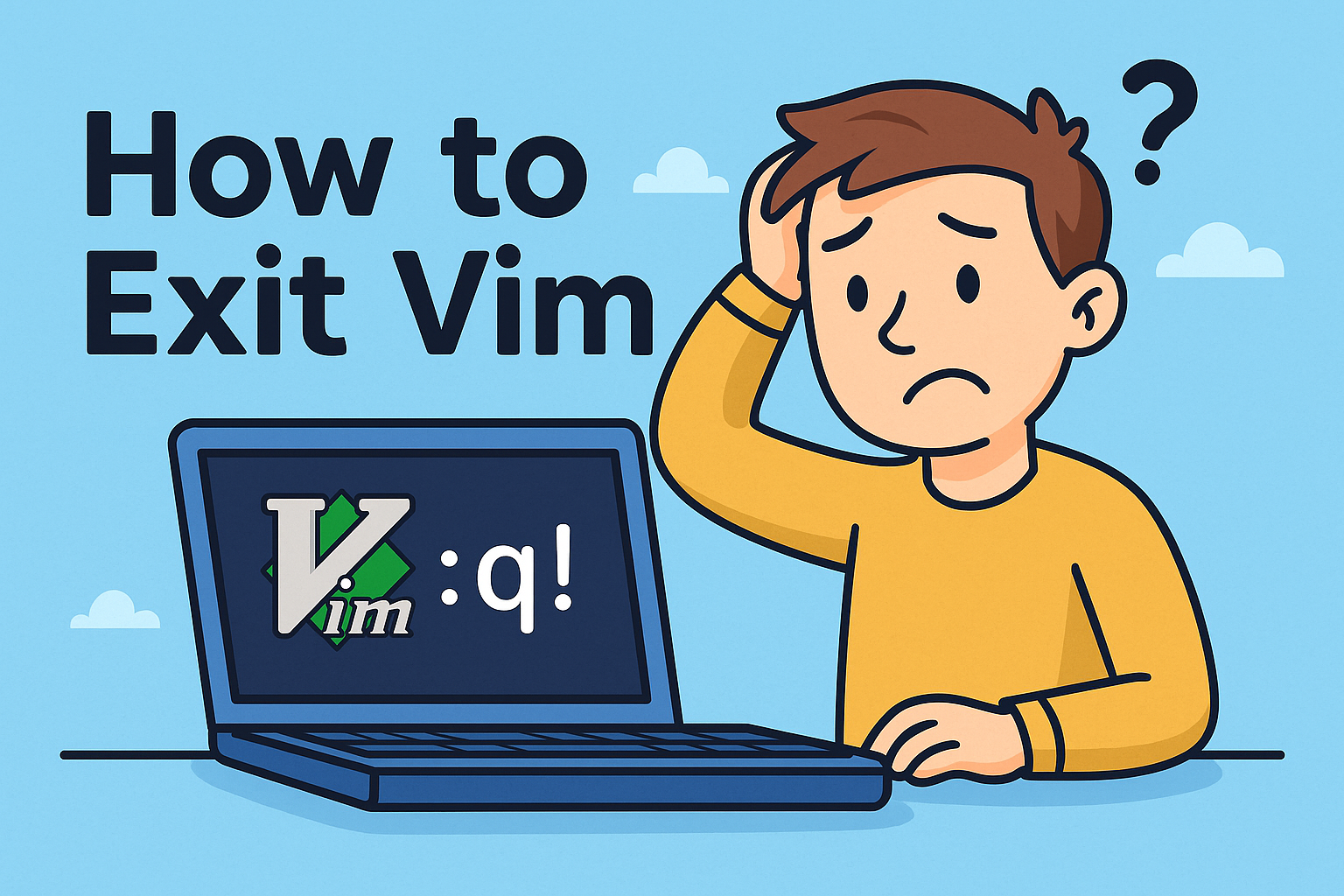
Ever found yourself trapped inside a mysterious text editor and wondered, “how to exit Vim?” You’re not alone. This age-old question has sparked memes, developer frustration, and countless search queries over the years.
Whether you’re an IT manager, cybersecurity analyst, or someone just trying to edit a config file, knowing how to save and exit Vim—or leave without saving—is essential. In this guide, we demystify Vim’s commands with examples, platform-specific methods (Linux, Mac, VSCode), and visual help so you can exit Vim like a pro.
What Is Vim and Why Do So Many Get Stuck?
Vim is a highly efficient command-line text editor, often pre-installed on Unix-based systems. It’s powerful for developers and sysadmins, but has a steep learning curve—especially around one infamous issue: exiting it.
The problem is that Vim starts in “normal mode,” which doesn’t let you type commands or close the file directly—causing confusion for new users.
Quick Summary: How to Exit Vim
| Task | Command |
| Save and exit Vim | :wq or ZZ |
| Exit Vim without saving | :q! |
| Save without exiting | :w |
| Exit Vim (no changes made) | :q |
Save and Exit Vim (Standard Method)
To save and exit Vim, follow these steps:
- Press Esc to ensure you’re in normal mode.
- Type :wq
- Hit Enter
This tells Vim to write (save) the file and quit.
Alternate shortcut: Shift + ZZ (capital Z twice)
✅ This works in all environments—Linux terminal, Mac, VSCode, and WSL.
How to Exit Vim Without Saving
Sometimes you make a mistake and don’t want to keep the changes. Here’s how to exit:
- Press Esc
- Type :q!
- Press Enter
This quits the editor without saving changes.
Exit Vim in Linux
Since Vim is default on most Linux distros, you’ll use the terminal:
- Open terminal.
- Launch a file with vim filename.txt
- To exit: press Esc and type :q, :q!, or :wq depending on what you need.
💡 Pro tip: If you’re using Vim in nano or vi-alias environments, the shortcuts may differ slightly.
Exit Vim on Mac
The same key commands apply:
- Esc + :wq to save and exit
- Esc + :q! to quit without saving
If you’re using Mac’s Terminal, ensure you’re in the correct keyboard mode (Esc key functions normally in standard shells).
How to Exit Vim in VSCode
Vim can be emulated in Visual Studio Code through extensions like VSCodeVim. Here’s how to exit:
- Press Esc to enter normal mode.
- Type :wq and press Enter.
- Or use :q! to quit without saving.
VSCode adds visual cues for mode changes, which makes exiting Vim easier than in the raw terminal.
Understanding Vim Modes: Why Exiting Is Confusing
There are three key modes in Vim:
- Normal mode – For navigation and commands.
- Insert mode – For typing/editing text (i to enter, Esc to exit).
- Command mode – For saving/quitting (: to enter).
This design is efficient for pros but tricky for beginners. The exit commands only work from command mode—hence the frustration.
The Exit Vim Meme Explained
The phrase “How do I exit Vim?” has become a running joke in the developer world. Some even joke that:
“If you can exit Vim, you’re ready to apply for a sysadmin job!”
Memes exist because new users unintentionally get locked in Vim when editing system files or SSH configs.
How to Use Vim More Effectively
Basic Vim Commands to Get Started:
- i – insert text
- Esc – return to normal mode
- :w – save file
- :q – quit
- :wq – save and quit
- :q! – quit without saving
Advanced Tips:
- Use vimtutor to practice safely.
- Customize .vimrc for user-friendly shortcuts.
- Enable syntax highlighting with :syntax on.
Troubleshooting: Why Vim Won’t Let You Exit
Common problems:
- You’re still in Insert Mode — press Esc.
- You’re missing the colon : — which signals command mode.
- File is read-only — use :w! to force save.
FAQs
1. How do I exit Vim in terminal on Linux?
Press Esc, then type :q (or :q! to force quit). Use :wq to save and quit.
2. How do I save and exit Vim on Mac?
Same process: Esc > :wq > Enter.
3. Why won’t Vim let me quit?
You might still be in Insert Mode. Press Esc to return to normal mode, then issue the :q command.
4. What is the fastest way to exit Vim without saving?
Press Esc, then :q!, and hit Enter.
5. Can I use shortcuts in VSCode’s Vim extension?
Yes! Use the same commands (:w, :q, :wq) in the VSCode terminal or text pane.
Final Thoughts
Learning how to exit Vim is a rite of passage in tech circles. Whether you’re editing a config file on a server, tweaking code in VSCode, or simply exploring Vim for the first time, mastering these commands saves time—and your sanity.
For cybersecurity professionals and IT managers, Vim is more than just a text editor—it’s a gateway to efficient system configuration. Knowing how to operate it well is key.
Ready to Power Up Your Security?
Want to protect your endpoints, emails, and remote access sessions beyond editing configs in Vim? Discover Xcitium’s cutting-edge cybersecurity solutions for your enterprise.