How to Login to My Router: The Complete 2026 Guide for Home Users, IT Teams & Cybersecurity Professionals
Updated on November 26, 2025, by Xcitium
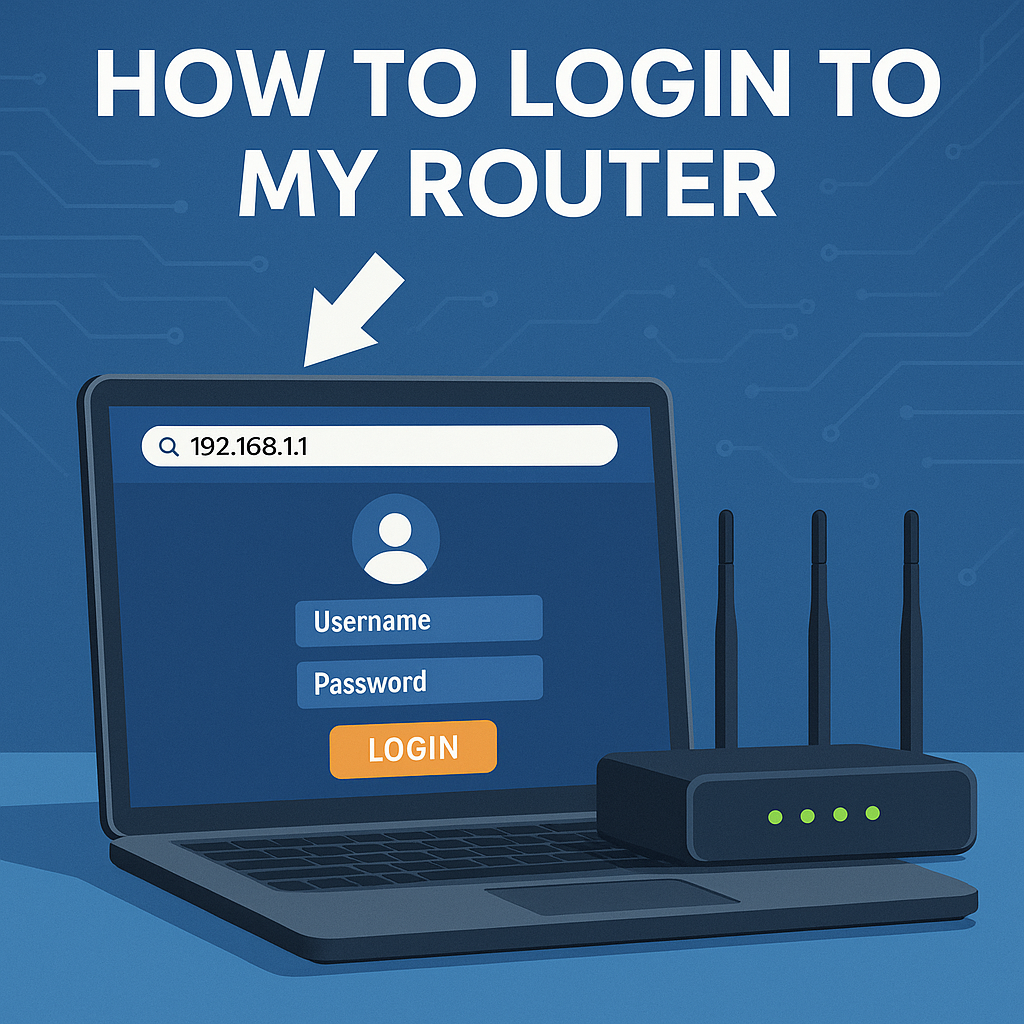
If you’ve ever needed to change your Wi-Fi password, update router firmware, set parental controls, or enhance network security, you’ve probably found yourself searching how to login to my router. Logging into your router is essential for managing your home or business network—but for many users, the process feels confusing or overly technical.
The truth? It’s much simpler than it looks.
In this comprehensive guide, you’ll learn exactly how to access your router settings from any device, including Windows, macOS, iPhone, Android, and even enterprise network systems. Whether you’re an IT manager tightening security policies, a homeowner updating Wi-Fi credentials, or a cybersecurity professional troubleshooting network vulnerabilities, this guide covers everything you need.
What Does Logging Into a Router Actually Mean?
Logging into your router means accessing its web-based admin panel, also called the:
-
Router dashboard
-
Router settings page
-
Router admin interface
-
Gateway configuration page
This is where you can:
-
Change Wi-Fi password
-
Update network name (SSID)
-
Set up guest networks
-
Enable firewalls
-
Apply security policies
-
Check connected devices
-
Update firmware
-
Configure parental controls
-
Manage port forwarding
-
Monitor bandwidth usage
To access this dashboard, you simply need:
-
A browser (Chrome, Edge, Safari, Firefox)
-
The router’s IP address
-
The router’s username and password
How to Find Your Router’s Login IP Address
Most routers use one of the following default IP addresses:
-
192.168.1.1
-
192.168.0.1
-
10.0.0.1
-
192.168.100.1
But if you’re unsure, here’s how to find it on any device.
How to Find Router IP on Windows
-
Press Windows + R, type
cmd, hit Enter -
In Command Prompt, type:
-
Look for Default Gateway
That IP is your router login address.
How to Find Router IP on macOS
-
Open System Settings
-
Click Network
-
Select your network connection
-
Click Details → TCP/IP
-
Look for Router
How to Find Router IP on iPhone
-
Go to Settings → Wi-Fi
-
Tap your network name
-
Under Router, you’ll see the IP address
How to Find Router IP on Android
-
Go to Settings → Network & Internet
-
Tap Wi-Fi
-
Select your connected network
-
Look for Gateway
How to Login to Your Router (Step-by-Step Guide)
Now that you have the router’s IP address, it’s time to log in.
Step 1: Open a Web Browser
On any device connected to your Wi-Fi or Ethernet.
Step 2: Type the Router IP Address in the Address Bar
Example:
Hit Enter.
Step 3: Enter the Router Username and Password
Default credentials are often:
| Brand | Username | Password |
|---|---|---|
| Linksys | admin | admin |
| Netgear | admin | password |
| TP-Link | admin | admin |
| Asus | admin | admin |
| D-Link | admin | password |
| Arris | admin | password |
| Xfinity | admin | password |
If these don’t work, your router may have a custom password.
Step 4: Access the Admin Dashboard
Once logged in, you can configure:
-
Wireless settings
-
Guest networks
-
Security mode (WPA3 recommended)
-
Firewall settings
-
VPN passthrough
-
LAN/WAN settings
-
Firmware updates
How to Login to My Router Without a Password
If you don’t know the login password, try these methods:
1. Check the Router Label
Most routers have a sticker showing:
-
Default login IP
-
Default username
-
Default password
-
Wi-Fi SSID & password
2. Check the Manual
The quick-start guide usually lists defaults.
3. Try Common Passwords
Many use:
-
admin
-
password
-
1234
-
blank (no password)
4. Use the Router App
Some brands offer apps that bypass the login page:
-
TP-Link Tether
-
Netgear Nighthawk
-
Linksys Smart Wi-Fi
-
Asus Router App
5. Factory Reset the Router
If all else fails, reset your router:
-
Locate the small Reset button
-
Hold it for 10–15 seconds
-
Router reboots with factory defaults
You’ll then be able to log in with the default credentials.
How to Login to My Router on Mobile Devices
On iPhone
-
Open Safari
-
Enter the router IP
-
Enter username/password
On Android
-
Open Chrome
-
Type the router IP
-
Login normally
How to Change Your Wi-Fi Password After Logging In
This is one of the top reasons people log into their router.
Steps:
-
Go to Wireless Settings
-
Choose your 2.4 GHz or 5 GHz network
-
Update Network Name (SSID) (optional)
-
Enter a new Wi-Fi password
-
Set security to WPA2 or WPA3
-
Save changes
All devices will need to reconnect with the new password.
Managing Advanced Router Settings (For IT Teams & Cybersecurity Pros)
Logging into your router is crucial for:
1. Network Security Optimization
-
Enable firewall
-
Disable WPS
-
Block unknown MAC addresses
-
Configure WPA3
-
Turn off UPnP (if not needed)
2. Device Management
View and control:
-
Connected devices
-
Rogue devices
-
IoT endpoints
3. Port Forwarding & NAT Rules
Essential for:
-
Gaming
-
Remote access
-
Security systems
-
Web servers
4. Quality of Service (QoS)
Prioritize:
-
VoIP
-
Video conferencing
-
Online gaming
5. Firmware Updates
Why it matters:
-
Fixes vulnerabilities
-
Improves performance
-
Enhances stability
Troubleshooting: Why Can’t I Login to My Router?
Common issues include:
❌ Wrong IP address
❌ Incorrect username/password
❌ Not connected to router network
❌ Router firewall restrictions
❌ Browser blocking the login page
❌ Router malfunction
❌ VPN interference
Solutions
✔ Reboot your router
✔ Try a different browser
✔ Disable VPN temporarily
✔ Connect via Ethernet
✔ Reset router login credentials
Frequently Asked Questions (FAQ)
1. What’s the default router login IP?
Most routers use 192.168.1.1 or 192.168.0.1.
2. Why won’t my router accept the password?
You may be using the wrong password. Check the sticker or reset the router.
3. Can I log into my router from my phone?
Yes. Just enter the router IP in your mobile browser.
4. Is it safe to change router settings?
Yes, but avoid modifying advanced options you don’t understand.
5. How do I secure my router after logging in?
-
Change default login credentials
-
Enable WPA3
-
Update firmware
-
Disable WPS
-
Set strong Wi-Fi passwords
Final Thoughts: Router Login Is the First Step to Strong Network Security
Learning how to login to my router empowers you to secure your network, customize settings, block unauthorized devices, and optimize performance. Whether you’re an IT expert or home user, understanding your router interface helps safeguard your network from modern threats.
🚀 Strengthen Your Network Security with Zero-Trust Protection
Protect all devices and endpoints in real time with advanced threat isolation.
👉 Request a Free Demo: https://www.xcitium.com/request-demo/