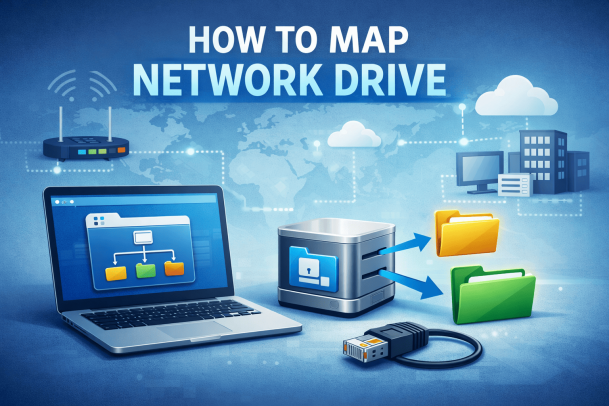
Do you waste time searching for shared files or repeatedly entering network paths? If so, learning how to map network drive can dramatically improve productivity and simplify file access. Network drive mapping allows computers to connect to shared folders as if they were local drives, making collaboration faster and more efficient.
For IT managers, cybersecurity professionals, and business leaders, mapped network drives are more than a convenience—they’re a foundational part of secure file sharing and network management. This guide explains how to map network drive on Windows and Mac, why it matters, and how to do it securely in modern environments.
What Is a Network Drive and Why Map It?
A network drive is a shared storage location hosted on another computer, server, or network-attached storage (NAS) device. When you map a network drive, it appears as a local drive on your system.
Understanding how to map network drive helps users access shared resources without remembering long file paths.
Benefits of Mapping a Network Drive
-
Faster access to shared files
-
Improved collaboration
-
Centralized data storage
-
Reduced duplication of files
-
Easier backup and security management
For organizations, mapped drives improve consistency and control across teams.
When Should You Map a Network Drive?
Network drive mapping is useful in many scenarios.
Common Use Cases
-
Accessing shared company folders
-
Connecting to file servers
-
Working with NAS devices
-
Supporting remote or hybrid teams
-
Managing department-specific resources
Knowing how to map network drive ensures smooth access regardless of work location.
How to Map Network Drive on Windows
Windows makes it easy to connect to shared network folders.
Method 1: Using File Explorer (Windows 10 & 11)
-
Open File Explorer
-
Click This PC
-
Select Map network drive from the toolbar
-
Choose a drive letter
-
Enter the network folder path (e.g.,
\\ServerName\SharedFolder) -
Check Reconnect at sign-in if needed
-
Click Finish
This is the most common way to map network drive Windows users rely on.
Method 2: Using Command Prompt
For IT professionals, command-line mapping is often faster.
-
Open Command Prompt
-
Type:
-
Press Enter
This method is ideal for scripts and automated deployments.
How to Map Network Drive on Mac
Mac users can also map network drives easily.
Method 1: Using Finder
-
Open Finder
-
Click Go → Connect to Server
-
Enter the server address (e.g.,
smb://ServerName/SharedFolder) -
Click Connect
-
Enter credentials if prompted
The drive will appear in Finder like a local disk.
Method 2: Auto-Mount at Login
-
Open System Settings
-
Go to General → Login Items
-
Add the mapped network drive
This ensures persistent access after reboot.
Understanding how to map network drive Mac systems use helps maintain productivity.
Network Drive Mapping in Business Environments
For businesses, mapping network drives is often standardized.
Why Organizations Use Mapped Drives
-
Enforce centralized file storage
-
Control access permissions
-
Simplify onboarding
-
Improve data governance
IT teams often deploy mapped drives using group policies or device management tools.
Security Considerations When Mapping Network Drives
While convenient, mapped drives can introduce security risks if mismanaged.
Common Security Risks
-
Unauthorized access
-
Credential exposure
-
Malware spreading through shared folders
-
Excessive user permissions
Learning how to map network drive securely is critical for protecting sensitive data.
Best Practices for Secure Network Drive Mapping
Security and usability must go hand in hand.
Actionable Best Practices
-
Use least-privilege access
-
Require authentication
-
Monitor access logs
-
Encrypt network traffic
-
Disable unused mapped drives
Following these steps reduces risk while maintaining usability.
Network Drive Mapping and Cybersecurity
Mapped drives are often targeted during cyber attacks.
Why Attackers Target Network Drives
-
Centralized data access
-
Potential for lateral movement
-
Ransomware propagation
Cybersecurity teams must monitor mapped drives as part of their threat detection strategy.
Troubleshooting Network Drive Mapping Issues
Sometimes mapped drives don’t work as expected.
Common Problems and Fixes
-
Drive not reconnecting: Enable “Reconnect at sign-in”
-
Access denied: Check permissions
-
Slow performance: Verify network connectivity
-
Drive disappears: Ensure server availability
Understanding how to map network drive includes knowing how to fix issues quickly.
Network Drive vs Cloud Storage: What’s the Difference?
Many organizations use both.
Network Drives
-
Hosted internally
-
High control
-
Limited remote access
Cloud Storage
-
Internet-based
-
Scalable
-
Requires strong identity security
Mapped network drives remain valuable for internal and hybrid environments.
Automating Network Drive Mapping for Teams
IT managers often automate mapping to reduce manual work.
Common Automation Methods
-
Group Policy (Windows)
-
Login scripts
-
Device management platforms
-
Configuration profiles
Automation ensures consistency and reduces user error.
When Not to Map a Network Drive
Mapping is not always the best solution.
Situations to Avoid Mapping
-
Public or untrusted networks
-
Devices without endpoint security
-
Temporary access scenarios
Understanding when not to map network drive improves overall security posture.
Frequently Asked Questions (FAQ)
1. How do I map a network drive permanently?
Enable “Reconnect at sign-in” on Windows or add it to login items on Mac.
2. Can I map multiple network drives?
Yes. Each drive can use a different drive letter or mount point.
3. Is mapping a network drive safe?
Yes, when proper permissions and security controls are in place.
4. Why does my mapped drive disconnect?
Network interruptions, credential issues, or server downtime are common causes.
5. Should businesses still use network drives?
Yes. Network drives remain useful when combined with modern security controls.
Final Thoughts: Mastering Network Drive Mapping Improves Efficiency
Learning how to map network drive is a simple yet powerful way to streamline file access, improve collaboration, and support secure operations. For individuals, it saves time. For organizations, it enables centralized control and better data management.
When done correctly, network drive mapping supports both productivity and cybersecurity—two priorities no modern business can afford to ignore.
Strengthen File Access and Endpoint Visibility Today
Gain better visibility, stronger access control, and faster threat detection across your environment.
👉 Request a demo now:
https://www.xcitium.com/request-demo/
Because secure access is the foundation of secure operations.