How Do You Block a Webpage? Smart Tips for Secure Browsing
Updated on July 7, 2025, by Xcitium
Ever wondered how do you block a webpage that’s distracting, unsafe, or inappropriate—especially on devices used by kids or employees? With cyber threats rising and attention spans shrinking, blocking harmful or time-wasting sites has become a vital digital hygiene practice.
Whether you’re a cybersecurity pro, parent, or business leader, mastering website blocking helps you stay secure and productive. This guide breaks it all down with tools, apps, and device-specific strategies for all users.
Why Would You Want to Block a Webpage?
Blocking access to certain websites can be essential for:
- Parental control: Restrict explicit or harmful content.
- Workplace productivity: Eliminate distractions like social media or games.
- Cybersecurity: Block phishing, malware, and malicious domains.
- Focus management: Minimize digital noise during focused sessions.
✅ Keyword Used: how do you block a webpage
How to Block a Webpage on Chrome Desktop
Google Chrome doesn’t have built-in web blocking features, but you can use extensions like BlockSite or StayFocusd.
Steps:
- Go to Chrome Web Store.
- Search for “BlockSite” and install it.
- Open the extension and add the URLs you want to block.
- Set passwords or schedules if needed.
✅ Bonus: Extensions sync across devices if logged in with the same Google account.
How to Block a Webpage on iPhone
Apple offers built-in content restrictions via Screen Time.
Steps to Block a Webpage on iPhone:
- Go to Settings > Screen Time.
- Tap Content & Privacy Restrictions.
- Go to Content Restrictions > Web Content.
- Choose Limit Adult Websites.
- Under Never Allow, add the specific URLs.
How to Block a Webpage on Android
There are multiple ways to block sites on Android—using DNS, third-party apps, or Chrome Safe Browsing.
Option 1: Using BlockSite App
- Download BlockSite from Google Play.
- Grant permissions and accessibility access.
- Add the URLs you want to block.
Option 2: Change DNS Settings
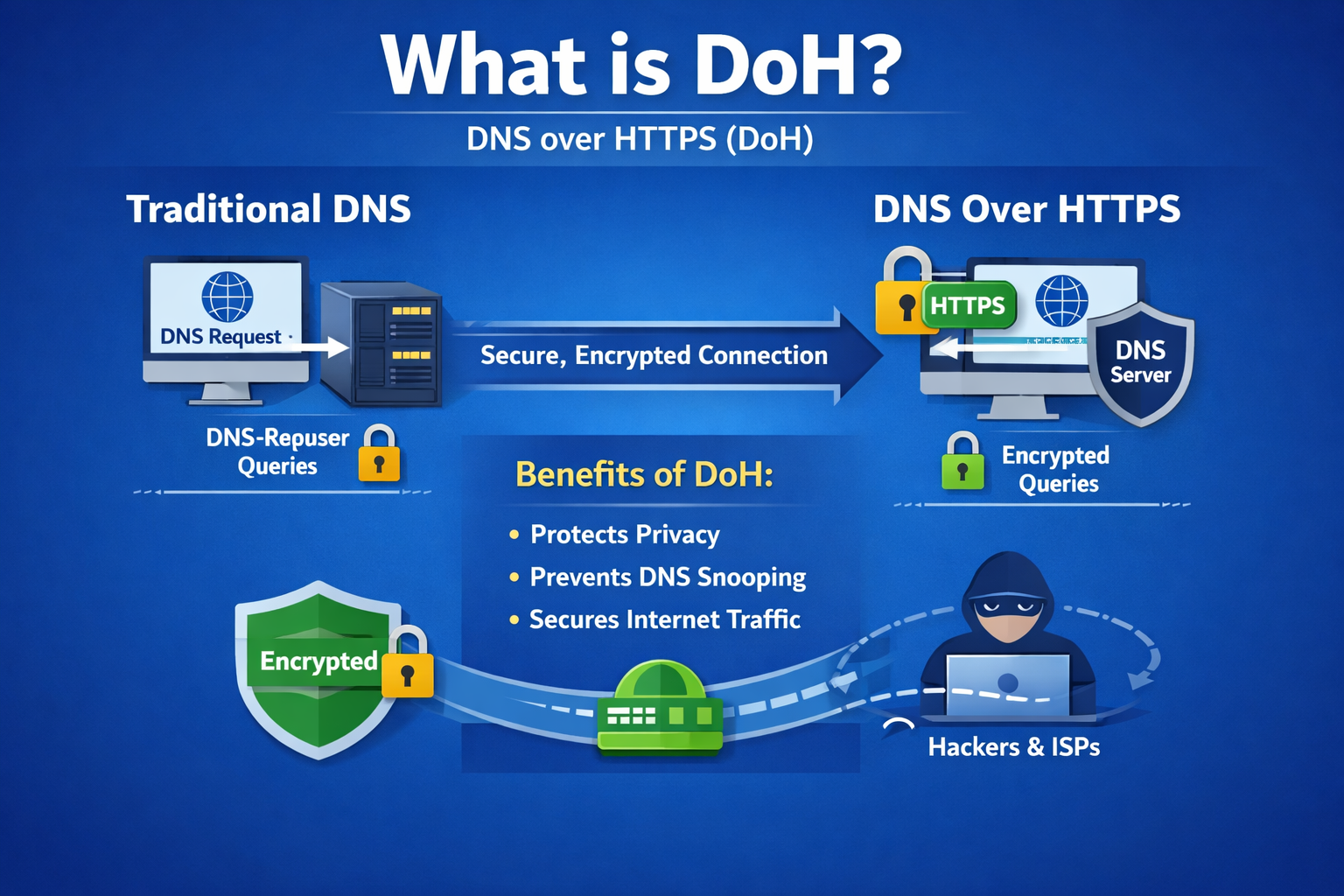
- Go to Settings > Network & Internet > Private DNS.
- Use providers like CleanBrowsing or OpenDNS with filtering features.
How to Block Websites on Chrome Mobile (Android/iPhone)
Google Chrome mobile doesn’t allow direct blocking. However, there are workarounds.
Using Safe Browsing:
- Tap 3-dot menu > Settings > Privacy & Security.
- Enable Safe Browsing (Enhanced Protection).
Parental Controls (Google Family Link):
- Download and configure Google Family Link.
- Create rules and block specific URLs.
How to Block a Webpage on Your Phone (All Methods Summary)
| Platform | Method | Tool/Feature |
| Android | BlockSite, CleanBrowsing DNS | App / System DNS |
| iPhone | Screen Time | Built-in |
| Chrome Mobile | Google Family Link, DNS | App / Chrome Settings |
| Windows | Hosts File, Firewall | System Settings |
| macOS | Screen Time | Built-in |
Advanced: Block Webpages Using the Hosts File (Windows & macOS)
If you’re managing multiple devices in an organization, modifying the hosts file is effective.
Windows Instructions:
Open Notepad as Admin.
Go to C:\Windows\System32\drivers\etc\hosts.
Add:
CopyEdit
127.0.0.1 www.example.com
Save and restart your browser.
macOS Instructions:
Open Terminal.
Type:
bash
CopyEdit
sudo nano /etc/hosts
Add blocked URLs similarly.
Tips for IT Managers & Cybersecurity Teams
- Use firewall rules or web filters on enterprise routers.
- Implement DNS-level filtering across your network.
- Use endpoint protection software that includes browsing control.
Final Thoughts: Take Control of Your Digital Environment
Knowing how do you block a webpage empowers individuals and organizations to take control of digital access. Whether you’re protecting family, boosting employee focus, or tightening cybersecurity, webpage blocking is a simple yet powerful tool.
Call to Action
🚀 Want more robust, enterprise-grade content filtering and endpoint protection?
👉 Request a Free Demo from Xcitium Today!
FAQs: How Do You Block a Webpage?
1. Can I block a webpage without an app?
Yes. On iPhones and some Androids, built-in parental controls or DNS settings let you block pages without apps.
2. How do I block adult websites on Chrome?
Use extensions like BlockSite, or enable SafeSearch and Google Family Link for child accounts.
3. Can I block pages on Chrome mobile?
Chrome doesn’t allow manual blocking, but Family Link and DNS filters are solid alternatives.
4. What’s the best app to block websites?
BlockSite (Android & iOS) is user-friendly and offers password protection, scheduling, and syncing.
5. Does blocking webpages help cybersecurity?
Absolutely. Blocking malicious or phishing domains reduces risk exposure and improves endpoint protection.