How Can I Unlock the Keyboard? A Complete Guide
Updated on August 28, 2025, by Xcitium
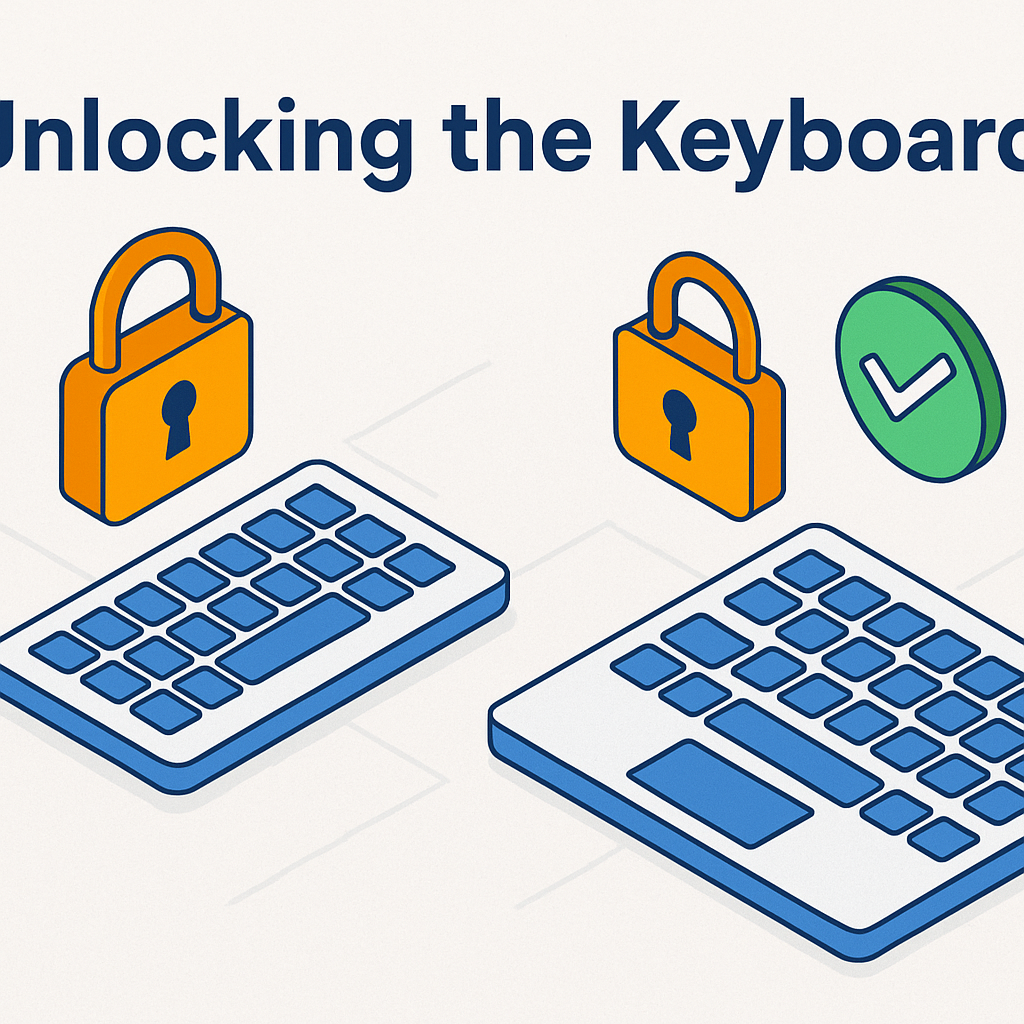
Have you ever sat down at your computer, ready to type, only to realize your keyboard won’t respond? If you’re wondering, “how can I unlock the keyboard?”, you’re not alone. This problem is surprisingly common across desktops, laptops, and even external USB keyboards.
Locked or unresponsive keyboards can disrupt productivity, impact cybersecurity operations, and create frustration for IT teams and professionals. Fortunately, there are practical steps you can take to quickly regain access.
This guide explains how to unlock a keyboard, covering Windows shortcuts, laptop function keys, driver issues, and hardware fixes.
Why Keyboards Get Locked
Before solving the issue, let’s understand why your keyboard might stop working:
- Accidental key combinations (e.g., pressing a lock shortcut).
- Enabled Filter Keys or Sticky Keys in Windows accessibility settings.
- Driver conflicts after an update or installation.
- Physical issues such as dust, spills, or disconnected cables.
- Security policies enforced by IT teams that disable inputs.
Knowing the cause helps you choose the right fix.
Quick Fixes: How to Unlock the Keyboard in Windows
1. Check for Physical Keyboard Locks
Some keyboards, especially laptops, have a dedicated lock key. Look for a small padlock icon on keys like Fn + F1–F12. Try pressing it once to unlock.
2. Use Ctrl + Alt + Del
Pressing Ctrl + Alt + Del can reset the keyboard response and open the Windows security screen. If it works here, the issue is software-related.
3. Turn Off Filter Keys
- Go to Control Panel → Ease of Access → Make the keyboard easier to use.
- Uncheck Turn on Filter Keys.
- Apply and restart.
Filter Keys slow down response times and may make your keyboard seem unresponsive.
4. Update or Reinstall Drivers
- Press Win + R, type devmgmt.msc, and press Enter.
- Expand Keyboards.
- Right-click and choose Update driver.
If issues persist, uninstall and restart—Windows will reinstall the drivers automatically.
Unlocking External and USB Keyboards
If you’re using an external keyboard:
- Check the USB port – Try another port.
- Reconnect cables – Secure loose connections.
- Test on another device – Confirms if the issue is hardware-related.
For wireless keyboards:
- Replace batteries or recharge.
- Re-pair via Bluetooth or wireless dongle.
Unlocking Laptop Keyboards
Laptops sometimes disable the keyboard accidentally via Fn key shortcuts. Common combinations include:
- Fn + F6
- Fn + F11
- Fn + NumLock
If none of these work, reset the laptop by holding the power button for 10 seconds.
When a Frozen Keyboard Isn’t a Lock
Sometimes your keyboard isn’t locked—it’s just frozen. Signs include:
- Mouse works but keys don’t.
- Entire system hangs after a crash.
- Only certain keys fail (like numbers or function keys).
Fixes:
- Restart the system.
- Boot into Safe Mode to bypass drivers.
- Run a system restore if issue started after an update.
Security Implications of a Locked Keyboard
In cybersecurity environments, a locked keyboard isn’t just a nuisance—it can indicate:
- Malware or ransomware restricting inputs.
- Remote administration tools (RATs) hijacking devices.
- Policy enforcement by endpoint protection systems.
Organizations should combine endpoint protection services and multi-layered defense to detect and respond to such threats.
Best Practices to Avoid Keyboard Lock Problems
- Regularly clean your keyboard to prevent dust buildup.
- Keep drivers updated.
- Disable accessibility features you don’t use.
- Avoid eating/drinking near laptops.
- Use endpoint protection to defend against malicious lockouts.
FAQs
1. How can I tell if my keyboard is locked?
Look for a padlock symbol on keys, check if NumLock/ScrollLock lights are on, or test shortcuts like Ctrl + Alt + Del.
2. Why won’t my laptop keyboard type?
It may be disabled by a function key, a driver issue, or Windows Filter Keys.
3. Can malware lock my keyboard?
Yes. Some malicious software blocks input as part of an attack. Use security tools to scan.
4. How do I unlock the keyboard on Windows 11?
Go to Settings → Accessibility → Keyboard, disable Filter Keys, and restart.
5. Is replacing the keyboard necessary?
Only if hardware failure is confirmed after testing other solutions.
Final Thoughts
If you’ve ever asked, “how can I unlock the keyboard?”, you now know the multiple fixes—ranging from simple key combinations to driver updates and malware checks. For IT managers and cybersecurity professionals, locked keyboards can even be a red flag of deeper system compromise.
Secure Your Devices Today
At Xcitium, we help organizations defend against malware, ransomware, and endpoint-level threats.
👉 Request a Free Demo and discover how our endpoint protection services safeguard your systems.





![what is wireless lan]](https://www.xcitium.com/blog/wp-content/uploads/2025/07/what-is-wireless-lan.png)