What Is SSD in Laptop? A Complete Guide for Professionals
Updated on October 7, 2025, by Xcitium
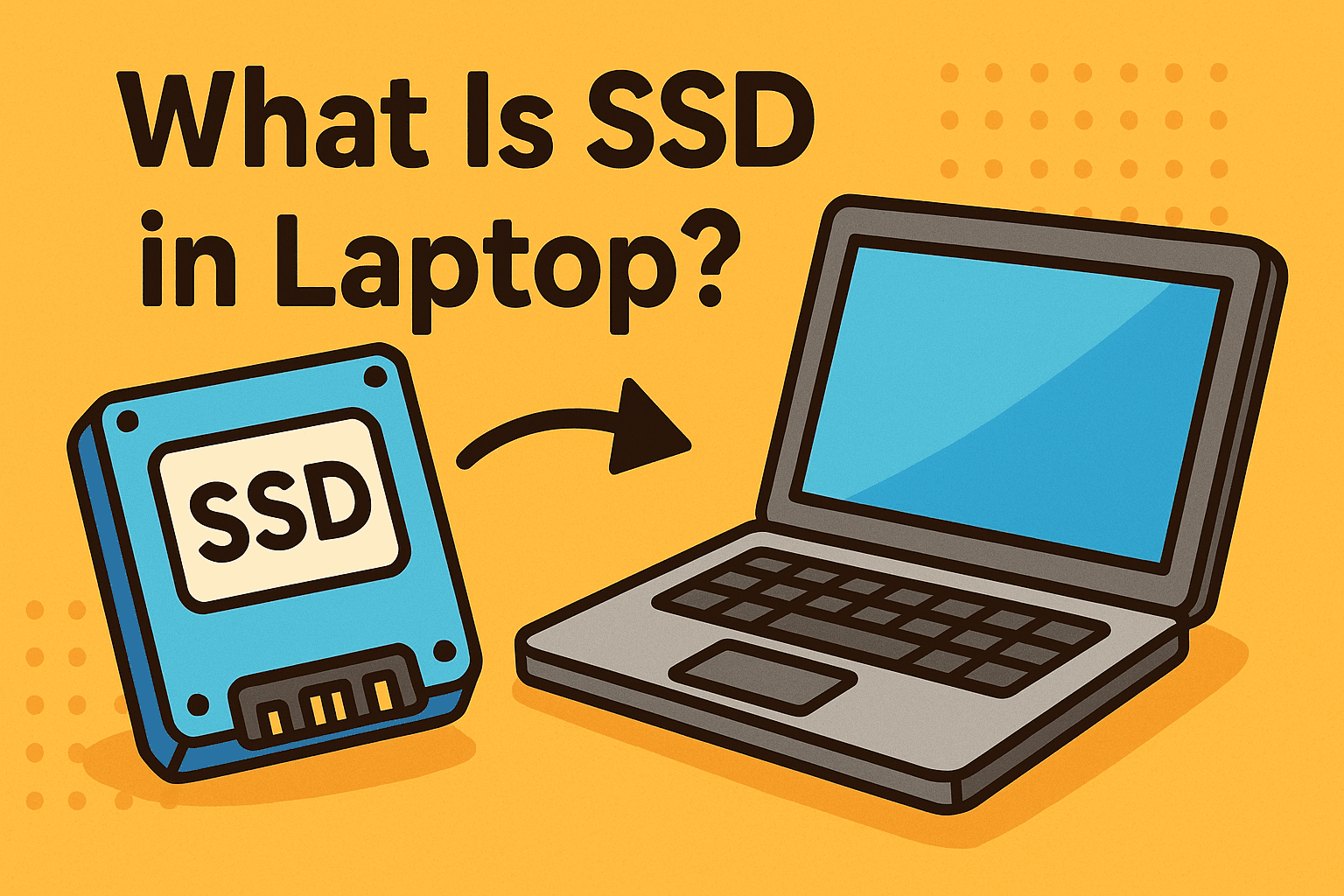
Have you ever wondered why some laptops boot in seconds while others take minutes? The answer often lies in the storage type. Many professionals ask: what is SSD in laptop, and why does it make such a difference?
Introduction: Why SSDs Matter in Modern Laptops
An SSD (Solid-State Drive) is a storage device used in laptops and computers that provides faster performance, better reliability, and improved energy efficiency compared to traditional hard drives (HDDs). For IT managers, CEOs, and cybersecurity professionals, understanding SSDs is vital because they directly affect speed, data security, and business productivity.
What Is SSD in Laptop?
An SSD in a laptop is a storage component that uses flash memory chips instead of spinning magnetic disks like HDDs. This difference makes SSDs significantly faster and more durable.
Key Features of SSDs:
-
No Moving Parts – More durable than HDDs.
-
Faster Speeds – Data access is almost instantaneous.
-
Lower Power Consumption – Extends laptop battery life.
-
Compact Size – Fits into slim ultrabooks and high-performance laptops.
👉 In short: SSDs are the modern standard for laptop storage, delivering speed, efficiency, and reliability.
SSD vs HDD: What’s the Difference?
When exploring what is SSD in laptop, it’s essential to compare it with traditional HDDs.
| Feature | SSD (Solid-State Drive) | HDD (Hard Disk Drive) |
|---|---|---|
| Speed | Very fast (boots in seconds) | Slower (boots in minutes) |
| Durability | Shock-resistant | Prone to mechanical failure |
| Power Consumption | Energy-efficient | Consumes more power |
| Noise | Silent operation | Audible spinning and clicks |
| Lifespan | Long (with wear leveling) | Moderate (mechanical wear) |
| Cost per GB | Higher | Lower |
👉 Verdict: HDDs still win on price, but SSDs dominate in performance and reliability.
Types of SSDs Found in Laptops
Not all SSDs are the same. When buying or upgrading a laptop, you’ll encounter different types:
1. SATA SSDs
-
Uses the same interface as HDDs.
-
Speeds up to 600 MB/s.
-
Affordable but slower than newer SSDs.
2. NVMe SSDs (PCIe-based)
-
Connects directly to the motherboard.
-
Speeds up to 7,000 MB/s.
-
Ideal for high-performance laptops.
3. M.2 SSDs
-
Small and compact.
-
Available in both SATA and NVMe formats.
-
Common in modern ultrabooks.
4. U.2 and External SSDs
-
U.2 drives are used in enterprise systems.
-
External SSDs provide portable, high-speed storage.
Benefits of SSDs in Laptops for Businesses
For professionals and enterprises, SSDs offer far-reaching advantages:
1. Improved Productivity
-
Faster boot times and file access mean employees waste less time waiting.
2. Enhanced Security
-
Many SSDs support hardware-based encryption, strengthening data protection.
3. Lower Failure Rates
-
No moving parts means fewer mechanical issues and data loss risks.
4. Energy Efficiency
-
Longer battery life, crucial for mobile employees and executives.
5. Scalability
-
Easily upgradeable and compatible with hybrid storage systems.
Security Considerations with SSDs
From a cybersecurity perspective, SSDs bring both opportunities and challenges.
Advantages:
-
Faster Encryption/Decryption – Minimal impact on performance.
-
Self-Encrypting Drives (SEDs) – Built-in data protection.
-
Secure Erase Features – Permanently delete data quickly.
Challenges:
-
Data Recovery Limitations – Harder to recover deleted files.
-
Wear-Leveling Complexities – Data may remain in hidden sectors.
-
Firmware Exploits – Potential attack vector if not updated.
👉 IT managers must integrate SSDs with endpoint detection, secure backups, and compliance policies.
How to Upgrade to SSD in Laptops
If your laptop still runs on an HDD, upgrading to an SSD can be transformative.
Steps:
-
Check Compatibility – Identify if your laptop supports SATA, M.2, or NVMe SSDs.
-
Choose Storage Size – Minimum 256 GB for business use, 512 GB+ recommended.
-
Backup Data – Use external drives or cloud storage.
-
Clone Existing Drive – Transfer OS and files to SSD.
-
Install SSD – Replace HDD or add SSD as secondary storage.
-
Enable TRIM – Improves SSD performance and longevity.
Real-World Applications of SSDs
-
Enterprise Laptops – Faster workflow for business users.
-
Cybersecurity Teams – Quick forensic analysis and data access.
-
Developers – Reduced compile times and faster testing.
-
Executives on the Go – Extended battery life and performance.
-
Data-Intensive Industries – Finance, healthcare, and engineering benefit from high-speed storage.
The Future of SSDs in Laptops
SSDs continue to evolve, bringing next-gen innovations:
-
PCIe 5.0 SSDs – Offering up to 14,000 MB/s speeds.
-
AI-Enhanced SSDs – Predictive data management.
-
Lower Cost per GB – Closing the gap with HDDs.
-
Integration with Cloud Storage – Hybrid laptop-cloud solutions.
👉 Businesses adopting SSD laptops today will gain a competitive edge in speed, security, and efficiency.
FAQs: What Is SSD in Laptop?
1. What is SSD in laptop, in simple terms?
It’s a modern storage drive that uses flash memory, making laptops faster and more reliable than those with HDDs.
2. Is SSD better than HDD for laptops?
Yes. SSDs offer faster speeds, durability, and better energy efficiency, though they cost more per GB.
3. How much SSD storage do I need in a laptop?
For business use, at least 256 GB is recommended; 512 GB or more is ideal for heavy workloads.
4. Can I upgrade my old laptop to SSD?
Yes, most laptops allow HDD-to-SSD upgrades, significantly boosting performance.
5. Are SSDs secure for sensitive data?
Yes, especially models with self-encryption and support for secure erase functions.
Conclusion: Why SSDs Are Essential for Modern Laptops
So, what is SSD in laptop? It’s a solid-state storage solution that outperforms traditional hard drives in speed, durability, and security. For IT managers, CEOs, and cybersecurity professionals, SSD laptops mean better productivity, lower risks, and stronger compliance.
As enterprises continue digital transformation, SSDs are no longer optional—they’re a necessity for business performance and security.
👉 Ready to strengthen your IT infrastructure with modern, secure technology? Request a Demo Today