How to Run Scripts on PowerShell File: A Complete Guide for Secure Automation
Updated on January 6, 2026, by Xcitium
PowerShell is one of the most powerful tools available for Windows administration and cybersecurity operations. From automating routine IT tasks to responding to security incidents, PowerShell scripts are everywhere. Yet many users still struggle with a basic question: how to run scripts on PowerShell file safely and correctly.
Whether you’re a system administrator, IT manager, or cybersecurity professional, understanding how to run scripts on PowerShell file is essential. In this guide, we’ll walk through every method step by step, explain execution policies, highlight common errors, and share security best practices to ensure your scripts run smoothly without introducing risk.
What Is PowerShell and Why Scripts Matter
PowerShell is a task automation and configuration management framework developed by Microsoft. It combines a command-line shell with a powerful scripting language designed for system administration.
PowerShell scripts matter because they:
-
Automate repetitive administrative tasks
-
Improve consistency and accuracy
-
Speed up system management
-
Support incident response and security operations
-
Scale across enterprise environments
Before learning how to run scripts on PowerShell file, it’s important to understand that PowerShell scripts are powerful—and must be handled responsibly.
What Is a PowerShell Script File?
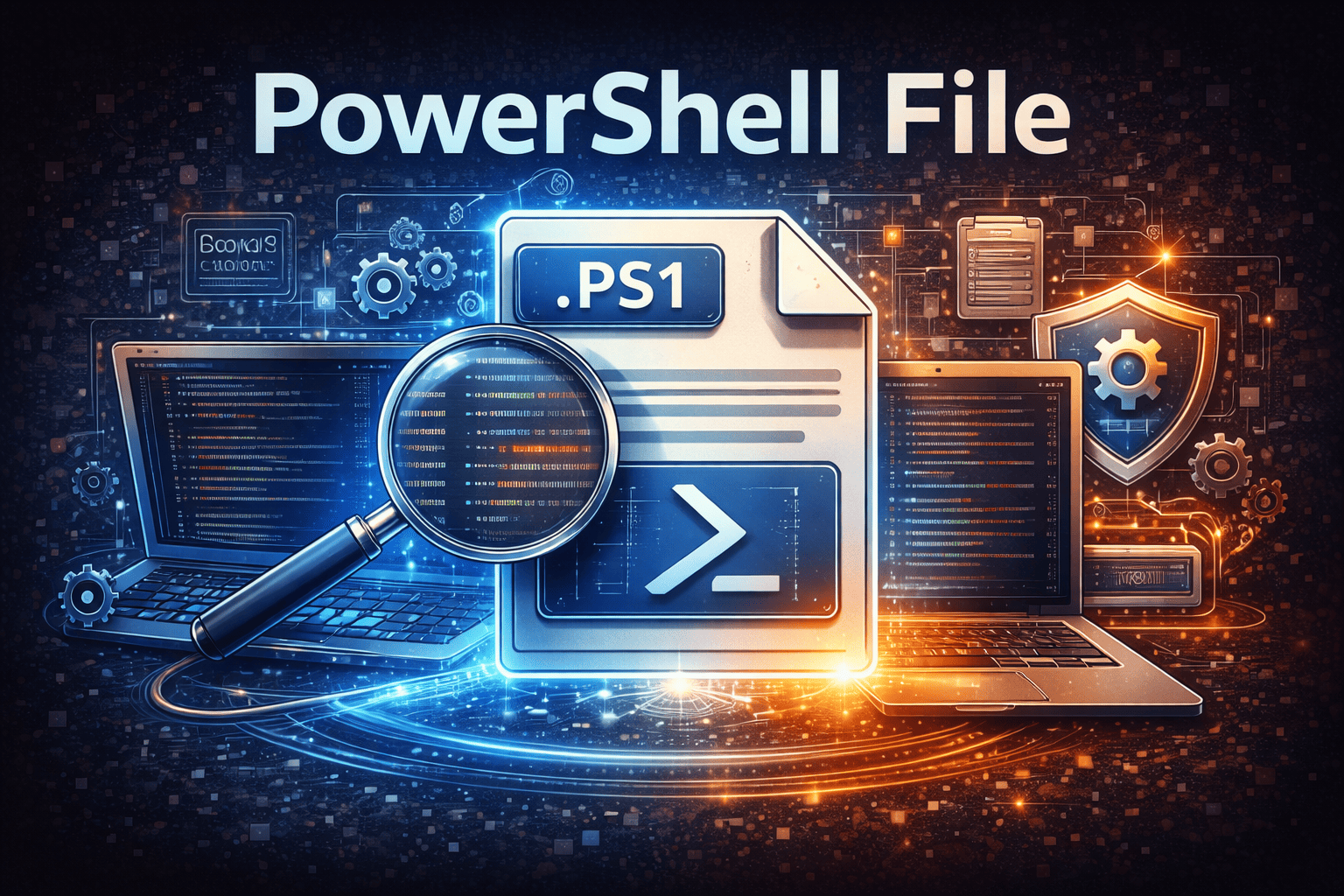
A PowerShell script file typically uses the .ps1 file extension. It contains one or more PowerShell commands saved in a text file and executed as a unit.
Common Uses of PowerShell Script Files
-
User and permission management
-
System configuration
-
Log analysis
-
Software deployment
-
Malware cleanup and remediation
-
Network and cloud automation
Knowing how to run scripts on PowerShell file allows you to unlock these capabilities efficiently.
Prerequisites Before Running PowerShell Scripts
Before running scripts, ensure the following:
Basic Requirements
-
Windows PowerShell or PowerShell Core installed
-
Script file saved with
.ps1extension -
Appropriate user permissions
-
Script stored in a trusted location
Running scripts without preparation can lead to errors or security warnings.
How to Run Scripts on PowerShell File (Basic Method)
This is the most common and straightforward approach.
Step-by-Step Instructions
-
Locate your
.ps1script file -
Right-click Start
-
Select Windows PowerShell or PowerShell (Admin)
-
Navigate to the script directory using:
-
Run the script:
If configured correctly, the script will execute immediately.
How to Run Scripts on PowerShell File by Right-Clicking
PowerShell also allows scripts to be run directly from File Explorer.
Steps
-
Right-click the
.ps1file -
Select Run with PowerShell
-
Review output in the PowerShell window
⚠️ This method may still be blocked by execution policy, which we’ll cover next.
Understanding PowerShell Execution Policies
Execution policies control how scripts run on a system. Many issues related to how to run scripts on PowerShell file stem from these settings.
Common Execution Policies
-
Restricted – No scripts allowed
-
AllSigned – Only signed scripts allowed
-
RemoteSigned – Local scripts allowed, remote scripts must be signed
-
Unrestricted – All scripts allowed
-
Bypass – No restrictions (use with caution)
By default, Windows often blocks script execution.
How to Change Execution Policy to Run Scripts
To allow scripts to run, you may need to adjust the execution policy.
Check Current Policy
Set Policy (Recommended Option)
Temporary Bypass (Safer for One-Time Use)
Understanding execution policies is critical when learning how to run scripts on PowerShell file securely.
How to Run Scripts on PowerShell File as Administrator
Some scripts require elevated privileges.
Steps
-
Search for PowerShell
-
Right-click → Run as administrator
-
Navigate to the script directory
-
Execute the script
Admin privileges are often required for system-level changes.
How to Run Scripts on PowerShell File Using Command Prompt
You can also run PowerShell scripts from Command Prompt.
Steps
This method is useful in automation workflows and legacy environments.
How to Run Scripts on PowerShell File Automatically
Automation is a major advantage of PowerShell.
Common Automation Methods
-
Task Scheduler
-
Group Policy
-
Startup scripts
-
CI/CD pipelines
Example with Task Scheduler:
-
Create a new task
-
Set action to start PowerShell
-
Add arguments:
Automation makes PowerShell essential for enterprise IT.
Common Errors When Running PowerShell Scripts
Even experienced users encounter issues.
Error: Script Execution Disabled
Fix: Adjust execution policy.
Error: File Not Found
Fix: Verify path and spelling.
Error: Access Denied
Fix: Run PowerShell as administrator.
Error: Script Blocked by Antivirus
Fix: Verify script legitimacy and whitelist if safe.
Troubleshooting is part of mastering how to run scripts on PowerShell file.
PowerShell Script Security Risks
From a cybersecurity perspective, PowerShell is both powerful and risky.
Common Risks
-
Malicious scripts
-
Living-off-the-land attacks
-
Credential harvesting
-
Unauthorized automation
-
Persistence mechanisms
Attackers frequently abuse PowerShell because it’s trusted by default.
Best Practices for Running PowerShell Scripts Securely
To reduce risk, follow these best practices.
Security Best Practices
-
Use least-privilege execution
-
Enable script logging
-
Avoid unrestricted execution policies
-
Review scripts before running
-
Store scripts in secure directories
-
Monitor PowerShell activity
Security awareness is essential when learning how to run scripts on PowerShell file.
PowerShell Script Signing Explained
Script signing helps verify authenticity.
Benefits of Script Signing
-
Prevents tampering
-
Ensures script integrity
-
Meets enterprise compliance requirements
-
Reduces malware risk
Signed scripts are strongly recommended in business environments.
How to Check What a PowerShell Script Does
Never run unknown scripts blindly.
Safe Review Steps
-
Open script in a text editor
-
Look for suspicious commands
-
Check external connections
-
Review file modifications
-
Test in a sandbox environment
Script transparency protects your systems.
PowerShell Scripts in Cybersecurity Operations
PowerShell is widely used in security workflows.
Cybersecurity Use Cases
-
Endpoint remediation
-
Log collection
-
Threat hunting
-
Incident response
-
System hardening
Understanding how to run scripts on PowerShell file empowers faster and safer security operations.
PowerShell in Enterprise and IT Management
For IT teams, PowerShell is indispensable.
Enterprise Applications
-
User provisioning
-
Patch management
-
Configuration enforcement
-
Cloud resource management
-
Compliance automation
PowerShell scripts reduce manual workload and human error.
PowerShell vs Bash vs CMD Scripts
A common comparison for administrators.
| Feature | PowerShell | Bash | CMD |
|---|---|---|---|
| Object-based | Yes | No | No |
| Windows-native | Yes | No | Yes |
| Security controls | Strong | Moderate | Weak |
| Automation power | Very High | High | Low |
PowerShell is the most versatile for Windows ecosystems.
How Often Should You Run PowerShell Scripts?
Frequency depends on use case.
Recommended Usage
-
Daily for monitoring tasks
-
Weekly for maintenance
-
On-demand for incident response
-
Scheduled for automation workflows
Controlled execution reduces unintended impact.
PowerShell Scripts and Zero Trust Security
Zero Trust assumes scripts can be abused.
PowerShell fits Zero Trust by:
-
Limiting execution rights
-
Enforcing script validation
-
Monitoring behavior
-
Blocking unknown scripts
-
Auditing activity
Visibility and control are essential.
The Future of PowerShell Script Execution
PowerShell continues to evolve.
Emerging Trends
-
Cross-platform scripting
-
Cloud-native automation
-
AI-assisted scripting
-
Deeper security integration
-
Enhanced logging and auditing
Knowing how to run scripts on PowerShell file will remain a core IT skill.
Frequently Asked Questions (FAQs)
1. Why won’t my PowerShell script run?
Execution policy or permissions are usually the cause.
2. Is it safe to change execution policy?
Yes, if done carefully. Use RemoteSigned instead of Unrestricted.
3. Can PowerShell scripts harm my system?
Yes, malicious scripts can. Always verify scripts before running.
4. Do I need admin rights to run scripts?
Only for scripts that modify system-level settings.
5. Are PowerShell scripts used by attackers?
Yes. PowerShell is commonly abused in cyberattacks.
Final Thoughts: Why Knowing How to Run Scripts on PowerShell File Matters
PowerShell scripts are powerful tools that can save time, improve accuracy, and strengthen security—but only when used correctly. Knowing how to run scripts on PowerShell file gives IT and cybersecurity professionals the control they need to automate safely and respond quickly to issues.
Used responsibly, PowerShell becomes a force multiplier for modern IT operations.
Protect Systems from Malicious Scripts
PowerShell scripts are powerful—but attackers exploit them too. To detect malicious behavior, block unknown scripts, and enforce Zero Trust security across endpoints:
👉 See how Xcitium stops script-based attacks in real time
Request a Demo