How to Compress a File: Complete Guide for IT Managers & Businesses
Updated on September 9, 2025, by Xcitium
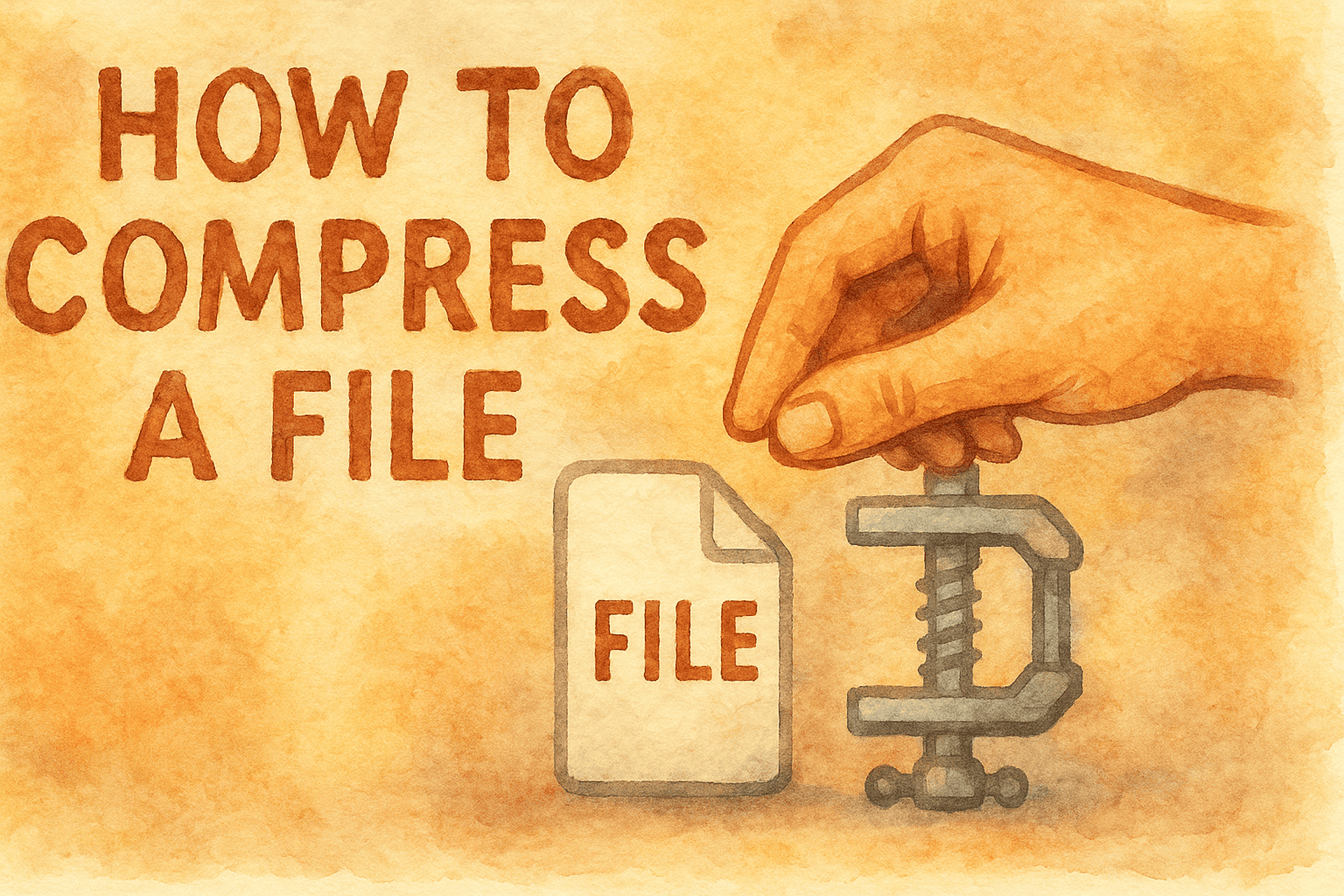
Have you ever tried sending a large document or software package only to get a “file too large” error? That’s where file compression comes in. Knowing how to compress a file isn’t just a convenience—it’s a necessity for IT managers, cybersecurity teams, and business leaders who handle large volumes of data every day.
File compression helps save storage, speeds up transfers, and makes data easier to secure. But it also raises important questions about which compression methods are safest for your industry. In this guide, we’ll cover everything from the basics of compression to advanced security practices that every organization should adopt.
What Does File Compression Mean?
File compression is the process of reducing the size of a file or group of files without losing essential data. The most common formats—ZIP, RAR, 7z, and TAR—use algorithms to eliminate redundancies and make data smaller.
When you learn how to compress a file, you’re essentially packaging data so it takes up less space and can be transmitted faster.
Benefits of File Compression:
- Saves Storage Space – Reduced file size means more data stored on existing infrastructure.
- Speeds Up Transfers – Smaller files upload and download faster.
- Improves Collaboration – Easier to send files through email or shared drives.
- Enhances Security – Many compression tools offer encryption options.
How to Compress a File on Different Operating Systems
Learning how to compress a file depends on the platform you’re using. Here’s a quick breakdown:
On Windows:
- Right-click the file or folder.
- Select Send to > Compressed (zipped) folder.
- A new .zip file will appear in the same directory.
On macOS:
- Control-click the file.
- Choose Compress [filename].
- The system generates a .zip file automatically.
On Linux:
- Open the terminal.
Use the command:
tar -czvf archive.tar.gz filename
- Your compressed archive will appear in the working directory.
Best Tools to Compress Files
When IT managers and cybersecurity professionals look at how to compress a file, the right tool makes all the difference.
Popular File Compression Tools:
- WinRAR – Flexible, supports multiple formats.
- 7-Zip – Free, open-source, excellent compression ratio.
- PeaZip – Lightweight and user-friendly.
- WinZip – Paid but integrates with cloud services.
- Built-in OS Compressors – Simple and fast for everyday needs.
Security Risks in File Compression
While compression helps with efficiency, it can also create risks:
- Password-Protected Archives Can Be Cracked – Weak encryption leaves files vulnerable.
- Malware in Archives – Hackers often hide malicious payloads in compressed files.
- Phishing Tactics – Attackers send compressed email attachments to bypass filters.
- Unscanned Archives – Antivirus tools sometimes miss threats inside compressed packages.
How to Compress a File Securely
For organizations handling sensitive data, compression must go hand in hand with security.
Best Practices:
- Use Strong Encryption – Choose AES-256 over weak ZIP passwords.
- Enable Multi-Factor Authentication – Protect access to compressed archives.
- Scan Archives Before Opening – Ensure files are malware-free.
- Limit File Sharing Permissions – Control who can access compressed data.
- Train Employees – Teach staff to recognize suspicious compressed attachments.
Lossy vs. Lossless Compression
When exploring how to compress a file, it’s important to understand compression types:
- Lossless Compression: Retains original data (ZIP, 7z, TAR). Best for business documents.
- Lossy Compression: Removes non-essential data to shrink size further (JPEG, MP3). Ideal for multimedia but not sensitive files.
For cybersecurity and compliance-heavy industries, lossless compression is the standard.
Advanced Compression for Enterprises
For IT leaders and CEOs, file compression goes beyond simple ZIP archives. Enterprises rely on advanced solutions:
- Automated Archiving Systems – Compress and encrypt backups in real-time.
- Cloud-Native Compression – Optimize files before cloud storage upload.
- Integrated DLP (Data Loss Prevention) – Ensures no sensitive data leaks through compressed files.
- Centralized Monitoring – Detects suspicious file compression activity that could indicate insider threats.
Advantages of Learning How to Compress a File
For businesses, understanding compression isn’t just about convenience—it’s about efficiency, compliance, and security.
Business Benefits:
- Cost Savings on storage and bandwidth.
- Faster Workflows for remote teams.
- Improved Data Security with encryption-enabled archives.
- Regulatory Compliance through proper file handling.
The Future of File Compression
With AI and machine learning entering the field, compression will become smarter and faster. Expect:
- AI-Powered Compression Algorithms – Custom compression based on file type.
- Blockchain-Backed Secure Archives – Immutable compressed records.
- Integration with Zero-Trust Security – Compressed files verified before transfer.
For cybersecurity leaders, this means compression is no longer just IT housekeeping—it’s a strategic asset.
FAQs on File Compression
1. How do I compress a file without losing quality?
Use lossless compression formats like ZIP, RAR, or 7z.
2. Can I compress large video files?
Yes, but video often requires lossy compression (MP4, AVI). For businesses, 7z or RAR is better.
3. Is compressing files safe?
Yes, if you use encryption and scan for malware. Avoid opening compressed files from unknown senders.
4. What’s the best free file compression tool?
7-Zip offers excellent compression and strong encryption for free.
5. Can compressed files be hacked?
Yes, if they’re weakly encrypted. Always use strong passwords and secure tools.
Final Thoughts
So, how to compress a file isn’t just a technical skill—it’s a cybersecurity necessity. For IT managers and CEOs, compression ensures faster collaboration, reduced storage costs, and better protection when combined with encryption.
The key is to balance efficiency with security. Done right, compression helps businesses stay competitive while keeping data safe.
👉 Want to protect your business from data leaks and file-based attacks? Request a Demo with Xcitium today.