How Do You Remove Software from a Mac? A Complete Guide for Professionals
Updated on September 12, 2025, by Xcitium
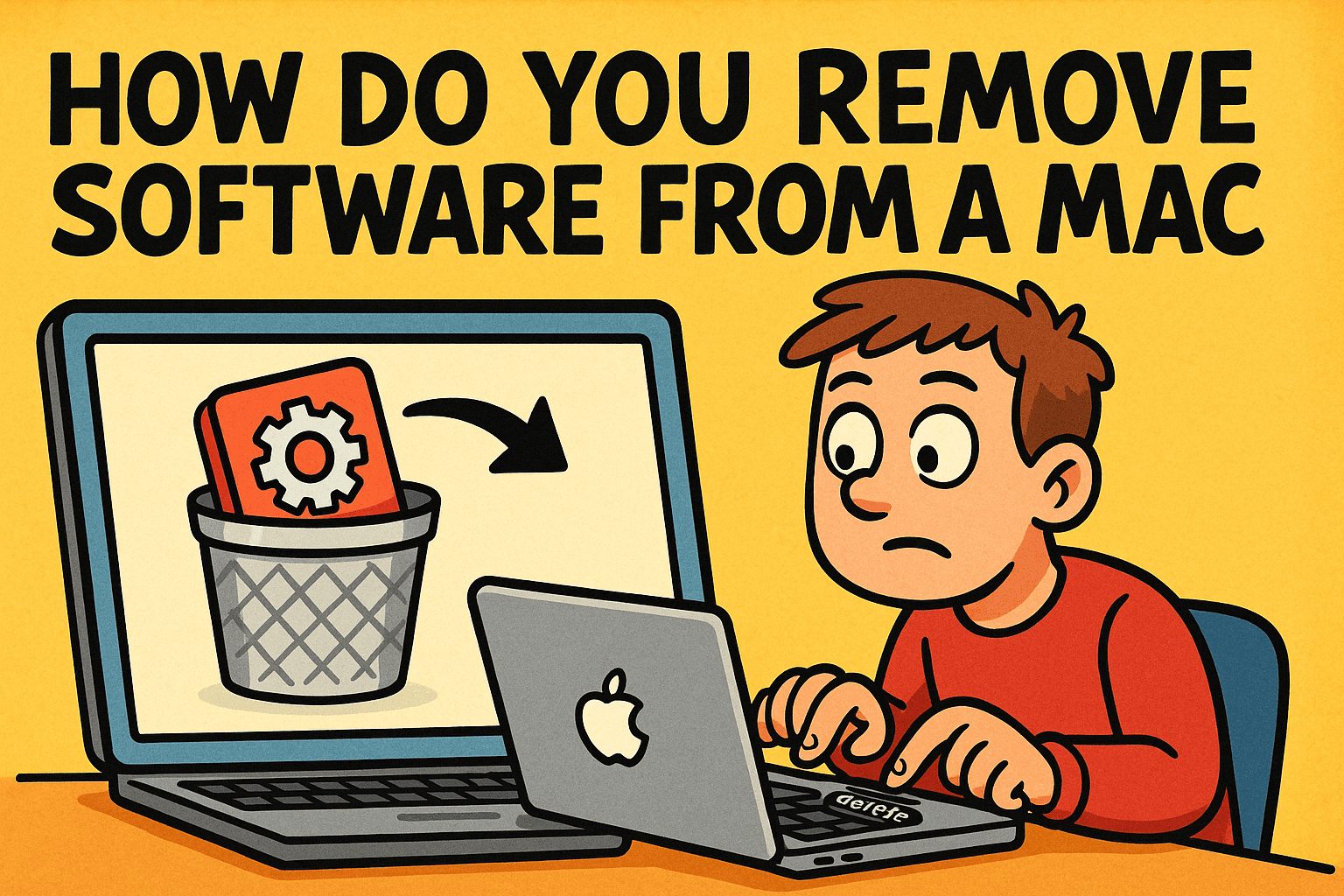
If you’ve ever asked, “How do you remove software from a Mac without leaving behind junk files?” you’re not alone. Many professionals—whether IT managers, CEOs, or cybersecurity specialists—face challenges when uninstalling software on macOS. Unlike Windows, macOS doesn’t include a built-in uninstaller for every app, which often leaves traces behind.
In this guide, you’ll learn step-by-step methods to remove software from a Mac, clean leftover files, and follow security best practices to keep your system optimized and protected.
Why Removing Software Properly Matters
Uninstalling software isn’t just about freeing up disk space. For businesses and IT leaders, it’s about security, compliance, and performance.
- Security Risks: Outdated or unused apps may have vulnerabilities.
- Data Privacy: Some apps store sensitive files long after deletion.
- System Performance: Old software clutters storage and slows down systems.
- Compliance: Regulated industries must control software usage and access.
👉 For cybersecurity professionals, improper removal could leave behind potential attack vectors.
How Do You Remove Software from a Mac? (Basic Method)
The simplest way to delete apps is via the Finder.
Step 1: Open Finder
- Click the Finder icon in your Dock.
Step 2: Go to Applications
- Select Applications in the sidebar.
Step 3: Drag App to Trash
- Drag the app icon to the Trash.
- Alternatively, right-click > Move to Trash.
Step 4: Empty Trash
- Right-click the Trash icon and select Empty Trash to finalize.
👉 While this works for most apps, it may leave support files and caches behind.
How to Remove Software from a Mac Using Launchpad
Launchpad provides another simple method:
- Open Launchpad.
- Locate the app you want to uninstall.
- Click and hold until icons jiggle.
- Click the X icon to delete.
👉 This works only for apps downloaded from the Mac App Store.
Removing Software via System Settings
macOS Ventura and newer versions offer uninstall options directly from system settings:
- Open System Settings.
- Navigate to General > Storage.
- Select Applications.
- Choose the app and click Delete.
This method is cleaner since it removes associated data.
How to Remove Leftover Files After Uninstall
Even after deletion, apps often leave behind hidden files. To remove them:
Using Finder
- Press Command + Shift + G.
- Enter ~/Library/ and look for:
- Application Support
- Caches
- Preferences
- Delete files related to the app.
Using Terminal (Advanced)
You can use commands like:
sudo rm -rf /Library/Application\ Support/AppName
⚠️ Be cautious—mistakes here can break your system.
Third-Party Tools for Software Removal
For IT managers overseeing multiple devices, third-party tools simplify uninstalls:
- AppCleaner – Free, lightweight, removes leftovers.
- CleanMyMac X – Comprehensive cleanup tool.
- AppZapper – Drag-and-drop app remover.
👉 Enterprises may consider mobile device management (MDM) tools for large-scale software removal.
Security Best Practices When Removing Software
When uninstalling apps, IT and cybersecurity teams should follow these steps:
- Verify Software Source: Ensure it’s not a malicious application in disguise.
- Remove Associated Data: Delete caches, logs, and temporary files.
- Revoke Permissions: Remove access from Security & Privacy settings.
- Audit Regularly: Keep a record of installed vs. removed software.
- Secure Wipe: Use disk cleaning tools to prevent data recovery of sensitive files.
Common Problems When Removing Software on Mac
Even with best practices, issues may arise:
- App Won’t Delete: The app may still be running—force quit and try again.
- Permissions Errors: Use admin privileges for deletion.
- Leftover Data Remains: Use Finder or a cleanup tool to clear hidden files.
- Critical Software Removed Accidentally: Restore from Time Machine backup.
Why Business Leaders Should Care
For CEOs and IT managers, learning how do you remove software from a Mac isn’t about technical curiosity—it’s about business continuity and cybersecurity resilience.
- Eliminates Old Security Risks: Unused apps may become exploit points.
- Improves System Performance: Faster workflows for employees.
- Ensures Compliance: Critical for industries like finance and healthcare.
- Supports Zero-Trust Policies: Only necessary apps remain in use.
FAQs on Removing Software from a Mac
Q1. Can I uninstall multiple apps at once on Mac?
Not natively. You’ll need third-party tools for batch uninstalls.
Q2. Do I need admin rights to remove apps?
Yes, system apps and protected applications require administrator privileges.
Q3. Why do some apps not show an “X” in Launchpad?
Only Mac App Store apps can be deleted that way. Others require Finder.
Q4. Is dragging to Trash enough?
It removes the main app, but leftover files often remain.
Q5. Can I reinstall an app after deletion?
Yes, simply download it again from the App Store or developer’s site.
Conclusion: Secure and Complete Software Removal
So, how do you remove software from a Mac? You can use Finder, Launchpad, System Settings, or advanced tools. But the key isn’t just deletion—it’s ensuring no leftover files remain.
For IT managers, cybersecurity experts, and executives, proper app removal supports security, compliance, and operational efficiency.
👉 Want to take enterprise security a step further? Explore how Xcitium’s zero-trust solutions can protect your organization from hidden risks.