How to Connect Ethernet: A Complete Guide for Secure and Reliable Networking
Updated on January 6, 2026, by Xcitium
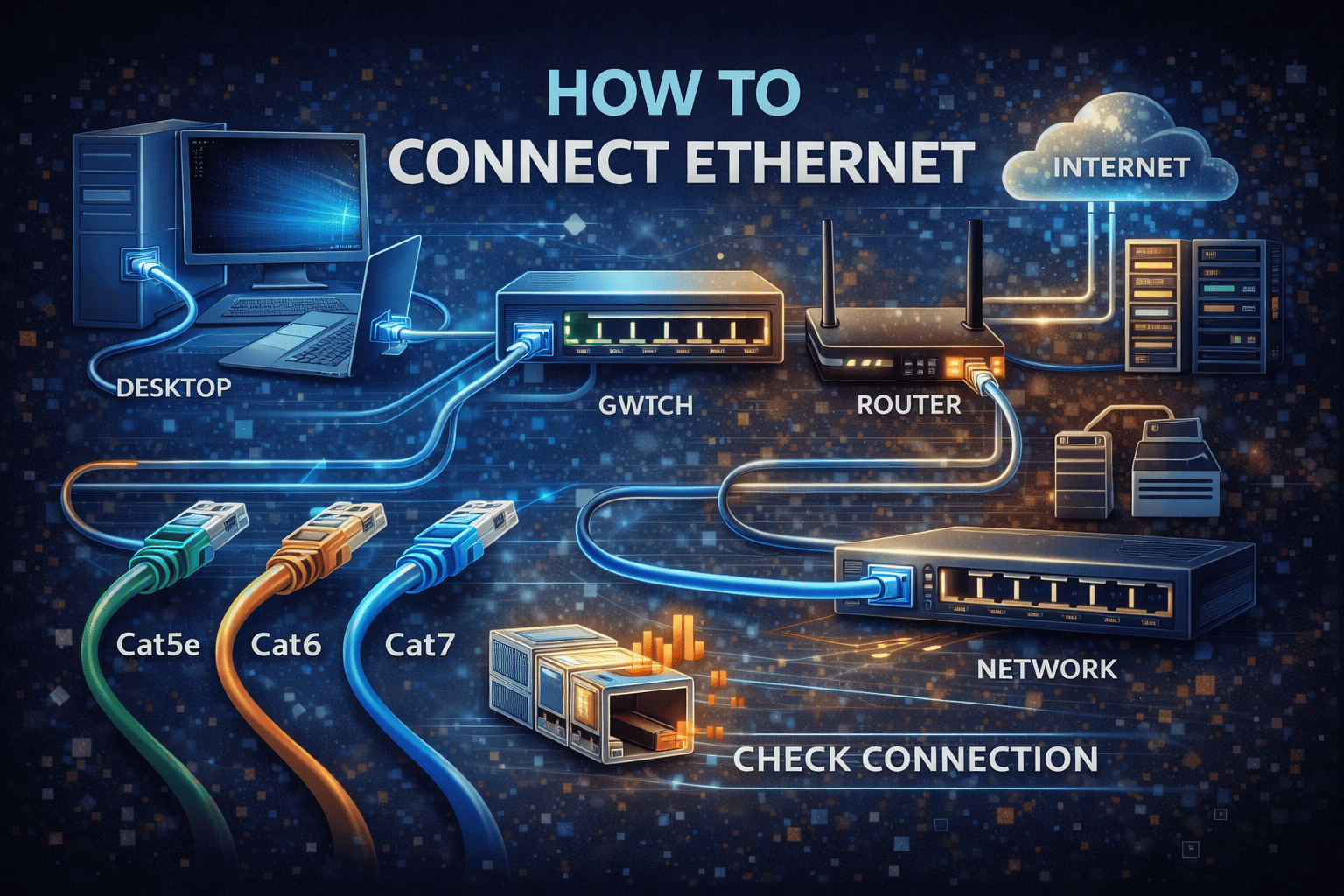
Wireless connections are convenient, but when stability, speed, and security matter, wired networking still wins. That’s why many users—ranging from home users to enterprise IT teams—ask a simple but important question: how to connect Ethernet correctly and securely.
Whether you’re setting up a new computer, troubleshooting slow internet, or designing a reliable office network, understanding how to connect Ethernet is essential. In this guide, we’ll walk you through everything step by step—what Ethernet is, how to connect it on different devices, common issues, security considerations, and best practices for business environments.
What Is Ethernet and Why It Matters
Ethernet is a wired networking technology that connects devices using physical cables instead of wireless signals. It provides a direct link between your device and a router, switch, or modem.
Ethernet matters because it:
-
Delivers faster and more stable connections
-
Reduces latency compared to Wi-Fi
-
Improves security by limiting wireless exposure
-
Performs better for large data transfers
-
Supports enterprise-grade reliability
Before learning how to connect Ethernet, it’s important to understand why it’s still widely used in cybersecurity and IT environments.
What You Need Before Connecting Ethernet
Connecting Ethernet is simple, but having the right components is critical.
Basic Requirements
-
An Ethernet-enabled device (PC, laptop, server, printer)
-
An Ethernet cable (Cat5e, Cat6, or higher)
-
A router, modem, or network switch
-
An active internet or internal network connection
Most modern computers come with built-in Ethernet ports, though some laptops may require adapters.
Types of Ethernet Cables Explained
Choosing the right cable impacts performance.
Common Ethernet Cable Types
-
Cat5e – Supports up to 1 Gbps (basic home use)
-
Cat6 – Better speed and noise resistance (offices)
-
Cat6a – Higher speeds for enterprise networks
-
Cat7/Cat8 – Data centers and high-performance use
For most users learning how to connect Ethernet, Cat5e or Cat6 is more than sufficient.
How to Connect Ethernet to a Desktop Computer
Connecting Ethernet to a desktop is straightforward.
Step-by-Step Instructions
-
Locate the Ethernet port on your computer
-
Plug one end of the Ethernet cable into the port
-
Connect the other end to your router or switch
-
Power on the device
-
Wait for the network indicator light
In most cases, the connection activates automatically.
How to Connect Ethernet to a Laptop
Some laptops include Ethernet ports, while others require adapters.
For Laptops With Ethernet Ports
-
Follow the same steps as a desktop
-
Check for connection confirmation in network settings
For Laptops Without Ethernet Ports
-
Use a USB-to-Ethernet or USB-C-to-Ethernet adapter
-
Plug the adapter into your laptop
-
Connect the Ethernet cable to the adapter
-
Allow drivers to install automatically
Understanding how to connect Ethernet on modern laptops often involves adapters.
How to Connect Ethernet on Windows 10 and Windows 11
Windows handles Ethernet connections automatically.
Steps to Verify Connection
-
Click Start
-
Go to Settings → Network & Internet
-
Select Ethernet
-
Confirm status shows Connected
If needed, Windows will auto-configure IP settings using DHCP.
How to Connect Ethernet on macOS
Mac computers support Ethernet natively or through adapters.
Steps on macOS
-
Plug in the Ethernet cable or adapter
-
Open System Settings
-
Select Network
-
Choose Ethernet
-
Ensure status shows Connected
macOS automatically detects wired connections.
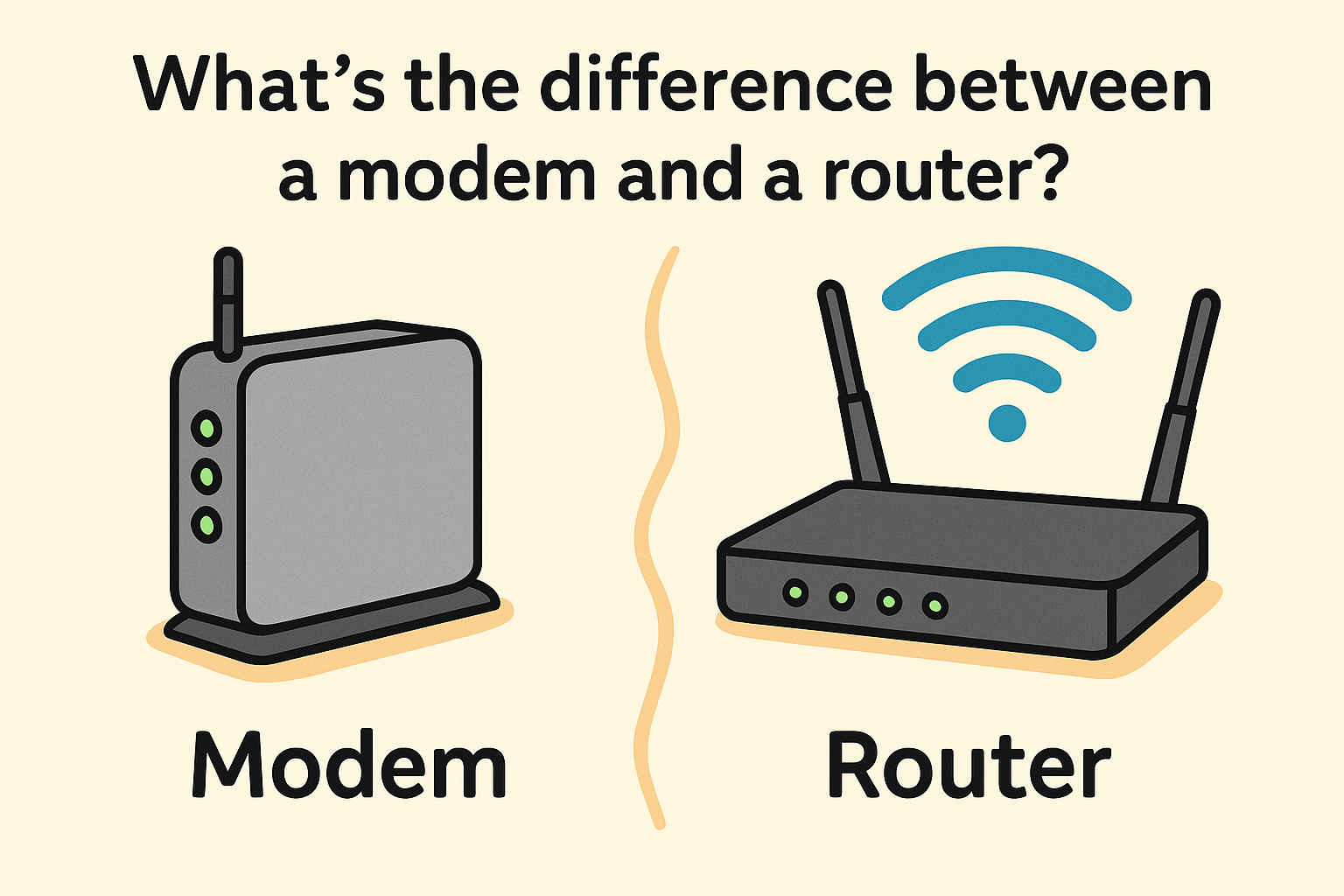
How to Connect Ethernet to a Router or Modem
Your router acts as the central connection point.
Correct Port Usage
-
Use LAN ports for devices
-
Use the WAN/Internet port for modem connection
Plugging Ethernet into the wrong port is a common mistake.
How to Connect Ethernet in an Office or Business Network
In business environments, Ethernet often connects to switches.
Typical Office Setup
-
Devices connect to network switches
-
Switches connect to routers/firewalls
-
Routers connect to the internet or WAN
This structure improves performance, security, and scalability.
Ethernet vs Wi-Fi: Which Should You Use?
Understanding how to connect Ethernet also means knowing when it’s better than Wi-Fi.
| Feature | Ethernet | Wi-Fi |
|---|---|---|
| Speed | Faster | Slower |
| Stability | Very high | Variable |
| Security | Stronger | More exposed |
| Mobility | Limited | High |
Ethernet is ideal for workstations, servers, and security systems.
Common Ethernet Connection Problems and Fixes
Even simple setups can encounter issues.
Problem: No Internet Connection
Fix:
-
Restart router and device
-
Check cable connections
-
Try a different Ethernet port
Problem: Ethernet Connected but No Internet
Fix:
-
Renew IP address
-
Check router configuration
-
Disable and re-enable Ethernet adapter
Problem: Ethernet Not Detected
Fix:
-
Update network drivers
-
Try a different cable
-
Test on another device
Troubleshooting is part of mastering how to connect Ethernet effectively.
How to Check Ethernet Speed and Status
Verifying performance ensures everything works correctly.
Speed Check Methods
-
Use online speed test tools
-
Check adapter settings
-
Review router statistics
Ethernet speeds should be consistent and close to your service plan.
Ethernet Security Considerations
From a cybersecurity perspective, Ethernet is more secure—but not immune.
Security Advantages
-
No wireless interception
-
Reduced attack surface
-
Controlled physical access
Potential Risks
-
Unauthorized physical access
-
Rogue devices
-
Misconfigured network ports
Knowing how to connect Ethernet securely matters in business environments.
Best Practices for Secure Ethernet Connections
Follow these best practices to protect your wired network.
Ethernet Security Best Practices
-
Disable unused ports
-
Use strong router/firewall rules
-
Segment networks with VLANs
-
Monitor connected devices
-
Keep firmware updated
Ethernet security is foundational to Zero Trust networking.
How Ethernet Fits Into Zero Trust Security
Zero Trust assumes no device is trusted by default.
Ethernet supports Zero Trust by:
-
Enforcing port-based authentication
-
Supporting network segmentation
-
Limiting lateral movement
-
Integrating with endpoint security tools
Ethernet becomes a controlled access point—not an open door.
Ethernet for Cybersecurity and IT Teams
For IT and security teams, Ethernet is mission-critical.
Key Use Cases
-
Server connectivity
-
Security appliances
-
Network monitoring tools
-
Incident response systems
-
Backup infrastructure
Understanding how to connect Ethernet properly reduces downtime and risk.
Ethernet in Cloud and Hybrid Environments
Even cloud-first organizations rely on Ethernet.
Use Cases
-
On-prem gateways
-
Secure cloud access
-
Hybrid connectivity
-
Dedicated network links
Ethernet remains the backbone of enterprise networking.
Common Mistakes When Connecting Ethernet
Avoid these frequent errors.
Mistakes to Avoid
-
Using damaged cables
-
Plugging into the wrong port
-
Ignoring driver updates
-
Assuming Ethernet equals security
-
Skipping network monitoring
Avoiding these mistakes improves performance and reliability.
When Ethernet Is Better Than Wi-Fi
Ethernet is the better choice when:
-
You need consistent speed
-
Security is a priority
-
Latency matters
-
Devices are stationary
-
Large data transfers occur
This is why Ethernet dominates enterprise environments.
The Future of Ethernet Networking
Ethernet continues to evolve.
Emerging Trends
-
Multi-gigabit Ethernet
-
Power over Ethernet (PoE)
-
Software-defined networking
-
Enhanced security integration
Learning how to connect Ethernet remains relevant as networks modernize.
Frequently Asked Questions (FAQs)
1. How do I connect Ethernet if my laptop has no port?
Use a USB-to-Ethernet or USB-C-to-Ethernet adapter.
2. Does Ethernet automatically connect to the internet?
Yes, in most cases, if the router is configured correctly.
3. Is Ethernet faster than Wi-Fi?
Yes. Ethernet generally offers faster and more stable speeds.
4. Is Ethernet more secure than Wi-Fi?
Yes. Wired connections reduce exposure to wireless attacks.
5. Can Ethernet be used without the internet?
Yes. Ethernet supports local networks and internal communication.
Final Thoughts: Why Knowing How to Connect Ethernet Matters
Wired networking remains the gold standard for speed, reliability, and security. Knowing how to connect Ethernet empowers individuals and organizations to build stable networks, reduce security risks, and ensure uninterrupted connectivity.
For IT managers, cybersecurity teams, and business leaders, Ethernet is not outdated—it’s essential infrastructure.
Strengthen Network Security Beyond Connectivity
Connecting Ethernet is only the first step. To protect endpoints, detect threats in real time, and enforce Zero Trust security across your network:
👉 See how Xcitium protects connected systems
Request a Demo