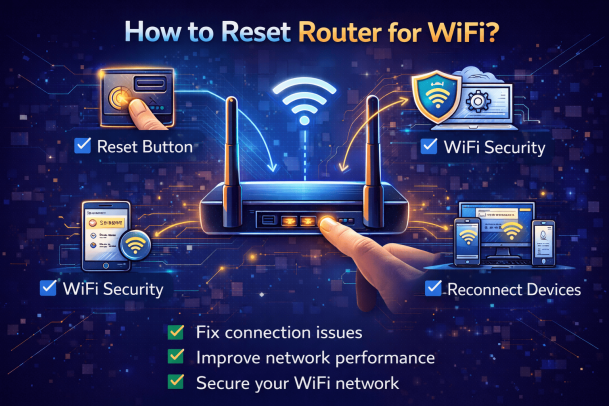
Is your WiFi slow, dropping connections, or refusing to work altogether? If you’re asking how to reset router for WiFi, you’re already on the right path. Router resets are one of the most effective ways to fix common wireless issues, restore stable connectivity, and even improve network security.
Whether you’re a home user troubleshooting internet problems or an IT manager maintaining a business network, understanding how to reset router for WiFi is a critical skill. A proper reset can eliminate misconfigurations, remove temporary glitches, and help protect your network from unauthorized access.
In this guide, we’ll explain when and how to reset your router, the difference between rebooting and resetting, and best practices to keep your WiFi secure afterward.
What Does It Mean to Reset a Router?
Before diving into how to reset router for WiFi, it’s important to understand what a reset actually does.
A router reset restores the device to its default factory settings. This means:
-
WiFi name (SSID) resets to default
-
WiFi password is erased
-
Custom configurations are removed
-
Security and firewall settings revert to default
Resetting is different from restarting or rebooting, which simply powers the router off and back on without erasing settings.
When Should You Reset Your Router for WiFi?
Not every WiFi issue requires a full reset. However, there are situations where learning how to reset router for WiFi becomes essential.
Common Scenarios That Require a Reset
-
Persistent slow internet speeds
-
Frequent WiFi disconnections
-
Forgotten router login credentials
-
Suspicion of unauthorized access
-
Router configuration errors
-
Malware or compromised network settings
For businesses and security-focused users, a router reset is often part of incident response and network recovery.
Restart vs Reset: Know the Difference
Many users confuse restarting with resetting.
Restart (Reboot)
-
Temporary fix
-
Clears memory and minor glitches
-
Does not erase settings
Reset (Factory Reset)
-
Permanent change
-
Erases all custom settings
-
Restores default configuration
If you’re troubleshooting basic issues, restart first. If problems persist, proceed with how to reset router for WiFi using the steps below.
How to Reset Router for WiFi Using the Reset Button
This is the most common and reliable method.
Step-by-Step Instructions
-
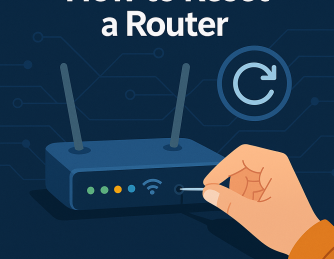
Locate the reset button
Usually found on the back or bottom of the router. -
Use a pointed object
A paperclip or pin works best. -
Press and hold the reset button
Hold for 10–30 seconds while the router is powered on. -
Wait for the router to reboot
Lights will blink, and the router will restart. -
Reconnect using default credentials
Check the router label for the default SSID and password.
This physical method is the fastest way to perform how to reset router for WiFi when locked out or facing serious issues.
How to Reset Router for WiFi Using the Admin Panel
If you still have access to your router dashboard, a software reset is often preferred.
Steps to Reset from Router Settings
-
Open a browser and enter the router IP (commonly
192.168.1.1) -
Log in with admin credentials
-
Navigate to System, Administration, or Advanced Settings
-
Select Factory Reset or Restore Defaults
-
Confirm and wait for reboot
This approach to how to reset router for WiFi is cleaner and recommended for IT administrators managing multiple devices.
How to Reset Router for WiFi Without Losing Settings
Sometimes, users want a fresh connection without wiping configurations.
Try These First
-
Restart the router
-
Update firmware
-
Change WiFi channel
-
Reset modem (if separate)
If these steps fail, a full reset becomes necessary. Understanding how to reset router for WiFi ensures you can recover quickly afterward.
What to Do After Resetting Your Router
Resetting is only half the process. Post-reset setup is crucial.
Essential Post-Reset Steps
-
Change default admin username and password
-
Create a strong WiFi password
-
Enable WPA3 or WPA2 encryption
-
Disable WPS if not required
-
Update router firmware
Skipping these steps leaves your network vulnerable—even after learning how to reset router for WiFi correctly.
How Resetting a Router Improves WiFi Security
Router resets aren’t just about performance—they’re also a security measure.
Security Benefits of Resetting
-
Removes malicious configurations
-
Clears unauthorized access rules
-
Restores firewall defaults
-
Eliminates rogue DNS settings
For cybersecurity teams, resetting routers is often part of breach containment and network hygiene.
How to Reset Router for WiFi in Business Environments
Businesses face higher stakes when resetting network equipment.
Best Practices for IT Managers
-
Document configurations before reset
-
Schedule downtime to avoid disruption
-
Reapply VLANs and access rules carefully
-
Monitor traffic after reset
Enterprise environments often pair router resets with endpoint and network monitoring solutions.
Common Mistakes to Avoid When Resetting a Router
Even when users know how to reset router for WiFi, mistakes can cause issues.
Avoid These Errors
-
Resetting during active firmware updates
-
Forgetting ISP credentials
-
Leaving default passwords unchanged
-
Skipping security configuration
A careful reset process ensures stability and protection.
How Often Should You Reset Your Router?
There’s no need to reset frequently.
Recommended Frequency
-
Restart: Once every 1–2 months
-
Reset: Only when issues persist or security is compromised
Understanding how to reset router for WiFi helps you act only when necessary.
Frequently Asked Questions (FAQ)
1. How to reset router for WiFi if I forgot the password?
Use the physical reset button to restore factory settings and create a new password.
2. Will resetting my router fix slow WiFi?
Yes, especially if slow speeds are caused by configuration issues or memory overload.
3. Does resetting a router delete malware?
In many cases, yes. A factory reset removes malicious settings and scripts.
4. How long does it take to reset a router?
The reset process usually takes 2–5 minutes.
5. Should I reset my router or modem first?
Restart the modem first, then the router. Reset only if issues continue.
Final Thoughts: Why Knowing How to Reset Router for WiFi Matters
WiFi problems are inevitable, but prolonged outages don’t have to be. Knowing how to reset router for WiFi empowers users and IT teams to restore connectivity, improve performance, and strengthen security in minutes.
Whether you’re managing a home network or a growing business environment, proper router management is essential for reliability and protection.
👉 See how advanced security can protect your network—request a demo today:
https://www.xcitium.com/request-demo/
Please give us a star rating based on your experience.

 (2 votes, average: 3.00 out of 5, rated)