How to Reboot PC Into Safe Mode: A Complete Guide for Secure Troubleshooting
Updated on January 19, 2026, by Xcitium
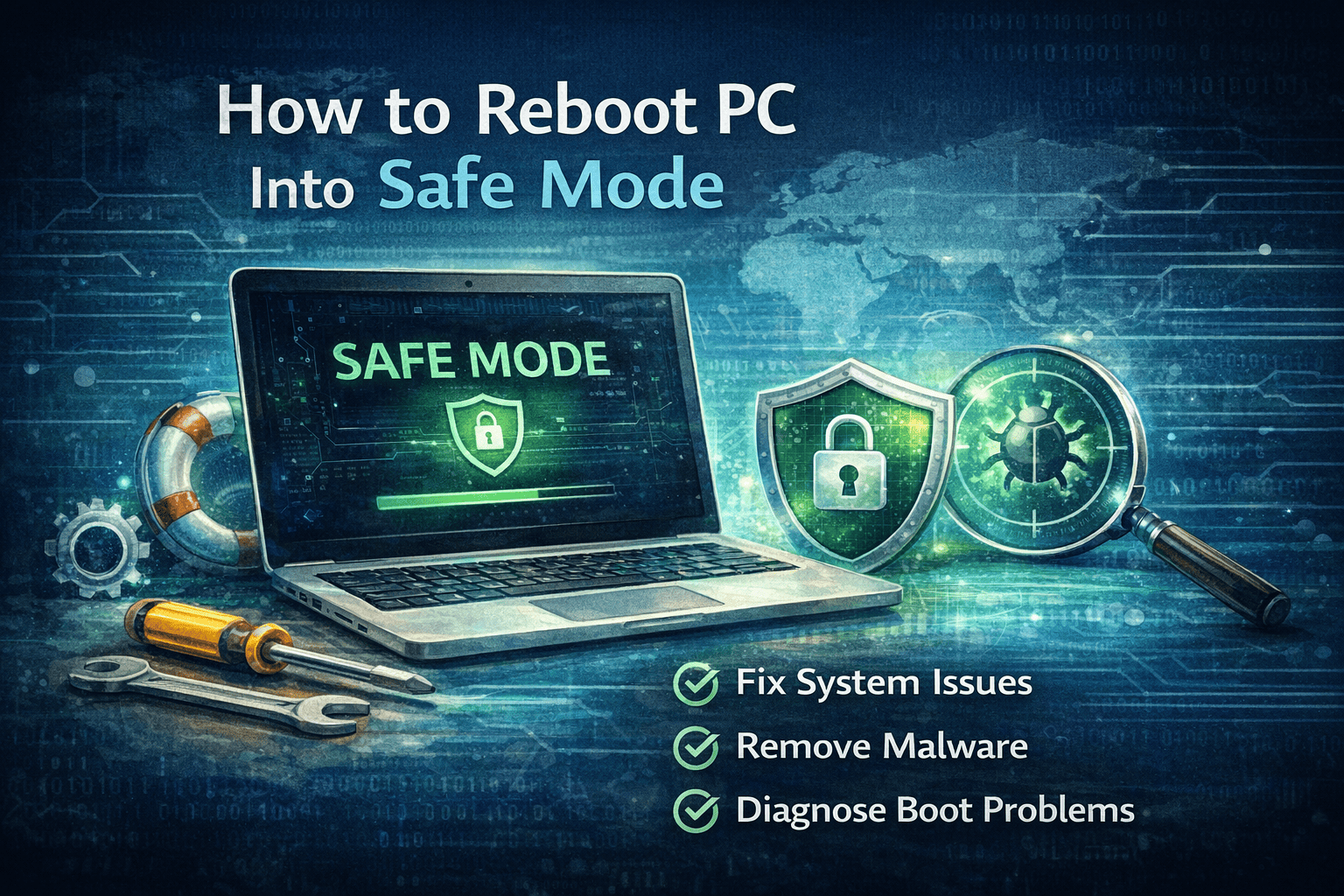
What do you do when your PC refuses to start normally, crashes repeatedly, or behaves suspiciously after a software update? In many cases, the safest and fastest solution is learning how to reboot PC into Safe Mode. Safe Mode is a powerful diagnostic environment that helps isolate system issues, remove malware, and fix critical errors without unnecessary background processes.
For IT managers, cybersecurity teams, and business leaders, understanding Safe Mode isn’t just a technical skill—it’s an operational necessity. This guide explains when, why, and how to reboot PC into Safe Mode using multiple methods, including Windows 10 and Windows 11.
What Is Safe Mode and Why It Matters
Safe Mode is a diagnostic startup mode that loads Windows with only essential system files, drivers, and services. It prevents third-party applications and unnecessary processes from running.
Why Safe Mode Is Critical
-
Helps remove malware and persistent threats
-
Diagnoses driver and software conflicts
-
Fixes boot failures and system crashes
-
Supports incident response and recovery
Knowing how to reboot PC into Safe Mode gives professionals a controlled environment to resolve serious issues safely.
When Should You Reboot a PC Into Safe Mode?
Safe Mode isn’t required for everyday problems, but it’s invaluable in specific scenarios.
Common Situations That Require Safe Mode
-
Windows fails to boot normally
-
Blue Screen of Death (BSOD) errors
-
Suspected malware or ransomware infection
-
Driver installation failures
-
System freezes after updates
For cybersecurity and IT teams, Safe Mode is often the first step in threat containment and remediation.
How to Reboot PC Into Safe Mode Using Windows Settings
This is the easiest and most reliable method if your system is still accessible.
Steps for Windows 10 and Windows 11
-
Click Start → Settings
-
Go to System → Recovery
-
Under Advanced startup, click Restart now
-
Select Troubleshoot → Advanced options
-
Click Startup Settings → Restart
-
Press 4 (Safe Mode) or 5 (Safe Mode with Networking)
This method works well for professionals who need a quick, structured way to boot Windows in Safe Mode.
How to Reboot PC Into Safe Mode During Startup
If your PC won’t load Windows properly, you can still access Safe Mode.
Forced Restart Method
-
Turn on the PC
-
When Windows begins loading, hold the Power button to shut down
-
Repeat this process 2–3 times
-
Windows will automatically enter Recovery Mode
-
Navigate to Troubleshoot → Advanced Options → Startup Settings
This method is especially useful when troubleshooting startup failures or malware-related boot issues.
How to Reboot PC Into Safe Mode Using System Configuration (msconfig)
This method is ideal for repeated troubleshooting sessions.
Steps Using msconfig
-
Press Windows + R
-
Type
msconfigand press Enter -
Select the Boot tab
-
Check Safe boot
-
Choose Minimal or Network
-
Click Apply → Restart
⚠️ Important: Disable Safe Boot after troubleshooting to avoid repeated Safe Mode startups.
For IT teams, this method provides consistency during extended diagnostics.
Safe Mode Options Explained
Understanding Safe Mode types helps you choose the right environment.
Types of Safe Mode
-
Safe Mode (Minimal): Basic system troubleshooting
-
Safe Mode with Networking: Internet and network access
-
Safe Mode with Command Prompt: Advanced administrative tasks
Selecting the right option improves the effectiveness of troubleshooting and security remediation.
How Safe Mode Supports Cybersecurity Operations
Safe Mode is not just a Windows feature—it’s a security tool.
Cybersecurity Benefits of Safe Mode
-
Malware cannot auto-start
-
Malicious drivers remain inactive
-
Security tools can run without interference
-
System integrity can be verified safely
For cybersecurity professionals, knowing how to reboot PC into Safe Mode is essential during malware containment and forensic analysis.
Safe Mode in Enterprise and Business Environments
Safe Mode plays a crucial role in business continuity and IT governance.
Why Businesses Rely on Safe Mode
-
Reduces downtime during system failures
-
Supports rapid incident response
-
Enables secure troubleshooting on endpoints
-
Helps maintain compliance during investigations
Safe Mode is often part of standard operating procedures in enterprise IT environments.
Best Practices When Using Safe Mode
Safe Mode is powerful, but it must be used carefully.
Actionable Tips for Professionals
-
Back up critical data before making changes
-
Use Safe Mode only when necessary
-
Document changes for audit and rollback
-
Exit Safe Mode immediately after resolution
These practices ensure Safe Mode remains a safe and effective tool.
How to Exit Safe Mode Properly
Once troubleshooting is complete, returning to normal mode is essential.
Exiting Safe Mode
-
Restart the PC normally
-
If using msconfig, uncheck Safe boot
-
Confirm system starts without errors
Failing to exit Safe Mode can confuse users and limit system functionality.
Safe Mode vs Clean Boot: What’s the Difference?
Many professionals confuse Safe Mode with Clean Boot.
| Feature | Safe Mode | Clean Boot |
|---|---|---|
| Loads basic drivers | Yes | Yes |
| Loads Windows services | Minimal | Selective |
| Best for malware removal | Yes | Limited |
| Best for app conflicts | Moderate | Excellent |
Both are useful, but Safe Mode offers deeper isolation for security tasks.
Frequently Asked Questions (FAQ)
1. Is Safe Mode available in Windows 11?
Yes. The process to reboot PC into Safe Mode is nearly identical in Windows 11 and Windows 10.
2. Can Safe Mode remove malware?
Safe Mode disables malicious startup processes, making malware removal easier and safer.
3. Does Safe Mode delete files?
No. Safe Mode does not remove files unless you manually delete them.
4. Why won’t my PC enter Safe Mode?
Corrupted system files or hardware issues may prevent access. Advanced recovery tools may be required.
5. Should businesses train employees on Safe Mode?
Yes. Basic Safe Mode knowledge reduces downtime and supports faster issue resolution.
Final Thoughts: Master Safe Mode for Faster, Safer Recovery
System failures and cyber threats rarely wait for a convenient moment. Knowing how to reboot PC into Safe Mode equips professionals with a powerful tool to diagnose, secure, and restore systems quickly. From malware removal to driver conflicts, Safe Mode remains one of Windows’ most valuable troubleshooting features.
Strengthen Your Endpoint Security Today
Reduce downtime, improve incident response, and gain full visibility into endpoint threats with enterprise-grade protection.
👉 Request a demo now:
https://www.xcitium.com/request-demo/
Safe systems start with informed action—and the right security tools.


 (4 votes, average: 4.00 out of 5, rated)