How to Make Email Signature in Outlook: A Complete Guide for Professionals
Updated on September 11, 2025, by Xcitium
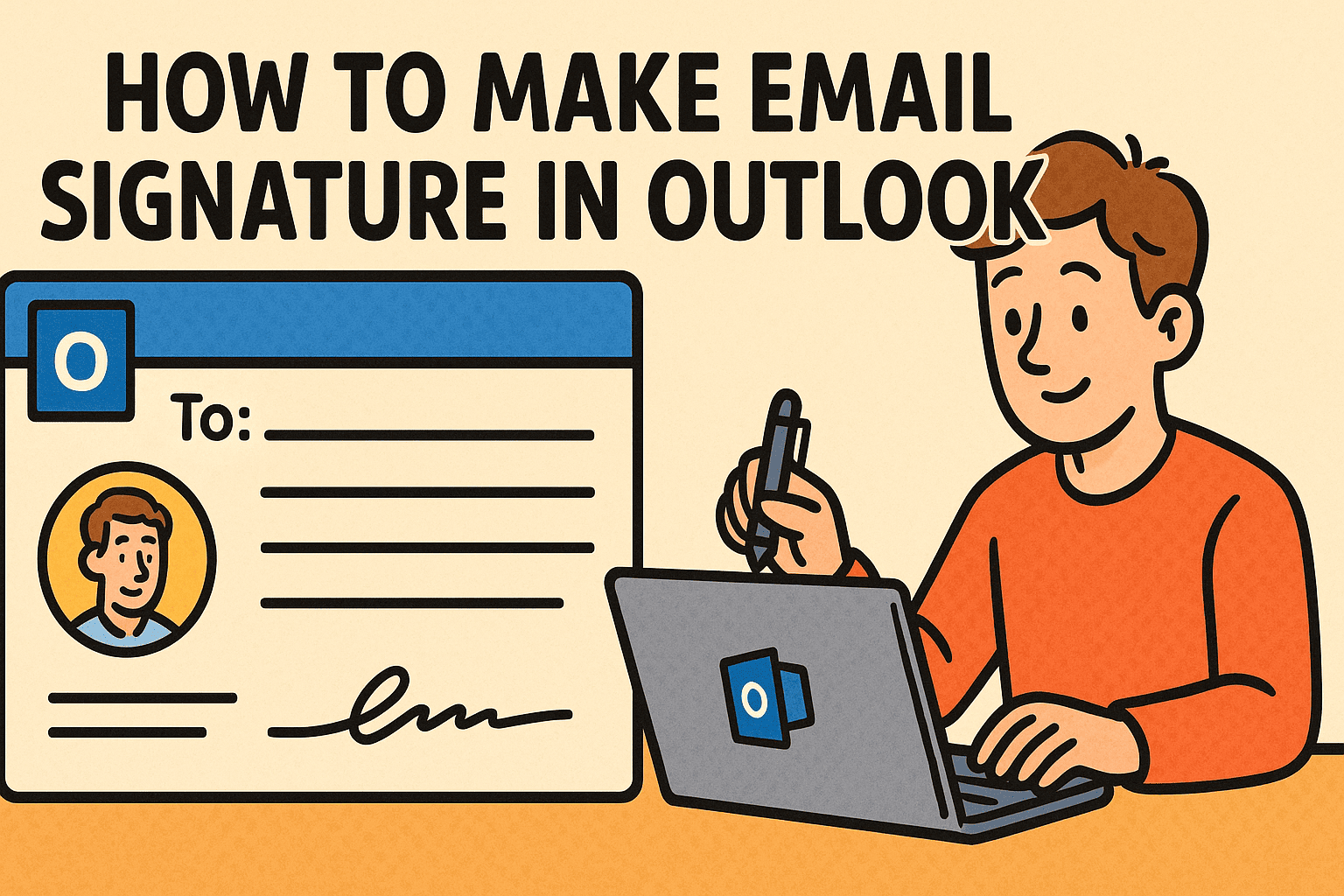
Have you ever asked yourself, “How to make email signature in Outlook that looks professional and secure?” Whether you’re a CEO, IT manager, or cybersecurity professional, an email signature isn’t just a digital formality—it’s part of your brand identity and business credibility.
In this article, we’ll guide you step by step on how to make email signature Outlook, explore best practices for professional branding, and highlight security considerations for enterprises.
Why Email Signatures Matter in Business
Email signatures are more than contact details—they act as digital business cards. For professionals, they provide:
- Credibility: Adds trust and professionalism.
- Consistency: Reinforces brand identity across all employees.
- Compliance: Ensures legal disclaimers are visible.
- Cybersecurity: Encourages secure communication with verified details.
For executives, a well-crafted signature can strengthen brand reputation while reducing risks of impersonation in phishing attacks.
How to Make Email Signature Outlook (Step-by-Step)
Outlook offers built-in tools to create and manage email signatures.
Step 1: Open Signature Settings
- Launch Outlook.
- Click on File > Options.
- Select Mail > Signatures.
Step 2: Create a New Signature
- Click New.
- Name your signature (e.g., “Business Signature”).
- Enter your details in the text box.
Step 3: Format Your Signature
- Use bold text for your name.
- Add contact details like phone, email, and website.
- Insert your company logo if needed.
Step 4: Apply Signature to Emails
- Assign the signature to New Messages and Replies/Forwards.
- Save changes.
Professional Email Signature Examples
Here’s what you should include:
- Name and Title – John Smith, Chief Information Security Officer.
- Company Information – Xcitium | www.xcitium.com.
- Contact Details – Phone, Email, LinkedIn.
- Company Logo – Ensure it’s optimized for small file size.
- Legal Disclaimer (Optional) – For compliance and liability protection.
How to Add Images and Logos to Outlook Signatures
To make your signature visually appealing:
- In the signature editor, click Insert Picture.
- Upload your logo or headshot.
- Resize appropriately (avoid large images).
- Test by sending an email to yourself.
👉 Security Tip: Always host images on a trusted server. Malicious embedded images can be exploited by attackers.
Best Practices for Business Email Signatures
If you’re managing an organization, keep these rules in mind:
- Consistency Across Teams: Use company-approved templates.
- Keep It Simple: Avoid too many colors or fonts.
- Mobile-Friendly: Test signatures on smartphones.
- Include Security Messages: Add lines like “This email is from a verified Xcitium employee.”
- Regular Updates: Update job titles, certifications, and links.
Security Considerations for Email Signatures
Cybercriminals often use fake email signatures in phishing attempts. As an IT leader, consider:
- Standardized Signatures: Prevents rogue employees from creating non-compliant formats.
- Digital Certificates: Sign emails with encryption for authenticity.
- Security Disclaimers: Add reminders against sharing confidential data.
- Monitoring Tools: Track if unauthorized signatures are being used externally.
📌 A secure signature policy helps protect brand reputation and client trust.
How to Create a Company-Wide Email Signature Policy
For IT managers and CEOs, rolling out email signatures at scale requires planning.
- Develop a Standard Template – Include approved logos, fonts, and disclaimers.
- Automate Distribution – Use centralized signature management tools.
- Audit Regularly – Check if employees are using compliant signatures.
- Integrate with Security Policies – Align with phishing prevention strategies.
Common Problems When Making Outlook Signatures
- Images Not Displaying: Ensure images are properly embedded or hosted.
- Signature Not Applying to Replies: Check Outlook’s signature assignment settings.
- Formatting Issues: Use simple fonts for cross-device compatibility.
- Too Large File Size: Optimize logos before inserting.
FAQs on Making Email Signatures in Outlook
Q1. Can I have multiple signatures in Outlook?
Yes. Outlook allows you to create and manage multiple signatures for different purposes.
Q2. How do I set a default signature?
In Outlook signature settings, assign a signature for new emails and replies.
Q3. Can I add social media links to my signature?
Yes. You can insert clickable icons or text links to LinkedIn, Twitter, etc.
Q4. Are email signatures safe?
Yes, if properly managed. However, always avoid linking to unverified third-party sources.
Q5. Can IT admins enforce signatures company-wide?
Yes, through signature management software or Microsoft Exchange policies.
Conclusion: Professional and Secure Outlook Signatures
So, how to make email signature in Outlook? The process is straightforward—configure settings, add your details, and format your design. But for IT managers and business leaders, it’s not just about looks. Email signatures are part of a security and compliance strategy that ensures trust, professionalism, and protection against impersonation.
By standardizing email signatures across your organization, you improve branding while reducing cyber risks.
👉 Want to strengthen your organization’s digital security beyond email signatures? Explore how Xcitium’s zero-trust solutions can protect your enterprise.