How to Get Out of CD Linux: A Complete Guide for Users and IT Teams
Updated on December 29, 2025, by Xcitium
Have you ever typed a command in Linux, only to find yourself stuck inside a directory and unsure how to move back? You’re not alone. Understanding how to get out of cd Linux is one of the most common challenges for beginners and even experienced users working under pressure.
Knowing how to get out of cd Linux is essential for system navigation, scripting, troubleshooting, and security operations. For IT managers, cybersecurity professionals, and executives overseeing technical teams, this foundational knowledge prevents errors, saves time, and reduces operational risk.
In this guide, we’ll explain exactly how directory navigation works, how to exit directories correctly, common mistakes to avoid, and best practices for secure Linux usage.
What Does the cd Command Do in Linux?
Before learning how to get out of cd Linux, it’s important to understand what the cd command actually does.
The cd (change directory) command allows users to move between directories in the Linux file system. Unlike graphical systems, Linux relies heavily on command-line navigation, especially in servers and security environments.
Why cd Is So Important
-
Controls where commands are executed
-
Determines file access paths
-
Impacts system-level operations
-
Affects scripts and automation
Misusing directory navigation can lead to mistakes such as deleting the wrong files or exposing sensitive data.
Why Users Get Stuck After Using cd
Many users assume that cd creates a “mode” they must exit. In reality, cd simply changes your current working directory.
Common Reasons Users Feel “Stuck”
-
Lack of visual directory cues
-
Deep folder structures
-
Unfamiliar Linux file paths
-
Working on remote servers
This confusion leads people to search for how to get out of cd Linux, even though no special exit command is required.
How to Get Out of CD Linux: The Basic Method
The simplest way to get out of a directory is to move back to its parent directory.
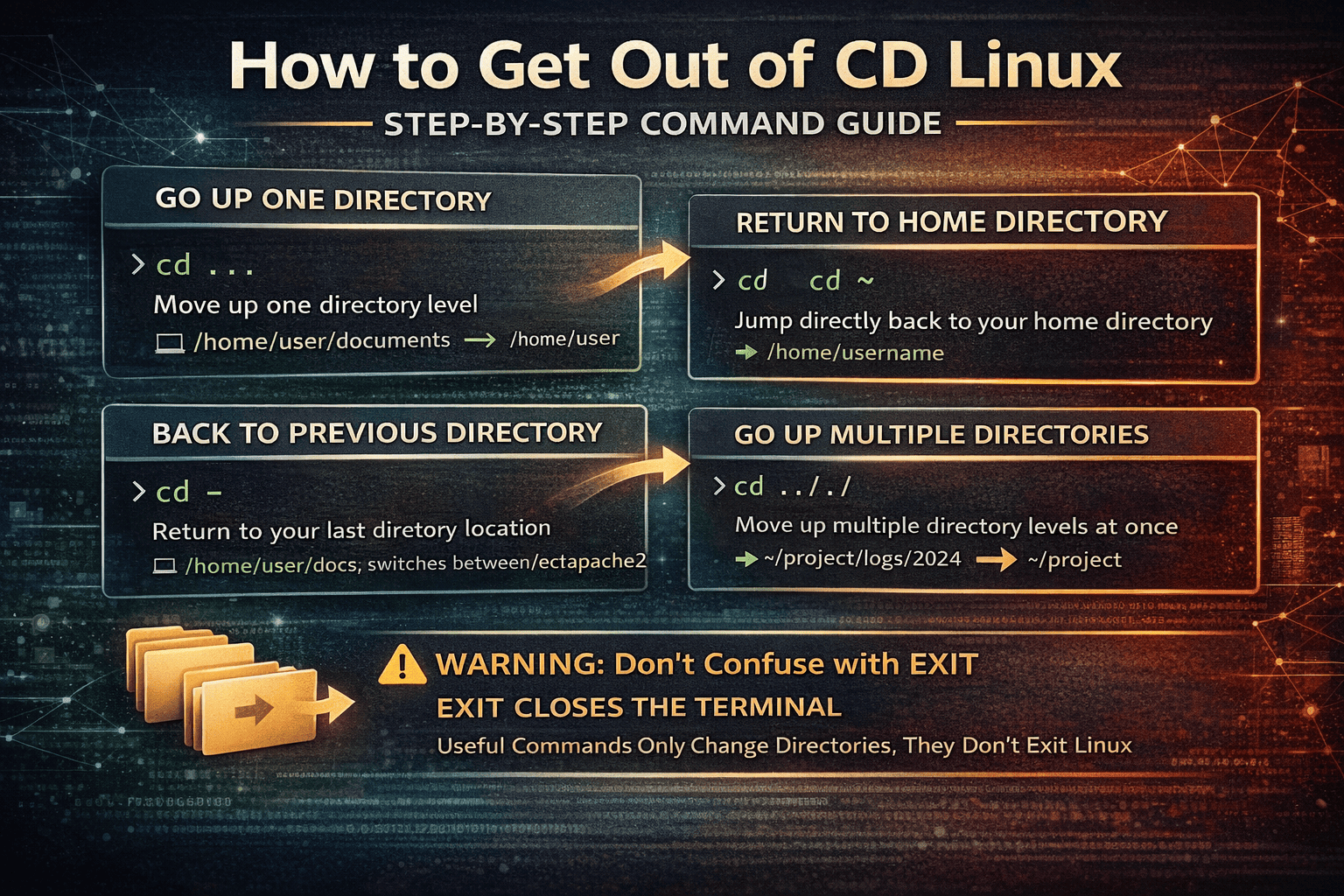
Use cd .. (Most Common Solution)
This command moves you one level up in the directory hierarchy.
Example:
Result:
For most scenarios, cd .. is the correct answer to how to get out of cd Linux.
How to Get Out of Multiple Directories at Once
Sometimes, moving up one level isn’t enough.
Use Multiple .. Levels
Each .. represents one directory level up.
This is especially useful in:
-
Complex server directories
-
Application deployment folders
-
Log analysis paths
Understanding this approach saves time and prevents navigation errors.
How to Return to the Home Directory
Another common way to get out of cd Linux situations is returning directly to your home directory.
Use cd or cd ~
or
Both commands instantly return you to:
This method is often preferred when users feel lost or want a clean starting point.
How to Go Back to the Previous Directory
Linux provides a convenient shortcut to return to your last directory.
Use cd -
This toggles between your current and previous directory.
This is extremely useful for:
-
Comparing files
-
Editing configurations
-
Navigating between two working directories
For productivity-focused teams, this command is a major efficiency boost.
How to Exit a Directory vs Exit the Terminal
One major misunderstanding behind how to get out of cd Linux is confusing directory navigation with exiting the terminal.
Important Distinction
-
cd→ changes directories -
exit→ closes the terminal session
If you type:
You are leaving the shell, not just the directory. On remote servers, this can disconnect you entirely.
How to Check Your Current Directory
If you’re unsure where you are, always verify your location.
Use the pwd Command
This prints your present working directory.
Knowing your exact path is critical for:
-
Avoiding destructive commands
-
Confirming script locations
-
Security audits and investigations
Cybersecurity teams rely heavily on pwd to maintain system control.
Common Mistakes When Using cd in Linux
Even experienced users make navigation mistakes.
Mistakes to Avoid
-
Forgetting where you are before running commands
-
Using
rmwithout confirming directory -
Assuming
exitwill move you up -
Running scripts from the wrong directory
Understanding how to get out of cd Linux properly helps avoid costly errors.
Linux Directory Navigation Best Practices
For IT managers and security professionals, directory discipline matters.
Best Practices
-
Always run
pwdbefore destructive commands -
Use absolute paths for scripts
-
Limit permissions on sensitive directories
-
Train staff on basic navigation commands
These practices reduce operational risk and improve security posture.
How Directory Navigation Impacts Cybersecurity
Directory navigation isn’t just a usability issue—it’s a security concern.
Security Risks from Poor Navigation
-
Accidental deletion of system files
-
Misconfigured permissions
-
Exposure of sensitive data
-
Script execution in unintended paths
Understanding how to get out of cd Linux is part of safe system handling.
Directory Navigation in Enterprise Linux Environments
In enterprise environments, Linux systems often host:
-
Databases
-
Web servers
-
Security tools
-
Cloud workloads
Incorrect directory navigation can disrupt services or expose vulnerabilities.
This is why IT leaders emphasize strong Linux fundamentals.
When cd Behaves Unexpectedly
Sometimes, users think they’re stuck due to:
-
Permission restrictions
-
Symbolic links
-
Chroot environments
-
Containerized systems
In these cases, the issue isn’t cd—it’s the environment.
Troubleshooting Tips
-
Check permissions with
ls -l -
Identify symbolic links
-
Confirm container context
Understanding the environment prevents confusion.
FAQ: How to Get Out of CD Linux
1. Is there an exit command for cd in Linux?
No. The cd command does not have an exit. You simply change directories using cd .., cd ~, or another path.
2. Why does Linux not have a “back” button?
Linux uses a command-line model focused on precision and control rather than UI navigation.
3. What’s the fastest way to leave a deep directory?
Use cd ~ to instantly return to your home directory.
4. Can I accidentally break my system using cd?
No, but commands run in the wrong directory can cause damage.
5. Why is directory navigation important for security teams?
It helps prevent accidental file deletion, misconfigurations, and unauthorized data exposure.
Final Thoughts: Mastering Linux Navigation
Understanding how to get out of cd Linux is a small skill with big impact. It improves productivity, reduces errors, and supports secure system operations.
For cybersecurity professionals and IT leaders, strong Linux fundamentals form the backbone of reliable infrastructure and secure environments.
If your organization relies on Linux systems but lacks visibility and prevention-first security, it’s time to modernize your approach.
👉 See how Xcitium delivers Zero Trust, prevention-first protection for Linux and enterprise environments.
Request a demo today: https://www.xcitium.com/request-demo/