How to Enable TPM 2.0: A Clear Guide for IT & Security Pros
Updated on August 8, 2025, by Xcitium
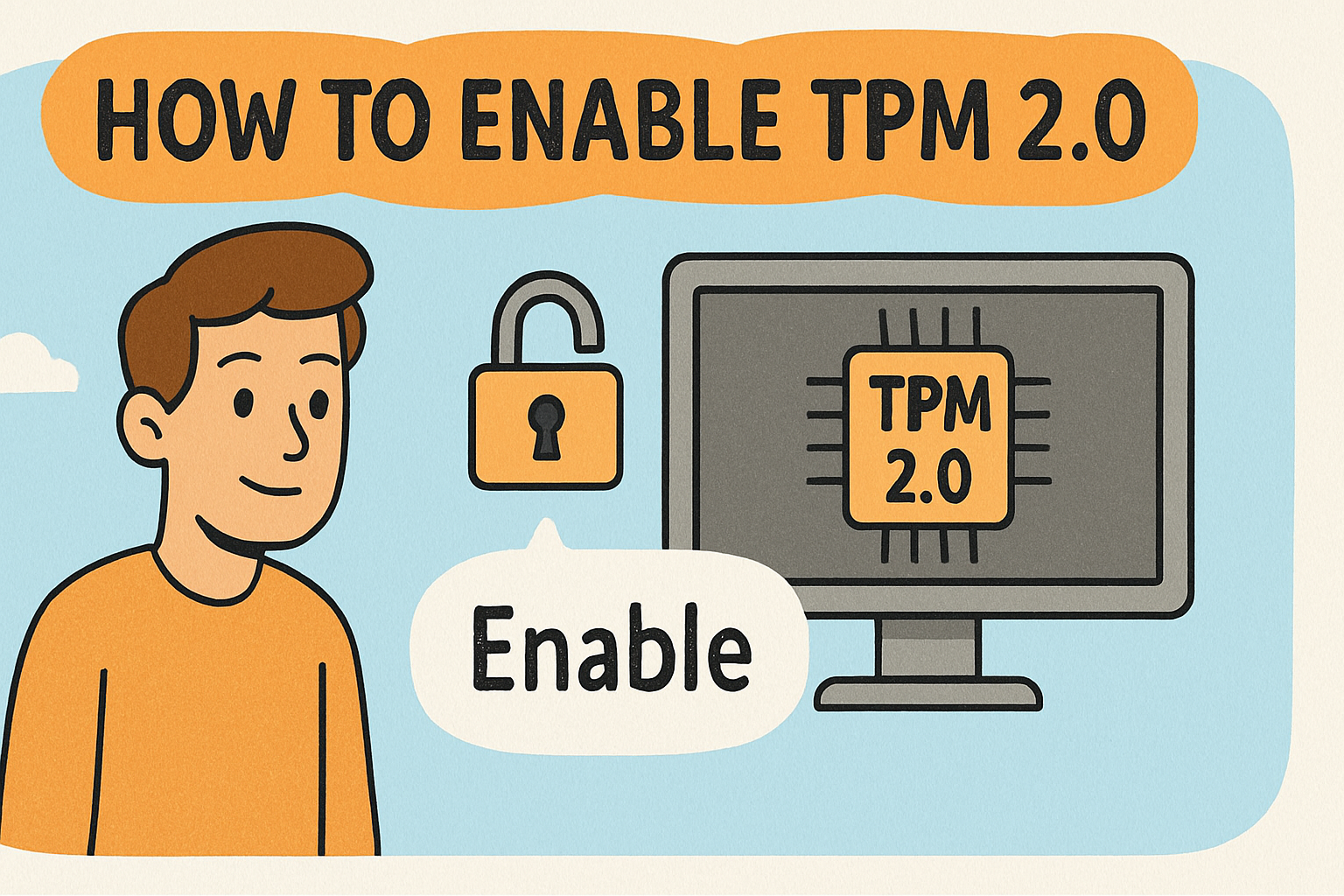
If you’re preparing to upgrade to Windows 11, you may be wondering how to enable TPM 2.0 on your device. TPM, or Trusted Platform Module, is a hardware or firmware-based security component essential for Windows 11 compliance. Beyond upgrade eligibility, TPM 2.0 enhances system integrity, enables BitLocker encryption, and secures biometric logins like Windows Hello. This guide walks you through everything—from checking whether TPM is present, to enabling it in UEFI/BIOS, for both Intel and AMD systems.
What Is TPM 2.0 & Why It’s Crucial
TPM stands for Trusted Platform Module—a specialized cryptographic chip or firmware built into most modern systems. Version 2.0, introduced in 2014, offers updated algorithms and compatibility with Windows 11. Here’s why it matters:
- Secure boot verification at startup
- Hardware-based protection for encryption keys (e.g. BitLocker)
- Storage of biometric and device credentials (e.g. Windows Hello)
- Mandated by Microsoft for official Windows 11 support; no TPM may leave users ineligible for updates
How to Check if Your System Has TPM 2.0
Use either of these built-in methods:
- TPM Management Console: Press Win + R, type tpm.msc, and press Enter. The window will show TPM status and specification version. If it reads Specification Version: 2.0, you’re good. Otherwise, TPM is disabled or absent.
- Windows Security App: Go to Settings → Windows Security → Device Security → Security processor details. Look for “Specification version” indicating TPM 2.
Enabling TPM 2.0 in BIOS/UEFI
Step 1: Preparing to Enter UEFI Settings
- Save any open files.
- Navigate to Settings → System → Recovery → Advanced startup → Restart now
- Alternatively, press F2/F10/Del/Esc at boot, depending on your motherboard.
Step 2: Locate TPM Settings in UEFI (H3)
Once in UEFI:
- Go to Security, Advanced, or Trusted Computing section.
- Look for entries like TPM, Security Device Support, PTT (Intel), or AMD fTPM. These vary by platform.
Step 3: Enable and Save
- Switch TPM to Enabled, On, or select Firmware TPM/PTT.
- Save settings (often via F10) and reboot.
Step 4: Verify TPM 2.0 Again
- After reboot, repeat the TPM check steps (i.e., run tpm.msc or view in Windows Security) to confirm TPM version is now 2.0.
Troubleshooting & Tips
- If TPM options are missing, update your BIOS/UEFI firmware—older firmware may not expose TPM settings.
- Some systems require enabling Secure Boot alongside TPM for Windows 11 compatibility.
- Intel “PTT” or AMD “fTPM” names may replace TPM in UEFI interface—enable accordingly.
Best Practices for IT & Security Teams
- Always back up UEFI settings before modifying firmware-level options.
- Enable TPM only from authenticated admin credentials.
- Integrate TPM status checks into organizational hardware inventory and patch policies.
- Use TPM with BitLocker and Windows Hello for enforced endpoint encryption and identity protection.
Benefits of TPM 2.0 Beyond Windows 11
- Supports hardware root-of-trust for secure boot and OS validation.
- Safeguards encryption keys, credentials, and firmware integrity.
- Enables TPM-backed authentication methods that resist phishing and OS tampering.
Final Thoughts
Enabling TPM 2.0 is no longer optional—it’s a mandatory step for system security and compliance in modern Windows environments. Whether you’re preparing for a Windows 11 rollout or strengthening endpoint defenses, enabling TPM should be part of your infrastructure baseline.
Call to Action
Looking to automate TPM deployment, manage firmware configurations, or audit endpoint compliance seamlessly?
👉 Request a free demo from Xcitium to see how our tools simplify hardware security management and policy enforcement.
Frequently Asked Questions
Q1: What if my PC doesn’t show TPM or only shows version 1.2?
You may need a BIOS update or TPM expansion kit to upgrade to TPM 2.0. PCs built before 2014 often don’t have variant-compatible chips.
Q2: Can I install Windows 11 without TPM 2.0?
Not officially. Workarounds exist in registry bypass, but Microsoft may refuse updates or support. It’s not recommended.
Q3: How do I enable Intel PTT or AMD fTPM?
Locate the corresponding firmware option in UEFI—enable and save. PTT or fTPM is equivalent to TPM 2.0.
Q4: Does enabling TPM 2.0 impact system performance?
Negligibly. TPM functions operate in the background and shouldn’t affect daily performance.
Q5: Why is Microsoft enforcing TPM 2.0 in Windows 11?
To raise the baseline of hardware security via a hardware root-of-trust, enabling encryption, identity protection, and firmware validation.