How to Change CMD Directory in Windows: A Complete Step-by-Step Guide
Updated on November 3, 2025, by Xcitium
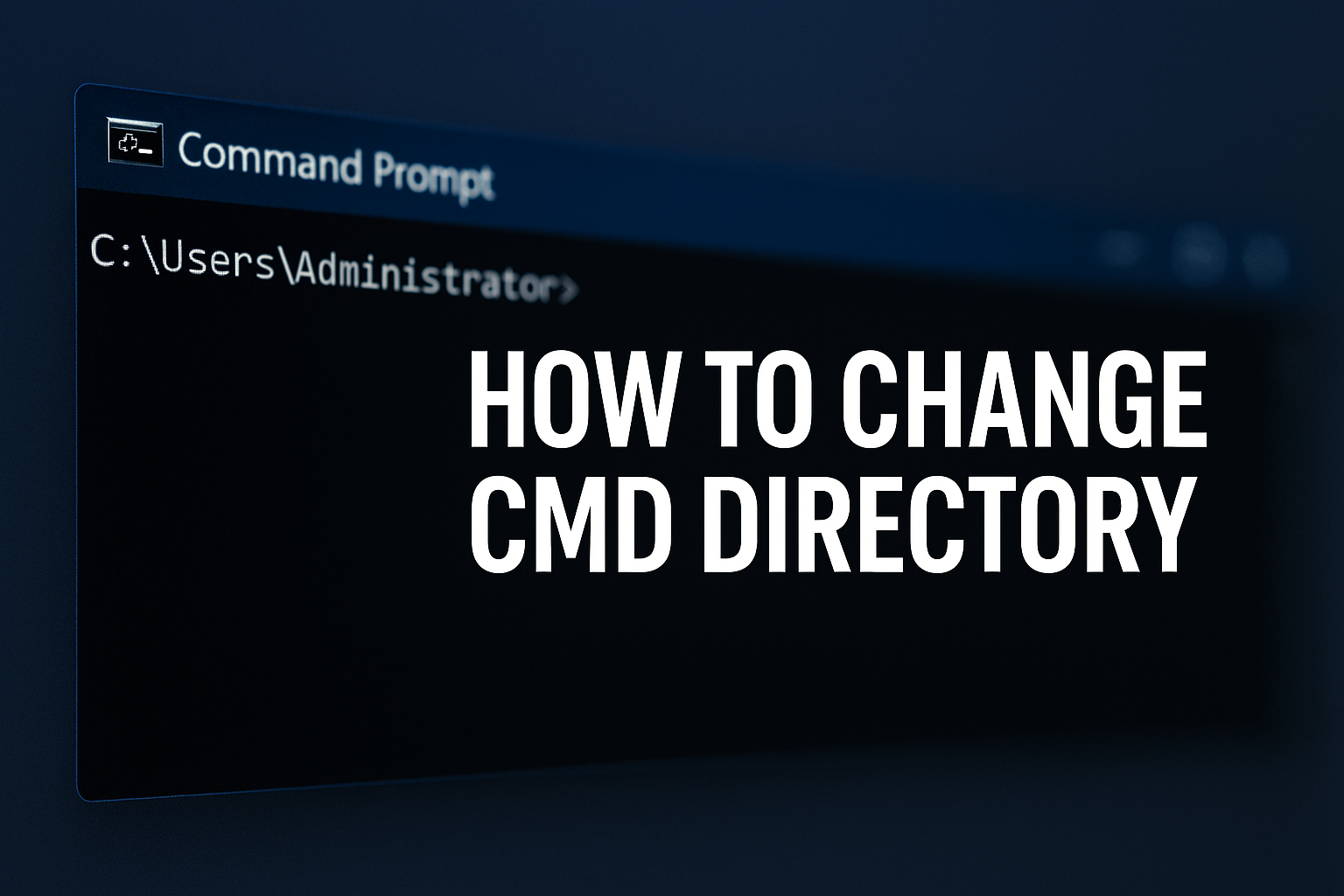
Have you ever opened the Windows Command Prompt and wondered how to switch from one folder to another? For IT professionals, system administrators, and cybersecurity experts, mastering command-line navigation is a basic yet powerful skill. Knowing how to change CMD directory can streamline tasks like software deployment, network troubleshooting, and automation scripts.
Whether you’re managing servers, working on code repositories, or simply exploring Windows internals, understanding how directories work in CMD (Command Prompt) will help you move efficiently through the file system — without clicking a single folder.
In this guide, you’ll learn how to change directories in CMD, the meaning of command syntax, advanced navigation techniques, and practical examples used in real-world IT environments.
What Is CMD in Windows?
CMD, short for Command Prompt, is a built-in Windows terminal that allows users to interact with the operating system using text commands. Unlike the graphical interface (GUI), CMD offers direct control over file management, networking, and system settings.
Key Uses of CMD:
-
File and folder operations
-
Network diagnostics (
ping,ipconfig) -
System configuration and automation
-
Security analysis and forensics tasks
For cybersecurity professionals, CMD is a crucial tool in network defense, penetration testing, and system auditing.
Why CMD Navigation Matters
Understanding how to navigate through folders in CMD is essential for several reasons:
-
Efficiency: Execute commands faster than clicking through directories.
-
Scripting: Automate tasks that require precise file paths.
-
Security: Access restricted directories for diagnostics or analysis.
-
Development: Build or deploy code from specific directories.
In other words, knowing how to change CMD directory gives you command-line control over your workspace — a core skill for IT administrators and ethical hackers alike.
Basic Syntax to Change Directory
The core command used to move between folders in CMD is the cd (Change Directory) command.
Basic Format:
Examples:
-
Move to another folder:
-
Move up one level:
-
Move to root directory:
-
Change drive (e.g., from C: to D:):
How to Change CMD Directory (Step-by-Step)
Let’s walk through the process step-by-step to ensure you understand how CMD navigation works completely.
Step 1: Open Command Prompt
-
Press Windows + R
-
Type
cmdand hit Enter
You’ll see the default directory path — usually your user folder (e.g.,C:\Users\Admin).
Step 2: View Current Directory
Use:
This displays the current directory location.
Step 3: Change Directory
To go to another folder, use:
If the folder is in another location:
Step 4: Move Up One Level
To move up from a subfolder to its parent:
Step 5: Move to Root Directory
To return to the drive’s root:
Step 6: Switch Between Drives
To change from C: to D::
Step 7: Change to a Directory Path with Spaces
When directory names include spaces, wrap them in quotes:
Advanced Directory Commands and Options
If you’re managing multiple files or scripting, CMD offers advanced navigation features that improve productivity.
View Directory Contents
Displays files and subfolders within the current directory.
Navigate Using Environment Variables
Takes you to the current user’s home directory.
Combine Commands
To change directory and list files simultaneously:
Use TAB Completion
Start typing a folder name and press TAB to auto-complete.
Common CMD Directory Errors and Fixes
Even experienced users can encounter directory-related errors. Here are common issues and how to fix them:
| Error Message | Cause | Solution |
|---|---|---|
| The system cannot find the path specified | Typo or wrong folder name | Check spelling or verify folder exists |
| Access is denied | Insufficient privileges | Run CMD as Administrator |
| File not found | Wrong directory level | Use dir to confirm file location |
| Drive not recognized | Drive letter missing | Ensure drive is connected and mapped |
Power Tips for IT Pros and Security Analysts
For professionals handling cybersecurity, automation, or large-scale systems, CMD navigation can streamline operations.
1. Automate Folder Operations
Use CMD scripts (.bat files) to navigate and execute commands:
2. Combine with Security Tools
CMD integrates well with tools like netstat, tasklist, or systeminfo, allowing analysts to pull forensic data from specific directories.
3. Leverage PowerShell
For advanced automation, combine CMD knowledge with PowerShell scripting — offering deeper control, object-based processing, and better network management.
4. Integrate with Xcitium Tools
If you’re working in endpoint protection or enterprise IT, CMD commands can integrate with tools like Xcitium OpenEDR to manage logs, scan directories, and investigate security events efficiently.
FAQs About Changing CMD Directory
1. How do I open CMD directly in a specific folder?
Right-click inside the folder → Choose “Open in Terminal” or “Open Command Window Here.”
2. How do I change CMD directory permanently?
Use the /k switch in a shortcut:
3. Can I use CMD to create new folders?
Yes, use:
4. What’s the difference between CMD and PowerShell?
CMD is text-based and simpler, while PowerShell supports scripting, automation, and advanced administration commands.
5. Why does CMD say “Access Denied”?
This happens when trying to access system-protected directories. Run CMD as Administrator to gain full access.
Conclusion: Mastering CMD Directory Changes
Learning how to change CMD directory is fundamental for IT professionals, developers, and cybersecurity teams. It not only enhances productivity but also gives greater control over your Windows environment.
With just a few commands — cd, dir, and .. — you can navigate the Windows file system efficiently, automate scripts, and troubleshoot with precision.
To take your IT security to the next level, integrate command-line mastery with endpoint protection and real-time defense tools.
👉 Get Started with Xcitium – Secure Your Systems Now