How to Create Static Address for Home Network: A Complete Step-by-Step Guide
Updated on January 13, 2026, by Xcitium
Do your devices keep getting new IP addresses every time your router restarts? If you’re wondering how to create static address for home network, you’re already thinking ahead about stability and security. Dynamic IP addresses are convenient, but they often cause issues with printers, smart devices, servers, and remote access.
Knowing how to create static address for home network helps you maintain consistent connectivity, simplify troubleshooting, and improve overall network reliability. For IT managers and security-conscious users, static addressing is a foundational networking skill that reduces complexity and risk.
In this guide, you’ll learn exactly how to create static address for home network, why it matters, and how to apply best practices safely and correctly.
What Is a Static IP Address?
Before diving into how to create static address for home network, it’s important to understand what a static IP address is.
A static IP address is a fixed network address manually assigned to a device. Unlike dynamic IPs, which change automatically using DHCP, static addresses remain the same unless you change them.
Static vs Dynamic IP Addresses
-
Static IP: Fixed, manually configured
-
Dynamic IP: Automatically assigned and may change
Static addresses are especially useful for devices that need to be easily located on your network.
Why You Should Create a Static Address for Home Network
There are several practical reasons to learn how to create static address for home network.
Key Benefits of Static IP Addresses
-
Reliable access to printers and NAS devices
-
Stable connections for smart home systems
-
Easier port forwarding and firewall rules
-
Improved network troubleshooting
-
Better security visibility
For home offices and small businesses, static addressing provides enterprise-style control without added cost.
When Should You Use a Static IP at Home?
Not every device needs a static IP. Understanding when to use one is part of mastering how to create static address for home network.
Devices That Benefit from Static IPs
-
Network printers
-
Smart TVs and streaming devices
-
IP cameras
-
Home servers or NAS devices
-
Routers and access points
Assigning static IPs to these devices improves performance and reliability.
How to Create Static Address for Home Network Using Your Router
The easiest and safest way to assign a static address is through your router.
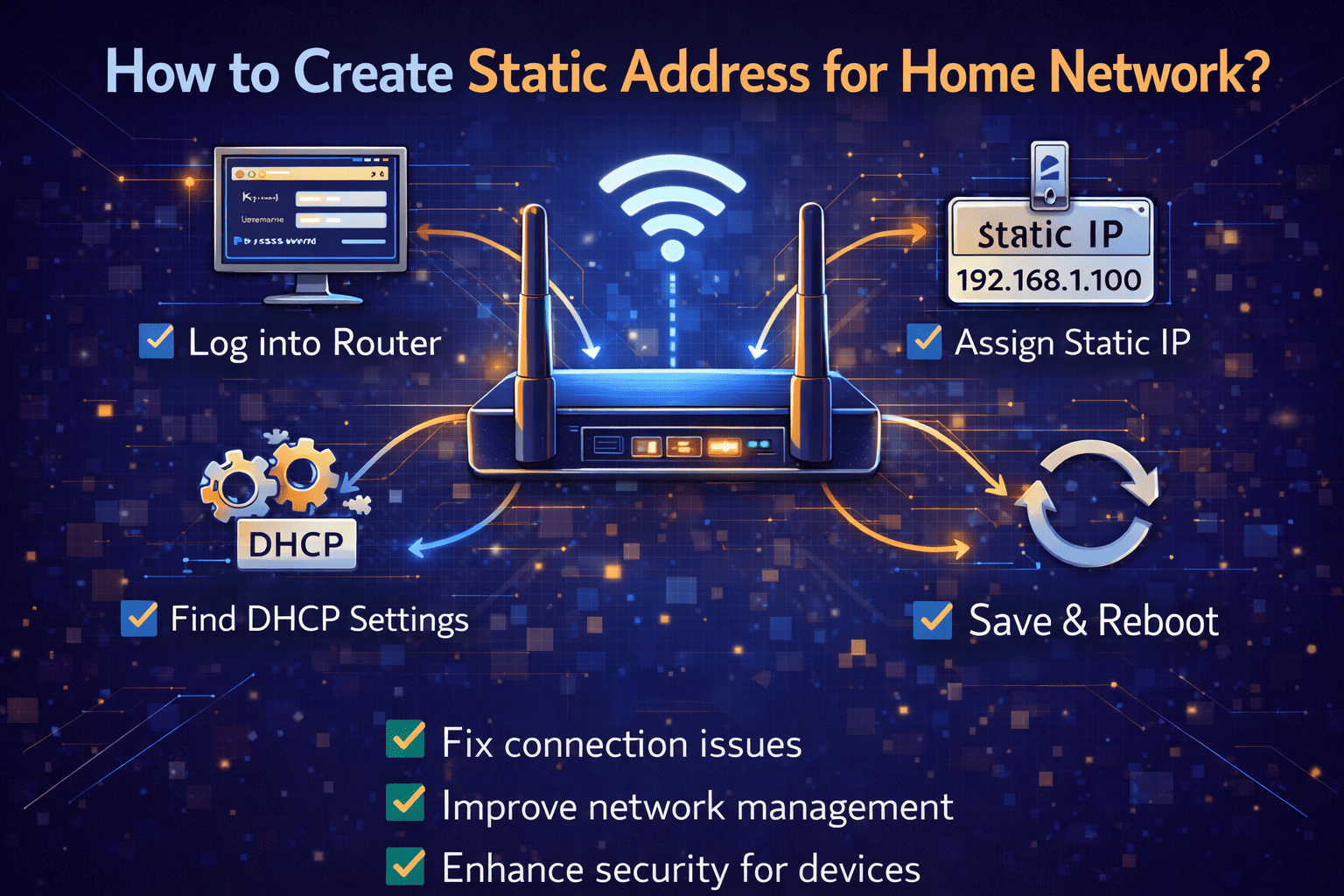
Step-by-Step: Static IP via Router (DHCP Reservation)
-
Log in to your router’s admin panel
-
Navigate to LAN, DHCP, or Network Settings
-
Locate DHCP Reservation or Static Lease
-
Select the device by MAC address
-
Assign a fixed IP address
-
Save and reboot the router
This method ensures the router always assigns the same IP to the device.
How to Create Static Address for Home Network on Windows
You can also assign a static IP directly on a device.
Windows Static IP Setup
-
Open Settings → Network & Internet
-
Select Advanced network settings
-
Click More network adapter options
-
Right-click your network → Properties
-
Select Internet Protocol Version 4 (IPv4)
-
Enter IP address, subnet mask, and gateway
This approach works well but requires careful planning to avoid conflicts.
How to Create Static Address for Home Network on macOS
macOS users can easily configure static IPs.
macOS Static IP Steps
-
Open System Settings
-
Go to Network
-
Select your active connection
-
Click Details → TCP/IP
-
Change Configure IPv4 to Manually
-
Enter IP address, subnet mask, and router
Knowing how to create static address for home network on macOS is especially useful for developers and remote workers.
How to Create Static Address for Home Network on Linux
Linux systems offer powerful networking control.
Linux Static IP (Basic Example)
-
Edit network configuration files
-
Assign IP, gateway, and DNS manually
-
Restart networking services
Linux users often prefer static addressing for servers and testing environments.
Common Mistakes When Creating Static IP Addresses
Even when users know how to create static address for home network, mistakes can cause issues.
Mistakes to Avoid
-
Assigning IPs inside the DHCP pool
-
Forgetting the default gateway
-
Using incorrect subnet masks
-
Assigning duplicate IP addresses
Always document assigned IPs to maintain clarity and avoid conflicts.
Static IP Addressing and Home Network Security
Static IPs can improve security—but only when used correctly.
Security Benefits
-
Easier firewall rule creation
-
Clear device identification
-
Better monitoring and logging
Security Risks
-
Predictable IP addresses if exposed
-
Misconfigured firewall rules
Combine static IP addressing with strong authentication and endpoint security.
Static IP vs DHCP Reservation: Which Is Better?
For most users learning how to create static address for home network, DHCP reservation is the best option.
| Feature | Static IP on Device | DHCP Reservation |
|---|---|---|
| Ease of Setup | Medium | Easy |
| Central Control | ❌ | ✅ |
| Risk of Conflict | Higher | Lower |
| Best for Home Use | ❌ | ✅ |
DHCP reservations offer flexibility and simplicity.
Best Practices for Managing Static IPs at Home
To maximize benefits:
-
Keep a network IP address list
-
Reserve IPs outside DHCP pool
-
Label devices clearly
-
Use strong router passwords
-
Monitor network activity
These practices make how to create static address for home network a long-term success.
Troubleshooting Static IP Issues
If a device loses connectivity after setup:
-
Verify IP address range
-
Check subnet mask and gateway
-
Restart the device and router
-
Ensure no duplicate IP exists
Most issues stem from small configuration errors.
Frequently Asked Questions (FAQ)
1. How to create static address for home network safely?
The safest method is using DHCP reservation on your router.
2. Does a static IP improve internet speed?
No, but it improves connection stability and reliability.
3. Can static IPs cause network problems?
Yes, if misconfigured or duplicated. Proper planning prevents issues.
4. Should every device have a static IP?
No. Only devices that need consistent access require static addresses.
5. Are static IPs more secure than dynamic IPs?
They improve visibility but must be paired with proper security controls.
Final Thoughts: Why Learning How to Create Static Address for Home Network Matters
Knowing how to create static address for home network gives you greater control, stability, and clarity over your connected devices. Whether you’re running a smart home, home office, or small business, static IPs simplify management and improve reliability.
For organizations and individuals focused on secure, predictable networking, this knowledge is essential.
👉 See how advanced security solutions protect your network—request a demo today:
https://www.xcitium.com/request-demo/