How to Clear Cloud Storage: A Complete Step-by-Step Guide
Updated on October 6, 2025, by Xcitium
Have you ever received that dreaded notification: “Your cloud storage is almost full”? Whether you’re using Google Drive, iCloud, OneDrive, or Dropbox, hitting storage limits can slow productivity, create unnecessary costs, and even introduce security risks. That’s why understanding how to clear cloud storage is essential for both individuals and businesses.
Introduction: Why Clearing Cloud Storage Matters
Cloud storage is convenient, but without proper management, it quickly becomes cluttered with outdated files, duplicates, and sensitive data that no longer needs to be stored. For IT managers, CEOs, and cybersecurity professionals, clearing and organizing cloud storage isn’t just about freeing space—it’s also about reducing risks, cutting costs, and maintaining compliance.
What Does “Clearing Cloud Storage” Mean?
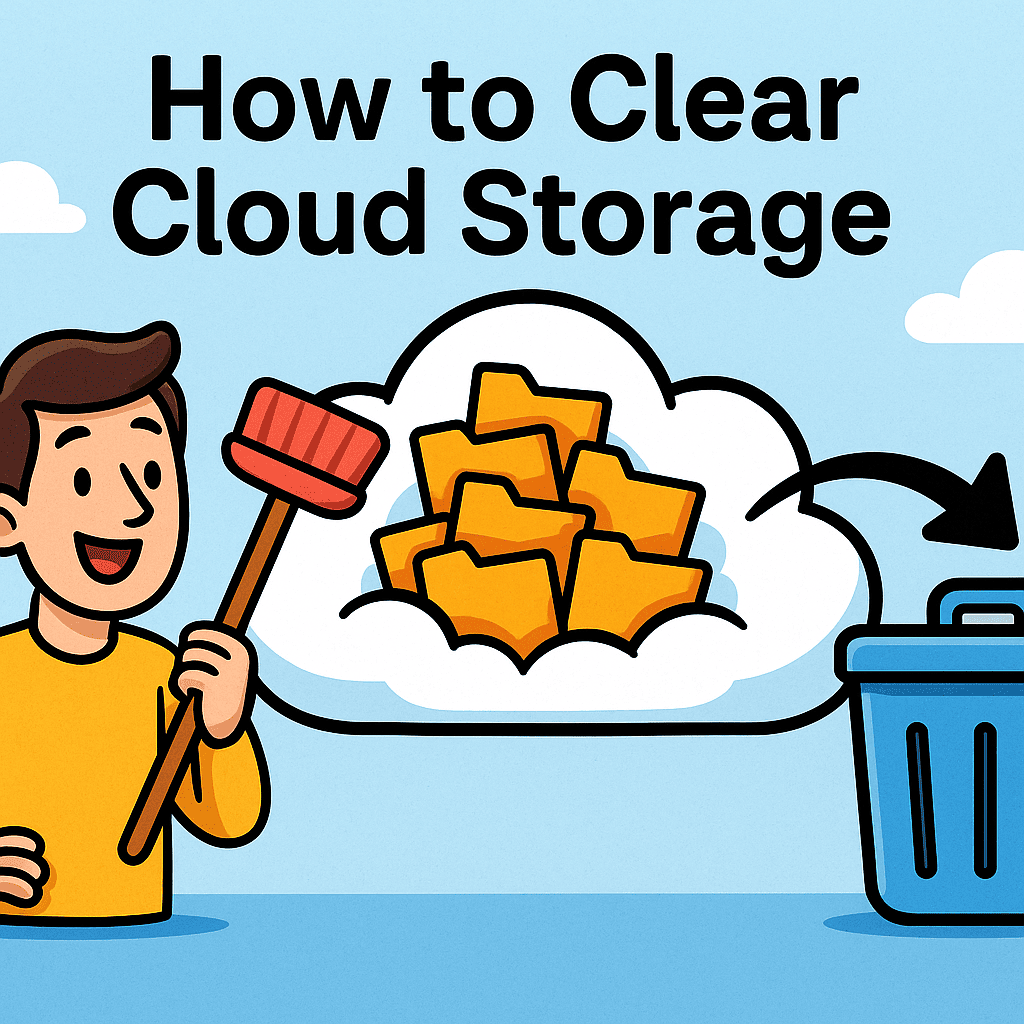
When we talk about how to clear cloud storage, we’re referring to systematically reviewing, deleting, and optimizing the data stored in your cloud account. This includes:
-
Deleting unused or outdated files.
-
Removing duplicates.
-
Clearing trash/recycle bins.
-
Managing large files (like videos or backups).
-
Organizing folders for efficiency.
-
Reviewing and revoking unnecessary third-party access.
👉 In short: Clearing cloud storage helps free up space, improve performance, and enhance security.
Why Businesses Should Learn How to Clear Cloud Storage
For organizations, cloud storage isn’t just about convenience—it’s tied directly to costs, security, and compliance.
Key Benefits:
-
Cost Savings – Many cloud providers charge for extra space.
-
Improved Security – Removing old sensitive files reduces breach risks.
-
Compliance – Meets regulatory requirements for data retention and disposal.
-
Efficiency – Makes files easier for employees to locate and use.
-
Disaster Recovery – Streamlined storage ensures faster backups and restores.
Step-by-Step: How to Clear Cloud Storage
Here’s a structured approach that works across platforms like Google Drive, OneDrive, iCloud, and Dropbox.
1. Audit Your Storage
-
Review which files and folders take up the most space.
-
Use built-in tools (Google’s Storage Manager, OneDrive’s Storage Metrics, etc.).
2. Delete Large and Unnecessary Files
-
Sort files by size and remove bulky videos, backups, or outdated projects.
-
Transfer important but rarely accessed files to offline drives.
3. Empty the Trash/Recycle Bin
-
Deleted files often remain in the trash until permanently cleared.
-
Always double-check before final deletion.
4. Remove Duplicates
-
Use duplicate file finder tools to eliminate redundant copies.
-
Encourage teams to use shared folders instead of multiple uploads.
5. Archive Old Data
-
Move older but required files to lower-cost storage or external drives.
-
Use long-term archival solutions offered by providers (like AWS Glacier).
6. Revoke Third-Party Access
-
Regularly check which apps have access to your cloud account.
-
Remove outdated integrations to reduce security risks.
7. Organize Remaining Files
-
Create a clear folder structure by project, department, or date.
-
Implement naming conventions to prevent clutter.
How to Clear Cloud Storage on Popular Platforms
Google Drive
-
Use the Storage Manager to sort files by size.
-
Delete large email attachments stored in Gmail.
-
Empty the Google Photos trash if synced.
Microsoft OneDrive
-
Check the Storage Metrics dashboard.
-
Remove local copies synced unnecessarily.
-
Clear files from the OneDrive recycle bin.
Apple iCloud
-
Review iPhone/iPad backups consuming large space.
-
Disable automatic backups for unused apps.
-
Delete old photos and videos (and empty “Recently Deleted”).
Dropbox
-
Use the Space Analyzer to identify large files.
-
Clear shared folders no longer needed.
-
Permanently delete from the Dropbox trash.
Risks of Not Clearing Cloud Storage
Ignoring storage management can lead to:
-
Extra Costs – Paying for higher storage tiers unnecessarily.
-
Data Breach Risks – Old sensitive files may still be vulnerable.
-
Compliance Violations – Retaining data longer than regulations allow.
-
Lower Productivity – Employees waste time searching for documents.
-
Backup Failures – Overloaded storage leads to incomplete backups.
Cloud Storage Security Considerations
Clearing storage isn’t just about space—it’s also about security. IT managers should:
-
✅ Encrypt sensitive files before uploading.
-
✅ Use multi-factor authentication (MFA) for cloud accounts.
-
✅ Monitor for unauthorized logins or file sharing.
-
✅ Pair storage cleanup with Endpoint Detection & Response (EDR) solutions.
-
✅ Implement data retention policies across the organization.
Best Practices for Cloud Storage Management
To prevent clutter and risks in the future:
-
✅ Schedule quarterly storage audits.
-
✅ Set retention rules for auto-deleting outdated files.
-
✅ Encourage employees to use shared folders instead of multiple copies.
-
✅ Integrate cloud monitoring with SIEM or EDR platforms.
-
✅ Educate staff on proper data storage practices.
The Future of Cloud Storage
Cloud storage is evolving rapidly. Expect to see:
-
AI-Powered File Management – Automated duplicate detection and cleanup.
-
Integrated Compliance Tools – Automatic deletion of data past retention dates.
-
Hybrid Cloud Models – Balancing public and private storage for efficiency.
-
Zero Trust Storage Security – Tighter access controls across users and apps.
-
Green Cloud Initiatives – Providers optimizing storage to reduce energy waste.
FAQs: How to Clear Cloud Storage
1. Why is my cloud storage always full?
Because of large backups, duplicate files, and old documents that haven’t been deleted.
2. How often should I clear cloud storage?
At least every quarter for businesses, and every few months for personal users.
3. Can deleting files from cloud storage be reversed?
Yes, but only temporarily through trash/recycle folders. Once emptied, deletion is permanent.
4. Is clearing cloud storage safe?
Yes, but always review files before deleting. Archive important data if unsure.
5. Do businesses need special tools for cloud storage cleanup?
Yes. Enterprise tools with auditing, EDR integration, and compliance features are best.
Conclusion: Smart Cloud Storage Management for Security and Efficiency
So, what’s the best way to handle how to clear cloud storage? It’s more than just deleting files—it’s about optimizing space, securing sensitive data, and ensuring compliance.
For individuals, regular cleanups keep devices running smoothly and save money. For businesses, proper cloud storage management prevents breaches, reduces costs, and supports productivity.
The strongest strategy combines storage cleanup, layered cybersecurity (like EDR), and strong policies to maintain a secure and efficient cloud environment.
👉 Protect your business with smarter cloud management and advanced cybersecurity: Request a Demo Today