How Do I Exit Incognito Mode? A Simple Guide for All Devices
Updated on July 21, 2025, by Xcitium
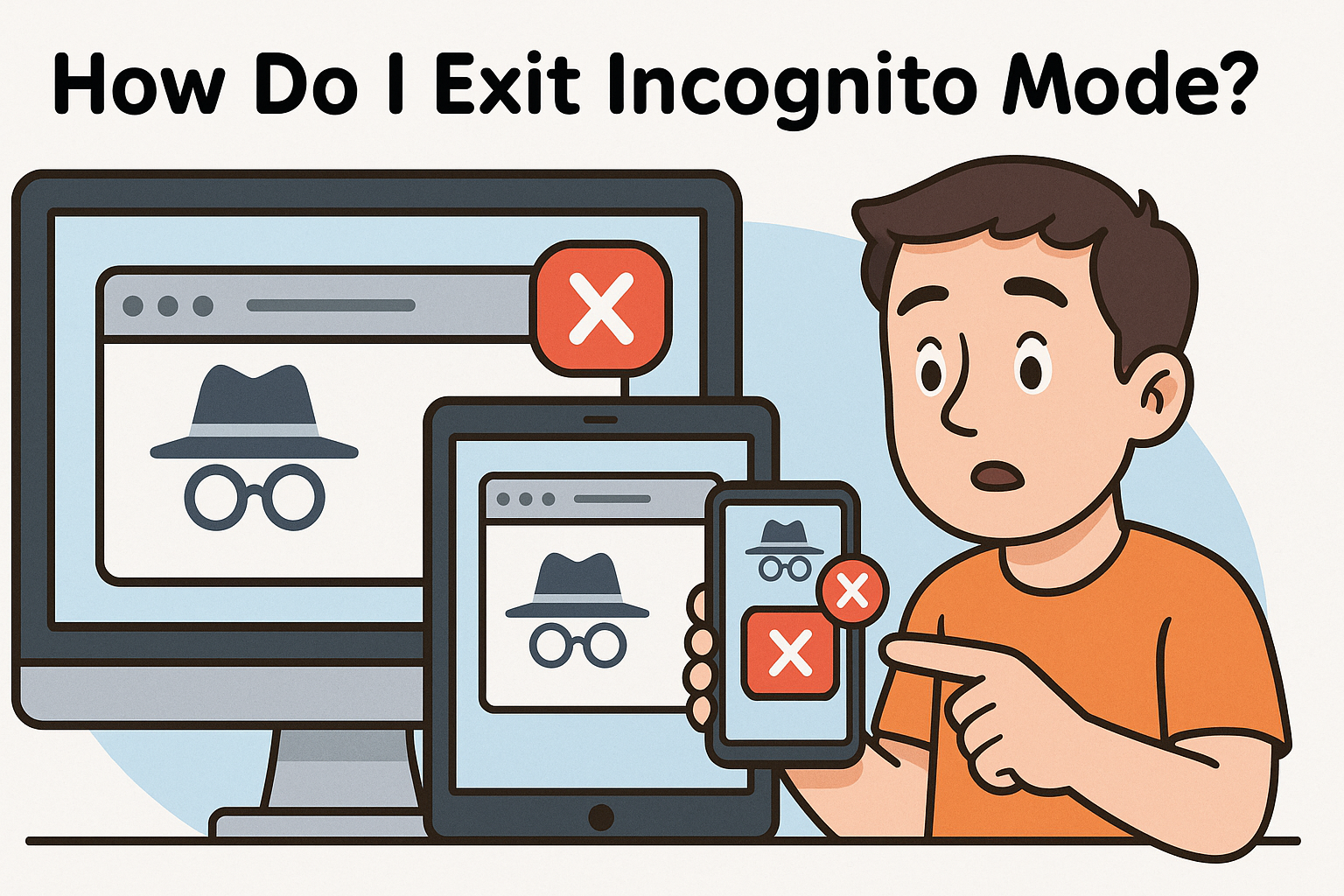
Have you ever opened an incognito tab and then asked yourself, “How do I exit Incognito Mode?” You’re not alone. Incognito or private browsing is a helpful tool when you want to browse without saving your history—but knowing how to turn it off is equally important, especially in cybersecurity-conscious environments.
Whether you’re using an iPhone, Android, Chrome browser, or a Samsung device, this guide will walk you through exiting and even disabling incognito mode with ease.
What Is Incognito Mode and Why Use It?
Before we learn how to exit Incognito Mode, let’s understand what it is.
Incognito Mode (also known as private browsing) is a browser feature that prevents your activity from being saved in:
- Browsing history
- Cookies and site data
- Form entries and passwords
This doesn’t mean you’re anonymous online. Websites, your employer, or your internet provider can still track you.
How Do I Exit Incognito Mode on iPhone?
If you’re using Safari or Chrome on an iPhone, here’s how to close the private session:
Safari
- Tap the Tabs icon (two overlapping squares).
- Choose Private to see your incognito tabs.
- Close them individually by swiping or tap X to close all.
- Tap Done to return to regular mode.
Chrome on iPhone
- Tap the Tabs icon (square with a number).
- Tap Incognito to switch to the private tab list.
- Swipe tabs away or tap Close all.
- Tap the regular tabs option to return to normal mode.
How Do I Exit Incognito Mode on Android?
If you’re wondering how to exit Incognito Mode on Android, it’s very similar to iPhone:
Chrome Browser
- Tap the tabs button (usually top or bottom right).
- Switch to Incognito.
- Tap the ‘X’ to close tabs or select Close all.
- Return to standard tabs.
How Do I Exit Incognito Mode on Chrome (Desktop)?
Exiting Incognito on Chrome desktop is even easier:
- Look for the Incognito icon (hat and glasses) in the corner.
- Simply close the Incognito window.
- Done—you’re back to normal browsing.
💡 Tip: Press Ctrl + Shift + N to open a new incognito window. To close it, click the ‘X’ or close the window entirely.
How to Turn Off Incognito Mode on Samsung Phones
Samsung phones running Samsung Internet or Chrome follow similar steps:
Samsung Internet
- Open Tabs.
- Select Secret Mode.
- Tap Close All to exit Incognito.
- Return to Standard Mode.
You can also disable access to secret mode via parental controls or security settings.
Can You Disable Incognito Mode Permanently?
Yes—especially useful for parental control or corporate policy:
On Android (Using Digital Wellbeing or 3rd-party apps)
- Use apps like Safe Browser or Incognito Blocker.
- You can also modify settings via Family Link.
On Windows 10/11 (Registry Editor)
- Press Win + R, type regedit.
- Navigate to:
HKEY_LOCAL_MACHINE\SOFTWARE\Policies\Google\Chrome - Right-click > New > DWORD: IncognitoModeAvailability
- Set value to 1 to disable Incognito Mode.
- Restart browser.
⚠️ Make sure to backup your registry before editing.
Why Exit or Disable Incognito Mode?
While it’s useful, Incognito Mode can bypass:
- Parental controls
- Security monitoring tools
- Employee oversight software
That’s why organizations, schools, and cybersecurity professionals often ask how to disable Incognito Mode for compliance and visibility.
What Happens When You Exit Incognito Mode?
When you exit:
- Browsing history is deleted.
- Cookies/session data are removed.
- You return to your regular browsing session.
But—downloads and bookmarks remain, so always verify what was saved before closing incognito.
Open Incognito Tab: A Quick How-To
Want to revisit Incognito Mode later? Here’s how:
- Chrome Desktop: Ctrl + Shift + N
- Chrome Mobile: Menu > New Incognito Tab
- Safari on iPhone: Tabs icon > Private
- Samsung Internet: Tabs > Secret Mode
✅ Ready to Protect Your Browsing & Network?
Incognito Mode may hide activity on your device, but it doesn’t protect you from cyber threats. Want better control, visibility, and endpoint protection?
👉 Request a Demo from Xcitium to see how our cybersecurity solutions safeguard your browsing—Incognito or not.
FAQs: How Do I Exit Incognito Mode
Q1: How do I exit Incognito Mode on iPhone?
A: Open Safari or Chrome tabs, switch to Private or Incognito view, and close all tabs.
Q2: Can I disable Incognito Mode permanently?
A: Yes. On Android, use parental controls. On Windows, modify the registry for Chrome.
Q3: What happens if I don’t exit Incognito Mode?
A: Your tabs remain active. Once you close the window, browsing history and cookies are cleared.
Q4: How to open Incognito tab on Chrome?
A: Press Ctrl + Shift + N on desktop or tap Menu > New Incognito Tab on mobile.
Q5: Is Incognito Mode truly private?
A: No. It hides local history but does not anonymize you from ISPs, websites, or employers.