How Do I Compress a File? A Complete Guide for Professionals
Updated on October 16, 2025, by Xcitium
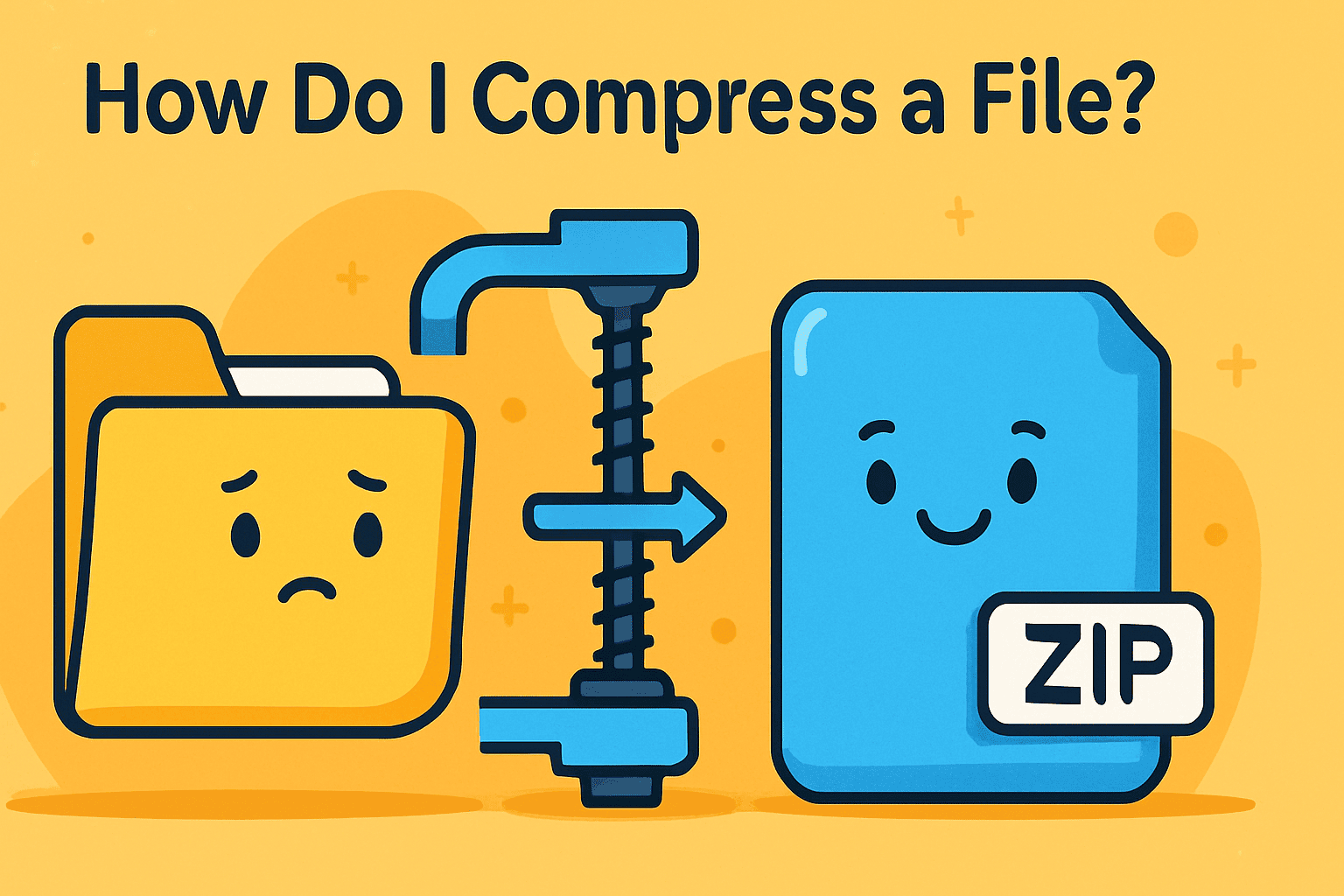
Have you ever struggled to send a file because it was “too large”? Whether it’s sharing a project report, uploading system logs, or backing up sensitive data, knowing how to compress a file can save time, storage, and frustration. In fact, compressed files can reduce size by 30%–80%, depending on format, making data transfers faster and more secure.
Introduction: Why File Compression Matters
For IT managers, cybersecurity experts, and business leaders, understanding file compression is more than convenience—it’s about efficiency, compliance, and secure data management. In this guide, we’ll break down what compression is, why it matters, and step-by-step instructions to compress files across platforms.
1. What Does File Compression Mean?
File compression is the process of reducing the size of a file or group of files using algorithms that eliminate redundancy or repackage data efficiently.
There are two main types of compression:
-
Lossless Compression: No data is lost. Common formats: ZIP, RAR, 7z, TAR.
-
Lossy Compression: Some data is discarded for smaller sizes. Common in media files (MP3, JPEG, MP4).
👉 For security-sensitive industries, lossless compression is preferred to maintain data integrity.
2. Benefits of File Compression in Cybersecurity and Business
Compression isn’t just about saving space—it directly impacts security and operational efficiency.
Key Advantages:
-
Faster Transfers: Smaller files upload/download quicker.
-
Reduced Storage Costs: Save space in cloud storage and local servers.
-
Enhanced Security: Encrypted archives (ZIP with AES-256) protect sensitive data.
-
Improved Backup Efficiency: Compressing log files and system snapshots speeds up recovery.
-
Cross-Platform Compatibility: Compressed files are easy to share between Windows, Linux, and macOS.
3. How Do I Compress a File in Windows?
Windows makes file compression simple without needing extra software.
Steps to Compress a File or Folder in Windows:
-
Right-click the file/folder.
-
Select Send to > Compressed (zipped) folder.
-
Windows creates a
.zipfile in the same location.
👉 For extra security, right-click the ZIP file → Properties > Advanced > Encrypt contents to secure data.
4. How Do I Compress a File on macOS?
On macOS, compression is built into Finder.
Steps for macOS:
-
Right-click (or Control-click) the file/folder.
-
Select Compress “[filename]”.
-
The system creates a
.zipfile automatically.
👉 For multiple files, select them together before compressing for a single archive.
5. How Do I Compress a File in Linux?
Linux offers flexibility with multiple tools and commands.
Popular Options:
-
ZIP Command:
-
TAR + GZIP:
-
7-Zip (if installed):
👉 Linux admins often use tar.gz for backups because it balances compression ratio and speed.
6. Using Third-Party Compression Tools
While built-in tools are handy, third-party software provides advanced options:
-
WinRAR: Popular for
.rararchives and strong password protection. -
7-Zip: Open-source, supports
.7zwith high compression ratios. -
PeaZip: Cross-platform, supports over 150 file types.
👉 For enterprises, these tools also support script automation for batch compression.
7. Best Practices for Secure File Compression
To combine efficiency with security, follow these practices:
-
Use Strong Passwords: Encrypt compressed archives with long, unique passwords.
-
Apply AES-256 Encryption: Avoid weak encryption like ZipCrypto.
-
Segment Large Archives: Break huge files into manageable parts (
split archives). -
Regularly Test Restorations: Ensure compressed backups can be extracted.
-
Integrate with DLP (Data Loss Prevention): Prevent unauthorized file sharing.
8. Common Issues When Compressing Files (and Fixes)
-
File Too Large: Use 7-Zip’s
.7zformat for better ratios. -
Corrupted ZIP: Always “verify archive” after creation.
-
Unsupported Format: Ensure recipients have tools that open
.7zor.rar. -
Slow Compression: Exclude already compressed formats (e.g., MP4, JPG) since gains are minimal.
9. File Compression and Cybersecurity
In industries like healthcare, finance, and government, compression intersects with compliance:
-
HIPAA & GDPR: Encrypted archives protect personal data during transfers.
-
Secure File Sharing: Compressed and encrypted email attachments reduce risks.
-
Incident Response: Logs are often compressed before being shipped to SOC teams.
👉 Example: Security teams compress forensic logs into .tar.gz files before transferring to analysts.
10. Quick Comparison of Compression Formats
| Format | Compression Type | Best Use Case | Security |
|---|---|---|---|
| ZIP | Lossless | Everyday file sharing | AES-256 supported |
| RAR | Lossless | Splitting large files | Strong encryption |
| 7z | Lossless | Maximum compression | AES-256 encryption |
| TAR.GZ | Lossless | Linux backups/logs | External encryption needed |
Recap: How Do I Compress a File
-
On Windows/macOS: Right-click → compress.
-
On Linux: Use
zip,tar, or7zcommands. -
For advanced control, use third-party tools like 7-Zip.
-
Always secure archives with encryption and strong passwords.
FAQs on File Compression
1. How do I compress a file without losing quality?
Use lossless formats like ZIP, RAR, or 7z.
2. Can I password-protect a compressed file?
Yes, tools like WinRAR and 7-Zip allow AES-256 password protection.
3. Why does my ZIP file size look bigger sometimes?
Already compressed files (like MP4 or JPG) won’t shrink much, and metadata can add size.
4. Which compression tool is best for business use?
7-Zip is excellent for high ratios, while WinRAR is best for secure splitting and archiving.
5. Is compressing files safe for sensitive data?
Yes, as long as you enable encryption and access controls.
Final Thoughts
Understanding how to compress a file is more than a productivity trick—it’s a fundamental skill for IT leaders and security professionals. By combining efficient formats, encryption, and automation, you can boost data security, reduce costs, and improve workflows.
🚀 Want enterprise-grade security for your organization?
Request a demo from Xcitium to explore next-gen protection beyond basic file management.