Have you ever copied a password, a credit card number, or a confidential work file — and then completely forgotten about it? That “invisible” data doesn’t just disappear. It sits quietly in your device’s memory until something (or someone) reads it. Knowing how to clear clipboard data on every device you use is one of the simplest, most overlooked habits in personal and enterprise cybersecurity, yet most people never do it.
In this guide, you’ll learn exactly how to clear clipboard history on Windows, Mac, Android, and iPhone, why clipboard data is a growing attack surface for hackers, and how to build clipboard hygiene into your daily online security routine.
What Is the Clipboard and Why Does It Matter for Your Security?
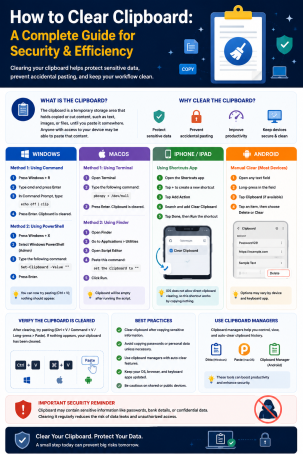
The clipboard is a temporary storage area your operating system uses every time you copy and paste. When you highlight text, an image, or a file and hit “copy,” that data is held in your device’s memory until you paste it somewhere — or until it’s overwritten by the next thing you copy.
The problem is that this temporary storage isn’t always as private as it feels. Malicious apps, malware, and even poorly secured browser extensions can read clipboard contents without your permission. Attackers use a technique called “clipboard hijacking” or “clipboard jacking” to silently swap copied cryptocurrency wallet addresses, steal copied passwords, or capture sensitive business data the moment you copy it. This is exactly why learning how to clear clipboard data regularly, and understanding what triggers a clipboard security risk, matters for anyone who values online privacy.
Why You Should Clear Clipboard Data Regularly
Most people copy sensitive information dozens of times a day without thinking twice — one-time passcodes, banking details, API keys, internal documents, or personal identification numbers. Here’s why making it a habit to clear clipboard data protects you:
- Prevents clipboard hijacking attacks. Malware designed to monitor the clipboard can intercept copied cryptocurrency addresses and replace them with an attacker’s wallet address in milliseconds.
- Reduces exposure from shared or public devices. If you copy a password on a shared computer and forget to clear the clipboard, the next user can paste and view it instantly.
- Limits data leakage through apps. Some mobile apps have been caught reading clipboard content in the background, even when users never intended to paste anything into them.
- Supports compliance and data hygiene. For businesses handling regulated data (healthcare, finance, legal), clipboard security is part of a broader data-loss-prevention strategy.
Now let’s walk through exactly how to clear clipboard history on every major platform.
How to Clear Clipboard on Windows
Windows keeps a clipboard history if the feature is enabled, meaning multiple copied items can be stored — not just the last one. Here’s how to clear clipboard content on a Windows PC.
Clear Clipboard Using a Keyboard Shortcut
The fastest way to clear clipboard data on Windows 10 and Windows 11 is:
- Press Windows key + V to open Clipboard History.
- Click Clear all at the top of the panel.
This instantly wipes every item stored in your clipboard history.
Clear Clipboard via Windows Settings
You can also clear clipboard data through the Settings app:
- Open Settings > System > Clipboard.
- Toggle Clipboard history off, then back on — this clears saved entries.
- Alternatively, click Clear under the Clipboard data section.
Clear Clipboard Using Command Prompt
For IT teams or advanced users who want a quick clipboard clearing method via script, Command Prompt offers a one-line solution:
- Open Command Prompt.
- Type
cmd /c "echo off | clip"and press Enter.
This command overwrites the current clipboard entry with an empty value, effectively clearing the clipboard without touching the Settings menu.
How to Clear Clipboard on Mac
macOS doesn’t keep a visible multi-item clipboard history by default, but it still retains the last copied item in memory until it’s overwritten. To clear clipboard data on a Mac:
- Copy an empty space or a single character (like a period) using Command + C, then delete it — this overwrites sensitive copied data with a harmless placeholder.
- For a more permanent solution, open Terminal and run:
pbcopy < /dev/null. This command clears the clipboard instantly at the system level. - If you use a third-party clipboard manager app, open its history panel and manually delete stored entries, since these apps often retain data far longer than the built-in macOS clipboard.
How to Clear Clipboard on Android and iPhone
Mobile devices are increasingly targeted for clipboard-based attacks because so many people copy one-time passcodes and crypto wallet keys on the go.
Clear Clipboard on Android
- Open your Gboard (or default keyboard) and tap the clipboard icon above the keyboard.
- Tap the trash/delete icon next to individual items, or select Clear all.
- On some Android versions, you can also go to Settings > Apps > [Keyboard app] > Storage > Clear data to fully reset clipboard history.
Clear Clipboard on iPhone
iOS does not offer a built-in “clear clipboard” button, so the practical way to clear clipboard content on an iPhone is:
- Copy a blank space or unrelated short text to overwrite the previous clipboard item.
- Restart your iPhone — this clears the clipboard from active memory since iOS does not persist clipboard data after a reboot.
- Review clipboard access permissions under Settings > Privacy & Security to see which apps have recently accessed your clipboard.
How to Clear Clipboard in Your Browser
Browser extensions and web apps can also read clipboard data if you grant permission. To clear clipboard access at the browser level:
- Open your browser’s site settings (e.g., Chrome > Settings > Privacy and Security > Site Settings > Clipboard).
- Revoke clipboard read/write permissions for any site you don’t recognize or no longer trust.
- Clear your browsing data, including cached content, which can sometimes retain copied form data.
Best Practices to Keep Your Clipboard Secure
Clearing your clipboard once isn’t enough — real protection comes from consistent habits:
- Avoid copying passwords manually. Use a password manager with autofill instead of copy-paste whenever possible.
- Set a short clipboard history retention window if your OS allows it, so old entries expire automatically.
- Double-check pasted cryptocurrency addresses character-by-character before confirming a transaction, since clipboard hijacking malware specifically targets wallet addresses.
- Limit third-party clipboard manager apps to trusted, well-reviewed software only.
- Keep your operating system and antivirus software updated, since many clipboard hijacking exploits target outdated system vulnerabilities.
- Restart shared or public devices after use so temporary memory, including the clipboard, is reset.
How Xcitium Helps Protect Your Data Beyond the Clipboard
Clearing your clipboard is a smart, simple step — but it only addresses one small piece of a much larger threat landscape. Malware capable of clipboard hijacking often arrives through phishing emails, malicious downloads, or compromised websites, and once it’s on a device, it can do far more than watch what you copy and paste. Xcitium’s endpoint protection, powered by Zero Trust architecture, isolates unknown and suspicious files before they can execute, run, or monitor system activity like clipboard content — stopping threats before they ever reach your sensitive data.
Frequently Asked Questions About Clipboard Security
1. How do I clear clipboard data without restarting my device?
On Windows, press Windows key + V and select “Clear all.” On Mac, run pbcopy < /dev/null in Terminal. Both methods clear clipboard content instantly without a restart.
2. Does clearing the clipboard delete copied files permanently?
No. Clearing the clipboard only removes the reference held in temporary memory. If you copied a file, the original file remains untouched on your storage drive.
3. Can hackers really steal data from my clipboard?
Yes. Clipboard hijacking malware monitors copied content and can silently replace cryptocurrency addresses or capture copied passwords and personal data, which is why learning how to clear clipboard content regularly matters.
4. Does clipboard history sync across devices, and is that a risk?
On many ecosystems (like Windows with a Microsoft account, or iOS/macOS with Universal Clipboard), clipboard content can sync across linked devices. If one device is compromised, that synced data may be exposed too, so clearing the clipboard on all connected devices is recommended.
5. How often should I clear my clipboard?
There’s no fixed rule, but you should always clear clipboard content immediately after copying sensitive information like passwords, one-time codes, or financial details — and periodically clear general clipboard history as part of routine device hygiene.
Take Clipboard Security Seriously — Before an Attacker Does
Knowing how to clear clipboard data is a small habit with a big security payoff, but it’s only one layer of defense in an era of increasingly sophisticated cyber threats. Businesses and individuals alike need protection that goes beyond manual habits and catches malicious activity — including clipboard hijacking attempts — before damage is done.
See how Xcitium’s Zero Trust endpoint protection can secure your organization’s data at every layer. Request a Demo today.
Please give us a star rating based on your experience.


 (13 votes, average: 2.31 out of 5, rated)